Automating Logistics Operations: Generate 100+ Delivery Notes from Excel
Warehouse teams still spend mornings copying customer names, addresses, and SKU lists from an Excel order dump into a Word delivery-note template. Each note looks the same. Each note is slightly different. That is logistics document automation in its most expensive form: a person, a spreadsheet, and a template, repeated a hundred times.
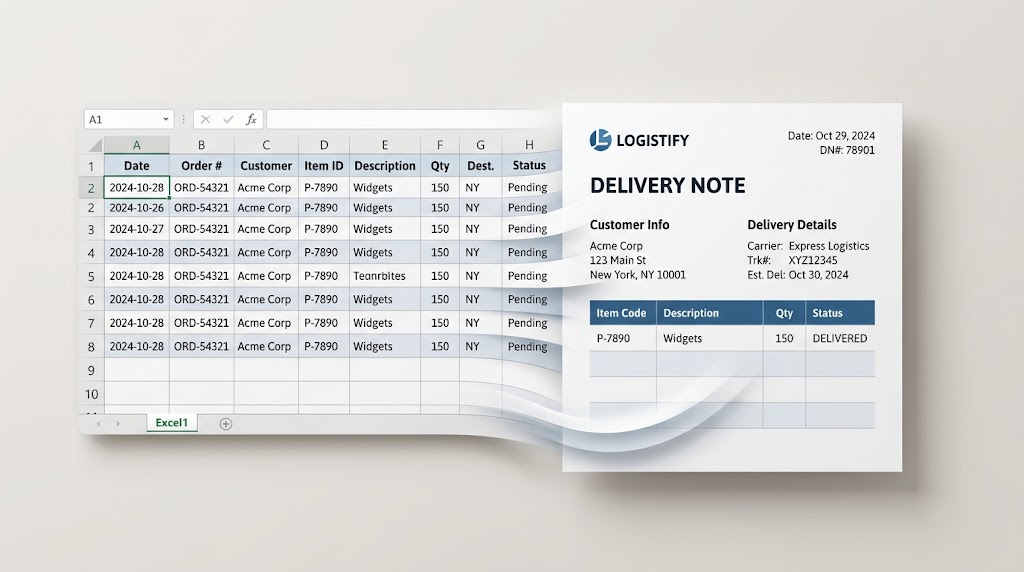
This guide shows how to generate delivery notes from Excel with TRYDOKU: design one Word template, upload the order sheet, and download a ZIP of Word files — one document per row. Each note can also be downloaded as a PDF from the success view when you need a print-ready copy.
Workflow at a glance:
- Design template in Word (
.docx) using{{placeholder}}fields and{> items }}loop rows.- Upload your Excel/CSV export (1 row = 1 delivery note, up to 500 rows/batch).
- Map spreadsheet columns to template placeholders in TRYDOKU composer.
- Generate batch → Download
.docxZIP or individual print-ready PDFs.
Why delivery notes are a copy-paste trap
A delivery note (also called a packing slip or dispatch note) is the document that travels with the goods. The warehouse needs it at pick time. The driver needs it at the door. The customer uses it to check what arrived. The data almost always already exists in a WMS export, an ERP report, or a shared Excel workbook:
- Order or delivery-note number
- Ship-to name and address
- Carrier and tracking number
- Requested delivery date
- Line items: SKU, description, quantity, unit
The bottleneck is not collecting the data. It is retyping it into a branded Word layout without swapping two street numbers or dropping a line item. Word Mail Merge can fill simple fields, but it fights with tables, PDF output, and batch ZIP downloads. VBA macros live on one person's laptop. Neither is a good fit when the morning pick list has 100+ rows and the afternoon cutoff is in forty minutes.
If this pattern shows up in invoices as well as shipping docs, the same Excel-to-document path is covered in Automate Invoice Generation from Excel. Delivery notes have the same shape: one header per consignment, plus a table of goods.
What you will build
You need two files:
- A Word (
.docx) delivery-note template with placeholders such as{{customer_name}}and a repeating table row for SKUs. - An Excel (
.xlsx) or CSV workbook with one row per delivery note.
TRYDOKU merges each spreadsheet row into the template and returns one Word document per row. Download the batch as a ZIP of .docx files, or open the success view and take a PDF of any individual note. There is no VBA, no Mail Merge field codes, and no local Office install on the server.
One generation batch accepts up to 500 rows. A hundred notes is one run. A thousand notes is two runs. Do not plan a single click for 10,000 files.
Step 1: Design a clean delivery-note template in Word
Start from the paper or PDF your warehouse already uses. Recreate that layout in Microsoft Word and save it as .docx — not .doc, .rtf, or PDF. TRYDOKU reads the Word XML; older binary formats will not parse.
Keep the static branding (logo, company address, terms) as normal Word content. Replace only the values that change per shipment with double-brace placeholders. Placeholder names should use letters, numbers, and underscores — no spaces.
A typical header:
Delivery note {{dn_number}}
Ship to: {{customer_name}}
{{address_line_1}}
{{address_line_2}}
{{city}}  {{postal_code}}  {{country}}
Carrier: {{carrier}}    Tracking: {{tracking_number}}
Delivery date: {{delivery_date}}
Style the placeholders the way the finished text should look. Bold {{customer_name}} in Word if the name should print bold. The substituted value keeps that formatting. Type each placeholder in one go; if Word splits the braces across different runs (common when you pause mid-tag and change font), the parser may miss the variable. Highlight the tag, clear formatting, and retype it if a field comes out blank.
For dates: if you later mark delivery_date as a date column in TRYDOKU, values must be YYYY-MM-DD (for example 2026-08-18). Other formats are rejected. Store that column as text in Excel, or format it to ISO dates before upload.
More placeholder rules, including conditionals, are in How to Create a Word Template with Placeholders.
Repeating SKU rows
Most delivery notes are not a single line. Put a Word table under the header. In the first body row, place the loop markers in the first and last cells:
| Column | Cell contents |
|---|---|
| 1 (SKU) | {> items }}{{sku}} |
| 2 (Description) | {{description}} |
| 3 (Qty) | {{quantity}}{< items }} |
That is the supported loop syntax: {> items }} opens the block and {< items }} closes it. Do not use Mustache {> items }} / {< items }} — those strings are treated as ordinary placeholders and will print literally.
The table row between the markers is cloned once per line item. Keep column widths fixed in Word so a long description does not shove the quantity column off the page. Details and nested examples live in dynamic loops for Word templates.
Optional blocks
Cash-on-delivery, Saturday delivery, or a hazardous-goods warning can sit in a conditional:
{% if is_cod %}
Collect payment on delivery: {{cod_amount}}
{% endif %}
If is_cod is empty or false, the block is omitted. Use this for notes that share one template but not one set of clauses.
Step 2: Prepare the Excel order list
TRYDOKU treats one spreadsheet row as one output document. That matches a warehouse export where each row is already a delivery: one DN number, one address, one tracking code.
Use the first row as headers. Names do not have to match placeholders exactly — the import dialog lets you map columns — but matching names (customer_name, dn_number) saves a mapping step. Supported uploads are .xlsx, .xls, and CSV.
Example header row for a simple note (no nested SKUs yet):
dn_number, customer_name, address_line_1, city, postal_code, country, carrier, tracking_number, delivery_date
Each following row is one shipment. Fill every mapped field you expect to print. Empty or unmapped cells are omitted from the payload, so the matching {{placeholder}} can remain visible in the Word file instead of becoming blank text.
Flat spreadsheet vs nested ERP output
- Flat CSV/XLSX: Best when 1 row = 1 shipment. If several SKUs belong on one note, group them first or add them in the composer item editor.
- JSON API (
POST /api/v1/generate): Best for multi-line nested items coming straight from a WMS/TMS webhook.
A flat sheet does not auto-group several SKU rows into one delivery note. If your WMS dumps one row per SKU, you will get one document per SKU unless you pivot first so each order is a single row. After upload, add SKUs for that row in the composer's item editor (the loop column). For nested line items, send JSON through the document generation API: each object in the data array is one note, and items is an array of SKUs.
If the file is .xlsx and a downstream tool only accepts CSV, the browser-only Excel to CSV converter can flatten it on your machine before import.
Step 3: Upload the template and the sheet
Create a TRYDOKU account and open the composer.
- Upload the
.docxtemplate. TRYDOKU extracts placeholders and loop names from the file. - Open Import, then drag the workbook onto the dashed drop zone (or choose the file). Map columns to placeholders if the names differ.
- Spot-check the grid: one row per note, dates in
YYYY-MM-DDif the column is typed as date, loop items filled for any note that needs a SKU table. - Generate from the composer. Credits are charged per accepted non-empty row when the batch is created. A later failure on a row is not refunded, so fix mapping and required fields before you click generate.
Output is one Word document per row. The batch ZIP contains those .docx files. From the success view you can also download any single note as a PDF — PDFs keep the Word layout and are the usual choice for the warehouse printer and the carrier portal.
Excel and CSV upload is the same composer path used here. Other data sources are listed on integrations. The full composer flow is in the user docs.
What “100+ notes in a ZIP” looks like in practice
A morning export with 120 orders is one batch (under the 500-row cap). You get 120 Word files in a single ZIP — not 120 Save As clicks, and not one merged 120-page document you have to split by hand.
Download PDFs one note at a time from the success view when you need print-ready copies for the pick face. Attach the ZIP of Word files when a dispatcher still needs to annotate before the van leaves. If a single address is wrong, fix that row in the grid and generate again; the new run is billed as a new batch, but you do not have to rebuild the template.
This is the same bulk pattern as invoices and certificates. Document busywork is the wider list of copy-paste jobs this replaces.
Time saved: a worked example, not a benchmark
TRYDOKU does not publish a timed throughput figure for delivery notes. The useful comparison is the manual baseline.
If filling one delivery note from Excel into Word takes about three minutes (open template, paste fields, save or print, next row), then:
| Notes | Manual time at 3 min each |
|---|---|
| 100 | 5 hours |
| 500 | 25 hours |
| 1,000 | 50 hours (2 batches of 500) |
Three minutes is an illustration, not a measured warehouse study. If your team is faster or slower, scale the table. The automation cost is one credit per accepted row, plus the time to keep the Word template and column mapping in sync when the WMS export changes.
New accounts receive a free document allowance on signup; the current amount is on the pricing page. Do not budget a production day of 500 notes against that welcome balance.
When Excel is not enough
Stay on the spreadsheet path when a coordinator exports a daily sheet and needs a ZIP of Word notes before the vans leave.
Switch to the API when:
- Line items already exist as nested records in the WMS
- Notes must generate from a webhook or nightly job without a person uploading a file
- You need the same template from a TMS, Shopify export pipeline, or internal admin tool
The HTTP surface is POST /api/v1/generate with a Word template and a data array. A legal-team walkthrough of that endpoint is in programmatic contract and NDA generation; the payload shape is the same for a delivery note, only the placeholders change.
TRYDOKU is hosted in the EU (Frankfurt). Read the current processing and retention description on the security page before you put customer addresses into a batch. Do not treat a blog post as the data-processing agreement.
Frequently asked questions
Can I generate PDF delivery notes instead of Word?
Yes. After generation you can download each file as .docx or as a PDF from the success view. The batch ZIP is Word files only. PDF is the usual print-ready format; Word is useful if a dispatcher still needs to annotate a note before it leaves.
Do I need Excel macros or Mail Merge?
No. The template is ordinary Word text with {{placeholders}} and {> items }} loops. The data file is a normal workbook. You map columns and start generation from the composer; merging runs on the server.
How do I put several SKUs on one delivery note?
Use a table row wrapped in {> items }} … {< items }}. Fill those items in the composer for that row, or send a nested items array via the API. A flat Excel file with one SKU per row will produce one document per SKU unless you reshape it first.
How many delivery notes can I generate at once?
One batch is capped at 500 rows (and 500 ZIP entries). Split larger exports. Credits are taken when the batch is accepted, including rows that later fail.
What date format should I use?
If the placeholder is configured as a date field, use YYYY-MM-DD only. Spreadsheet serial dates and 18/08/2026 will not pass that check.
Can I start from a TRYDOKU template gallery delivery note?
There is no dedicated delivery-note template in the public gallery at the time of writing. Upload the Word file your warehouse already prints. The gallery is at /templates if you want a different starting layout.
To try the flow on a small sheet, create an account (no credit card required) and upload the Word file your warehouse already prints. Run a handful of rows before the next dispatch wave.