Document Automation Software for Small Businesses: A Practical Guide

Document automation software can help a small business turn approved data into consistent contracts, quotes, reports, invoices, certificates, and other files. The useful question is not whether automation sounds efficient. It is whether a specific document process is stable enough to automate and important enough to justify the change.
This guide shows how to find a suitable first use case, compare methods, estimate the real cost, run a pilot, and avoid buying a system that creates more work than it removes.
What document automation software does
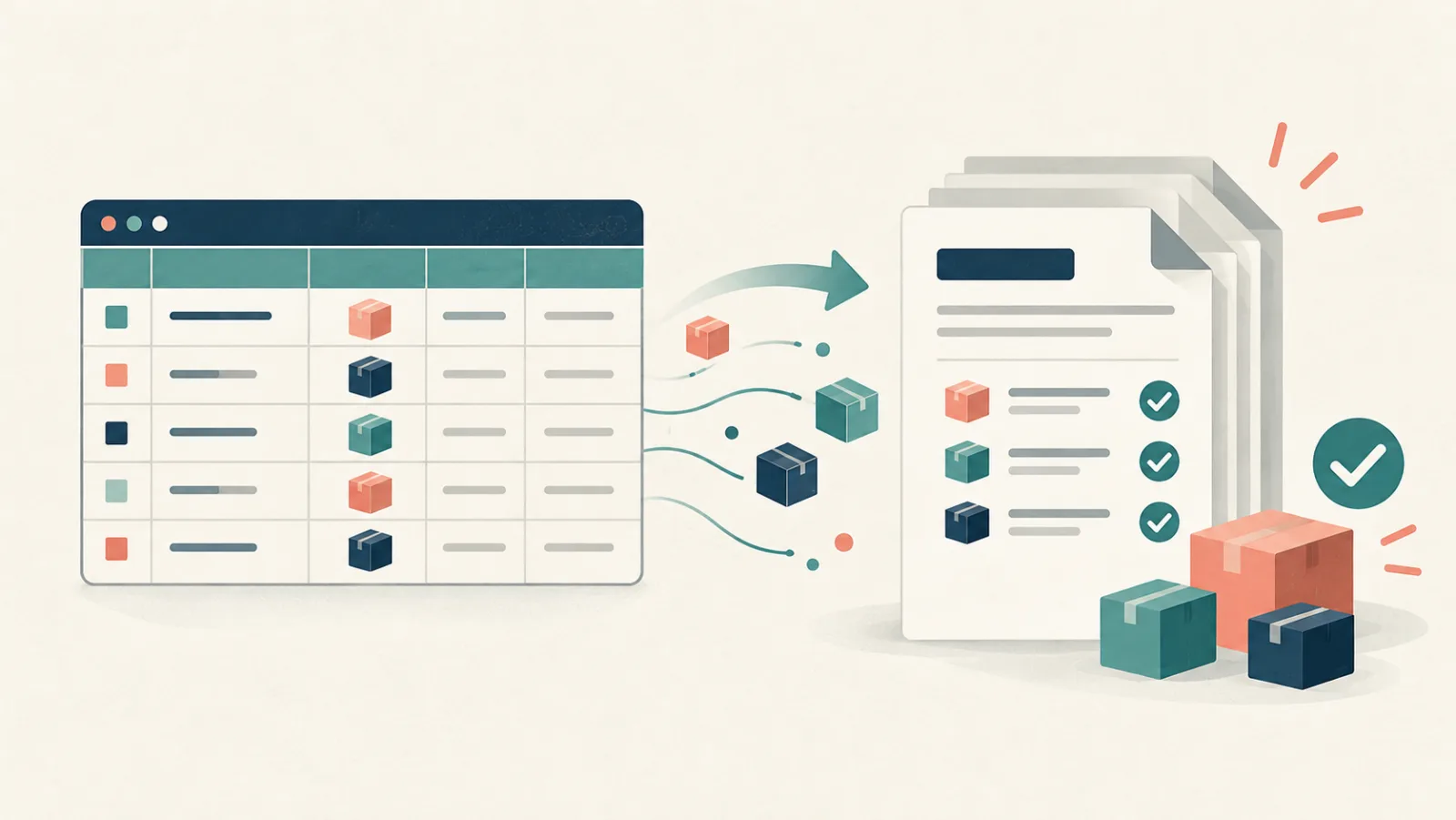
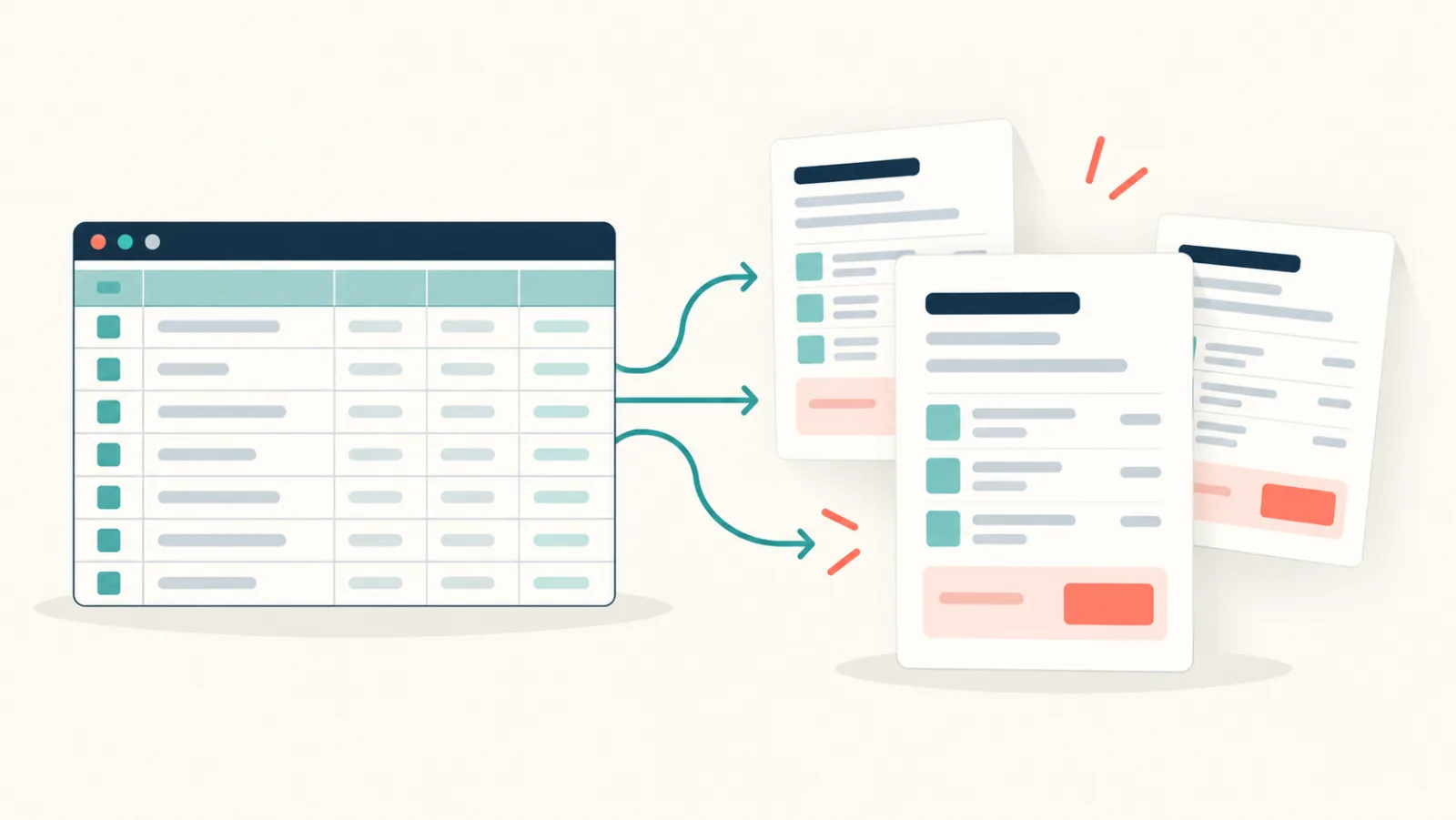
A basic document automation workflow has three parts:
- A template defines the layout and fixed wording.
- A data source supplies the values that change.
- Software combines them to produce one or more documents.
The template may be a Word file. The data may come from Excel, CSV, Google Sheets, a form, or an application. Output may be Word, PDF, or both.
This is different from document management. Document management focuses on storing, finding, approving, and retaining files. It is also different from electronic signature software, which handles signing. Some platforms cover several parts, but small businesses should check each function rather than assume it is included.
Signs that a process is ready to automate
Look for work where staff repeatedly open the same file, replace the same fields, save a copy, and repeat. Good candidates often have:
- an approved layout;
- clear input data;
- repeated fields;
- several documents per week or month;
- costly copy-and-paste errors;
- predictable output rules; and
- a named process owner.
Common examples include offer letters, service agreements, purchase orders, proposals, training certificates, delivery notes, and routine reports.
A poor first candidate changes structure every time, contains mostly free-form expert writing, or has no agreed owner. Automating a disputed process tends to hide the dispute rather than solve it.
Start with the cost of the current process
You do not need an elaborate business case. Measure one real batch.
Record:
- how many documents are made;
- average preparation time per document;
- review and correction time;
- the number of people involved;
- common errors;
- time spent naming, saving, and sending files; and
- any delay caused by waiting for the work.
Then estimate the same work under the proposed process. Include template setup, data cleaning, staff training, review, subscription or usage costs, and maintenance.
Avoid dramatic savings claims based on a perfect test. A pilot should include exceptions, review time, and the work needed to fix source data.
Compare the main approaches
Small businesses usually consider manual editing, desktop mail merge, a custom script, or a document automation service.
| Question | Manual editing | Word Mail Merge | Custom script | TRYDOKU |
|---|---|---|---|---|
| Uses a Word design | Yes | Yes | Depends on build | Yes |
| Suitable for repeated batches | Limited | Often | Yes | Yes |
| Requires coding | No | No | Yes | No for the web workflow |
| Produces separate files | Manual saving | Depends on workflow | Can be built | Supported workflow |
| Ongoing owner | Process staff | Process staff | Developer | Process owner |
| Best fit | Rare, unique documents | Familiar desktop merges | Custom system logic | Template plus structured data |
The right choice depends on volume, risk, available skills, and the systems already in use. Mail merge may be enough for a small address-label job. A custom script may be right when the document is part of a larger application. A browser-based service may suit a team that already has a Word template and spreadsheet data.
For a focused comparison, use the mail merge alternative checklist.
Choose a narrow first use case
Do not begin with “automate all documents.” Pick one process with a visible result and manageable risk.
A good pilot might be:
- 25 monthly customer reports from a checked spreadsheet;
- 40 course certificates from an attendee list;
- 15 purchase orders from approved request data; or
- a weekly batch of delivery notes.
Define success in plain terms. For example: every source row produces one identifiable file; all required fields are present; no placeholder remains; and the reviewer can finish the batch in less time than before. If the business needs filenames built from customer or document data, test that rule separately instead of assuming every batch tool supports it.
The target should include quality, not only speed.
Check the input formats
List where data comes from today. Is it in .xlsx, CSV, Google Sheets, a CRM, or several emails? If the team must copy values from five places into a new spreadsheet, the automation may only move the manual work.
Check whether the software accepts the actual source format. Also check:
- whether the first row must contain headers;
- how dates and numbers are interpreted;
- how empty values behave;
- whether repeated line items are supported;
- how special characters are handled; and
- how errors are shown before generation.
If the source is Excel, this guide to automating document generation from Excel covers the basic setup.
Check template control
Small teams often care about keeping an existing Word design. Ask whether staff can edit the template in Word, or whether they must rebuild it in a proprietary editor.
Also test:
- headers and footers;
- tables;
- page numbers;
- fonts;
- images;
- long values;
- page breaks;
- conditional or optional sections; and
- repeating rows.
No sales page can answer how your own template behaves. Run a real sample with the longest names and most complex tables.
For placeholder preparation, see how to create Word template placeholders.
Decide what output the business needs
Word and PDF serve different purposes. Word is useful when an authorized person must make a final edit. PDF is useful when the layout should stay stable for sending or archiving.
Ask whether the software can produce:
- one document per data row;
- predictable file names;
- a combined download for a batch;
- Word, PDF, or both; and
- an error report for rows that failed.
“Predictable” does not always mean “built from spreadsheet values.” Some tools use a row number and template name. Write down the exact naming rule your storage process requires and include it in the pilot.
Do not assume generated PDFs are signed, tamper-proof, or legally final. Those properties require separate controls.
Review security and privacy in context
Document data may include customer names, addresses, prices, employee information, or contract terms. Before uploading real data, ask:
- where data is processed and stored;
- how files are protected in transit and at rest;
- when uploads and outputs are deleted;
- who can access an account;
- whether roles or access controls fit the team;
- whether activity records are available where needed;
- which subprocessors are used; and
- whether the provider's terms fit your legal duties.
Do not rely on a badge or a broad statement such as “secure.” Review the current documentation and contract. Your own organisation remains responsible for deciding which data may be used.
Understand pricing beyond the headline
Pricing models may be per user, per document, per credit, per API call, or a combination. Estimate a normal month and a busy month.
Include:
- all people who need access;
- documents generated during retries;
- Word and PDF output if counted separately;
- storage or integration fees;
- minimum subscription periods;
- implementation help; and
- the staff time needed to maintain templates.
A low monthly price is not useful if the plan omits the output format or volume you need. A higher price may still be poor value if the tool adds review work.
Test support and recoverability
Small businesses often have no spare administrator. Ask practical questions:
- Can another employee understand the template?
- Can templates and source files be exported?
- What happens when a batch fails?
- Can a failed row be corrected without repeating everything?
- Is support available in the team's working hours?
- Is there clear documentation?
- Can the team return to the manual process during an outage?
Keep the original Word template and source data under your control. A simple fallback prevents one software issue from stopping urgent work.
Run a two-stage pilot
Stage 1: controlled examples
Use synthetic or non-sensitive data. Test one normal record and several difficult records. Check field mapping, empty values, dates, number formats, file names, and page layout.
Stage 2: a real supervised batch
Choose a small real batch and keep the old process available. Have the normal process owner review every generated file. Record problems and how long each step takes.
Do not scale after one clean demonstration. Repeat the process at least enough times to expose variations in the source data.
Build simple ownership rules
Every automated document needs named owners:
- a business owner for the process;
- a content owner for standard wording;
- a data owner for source quality;
- a template owner for layout and placeholders; and
- an approver for the final output, where required.
In a small company, one person may hold several roles. Naming the roles still matters. Otherwise, a template can remain unchanged long after an address, price, term, or regulation changes.
Keep a basic version record with the template name, version, approval date, owner, and summary of changes.
Common buying mistakes
Buying before mapping the process
Software cannot resolve unclear approvals or conflicting data sources. Map the current workflow first.
Choosing only on feature count
Most teams use a small part of a large feature list. Test the exact workflow that matters.
Ignoring source-data cleanup
If names, dates, and identifiers are inconsistent, generation will reproduce those inconsistencies neatly. Plan validation as part of the project.
Automating a high-risk document first
Start with a controlled, reviewable process. Learn how templates, data, and exceptions behave before moving to more sensitive documents.
Removing human review too early
Automation reduces repetitive entry. It does not understand the business meaning of every value. Keep review proportional to the risk.
A small-business evaluation checklist
Before choosing software, confirm:
- the first use case has a clear owner;
- input data is available in a supported format;
- the current Word design can be used or rebuilt without loss;
- separate Word or PDF files can be produced as needed;
- file naming works for the team's storage process;
- difficult examples render correctly;
- security and privacy terms have been reviewed;
- normal and peak costs are understood;
- the team can export its templates and data; and
- a manual fallback remains available.
Frequently asked questions
Is document automation only useful for large companies?
No. A small team may benefit when it repeatedly creates the same type of document. The value depends on the process, volume, error cost, and setup effort.
Do we need a developer?
Not always. A template-and-spreadsheet workflow can be run without code. A developer may be needed when documents must be generated from an application or connected to several systems.
Should we automate every document?
No. Unique, low-volume, or judgement-heavy documents may be easier to prepare manually. Start with stable, repeated work.
How long should a pilot take?
Long enough to include real variations and at least one supervised batch. The number of days matters less than testing the cases that usually cause corrections.
Start with one useful result
A small first workflow is easier to judge. One trusted template, one clean data source, and one reviewed batch reveal the real setup and review work.
If your chosen process uses Word templates and spreadsheet data, you can create a TRYDOKU account and test it with non-sensitive examples. Measure preparation and review time, record every correction, and expand only when the result is easier to control than the old process.