How to Generate Multiple Word Documents from an Excel List
If you spend hours every week manually copying and pasting data from Excel into Word documents, you are not alone. Whether you're generating invoices, contracts, employee letters, or personalized reports, manual data entry is slow, tedious, and prone to costly human errors.
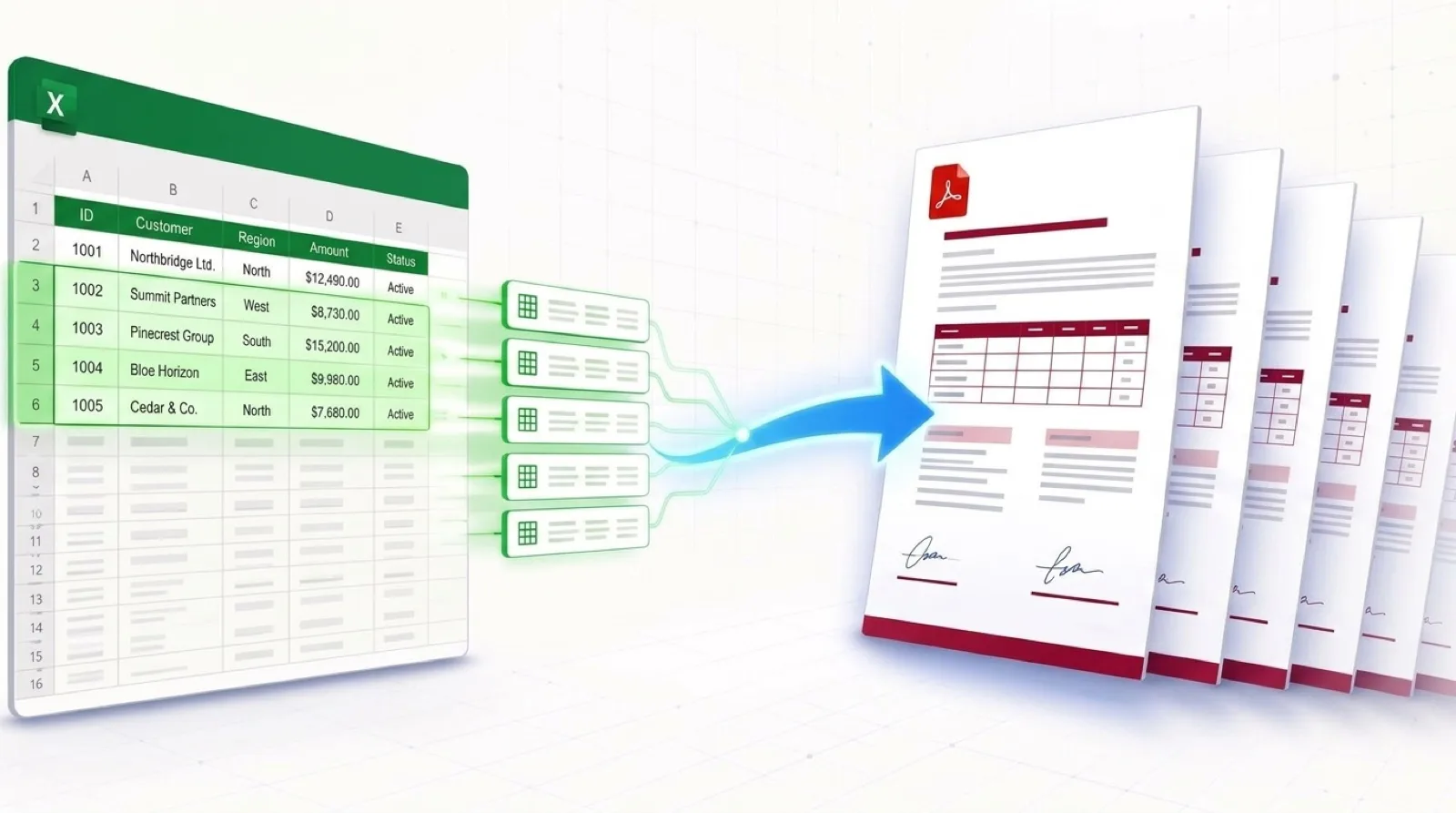
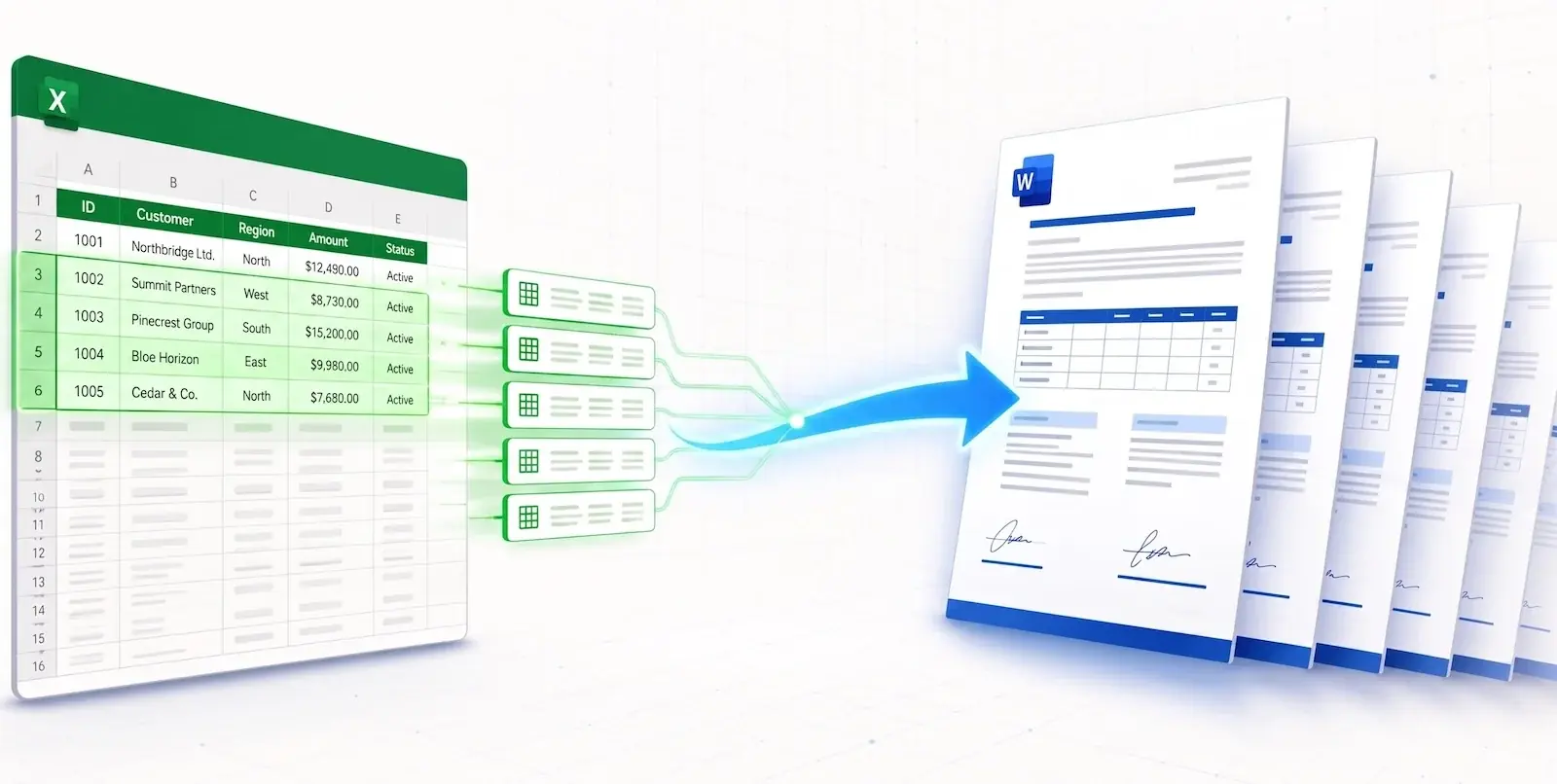
In this comprehensive guide, we will show you exactly how to generate multiple Word documents from an Excel list automatically. By the end of this tutorial, you will be able to turn any Excel spreadsheet into hundreds of perfectly formatted Word documents in a matter of minutes. If you are evaluating different approaches, check out our guide on finding the right mail merge alternative.
How to Generate Multiple Word Documents from an Excel List
Creating documents in Word from Excel data manually takes roughly 2-3 minutes per document. If you have 100 rows of data, that's 5 hours of mind-numbing work. When you generate multiple Word documents from an Excel list with TryDoku, you turn those 5 hours into 3 minutes:
- Eliminate Errors: No more typos or pasting data into the wrong fields.
- Save Time: Reclaim hours of your week for high-value strategic work.
- Scalability: Generate 10 documents or 10,000 documents with the same click of a button.
Comparing Methods: Word Mail Merge vs. VBA vs. TryDoku
Before automating your documents, it helps to understand the trade-offs between traditional office tools and modern cloud automation:
| Feature / Capability | Word Mail Merge | VBA / Python Scripts | TryDoku Cloud Automation |
|---|---|---|---|
| Setup Complexity | Complex field codes, desktop Outlook required | Requires programming, macro permissions | No code, simple {{placeholder}} tags |
| Dynamic Repeating Rows | ❌ Unsupported / Broken formatting | ⚠️ High maintenance custom scripts | ✅ Native dynamic loops ({> items }}) |
| Output Formats | DOCX or email only | DOCX, PDF (if Office installed) | Instant DOCX & PDF in bulk ZIP |
| Cloud & API Access | ❌ Desktop only | ❌ Local environment dependent | ✅ 100% Web UI & REST API webhook |
Step-by-Step: Generate Word Documents from Excel Data
Step 1: Prepare your Excel spreadsheet
The first step is to organize the data you want to export. Open your Excel spreadsheet. Make sure your data is organized in a clean table where the first row contains your headers (e.g., "First Name", "Company", "Invoice Amount"). You can also convert spreadsheets on-the-fly with our free Excel to CSV converter or Excel to Word table tool.
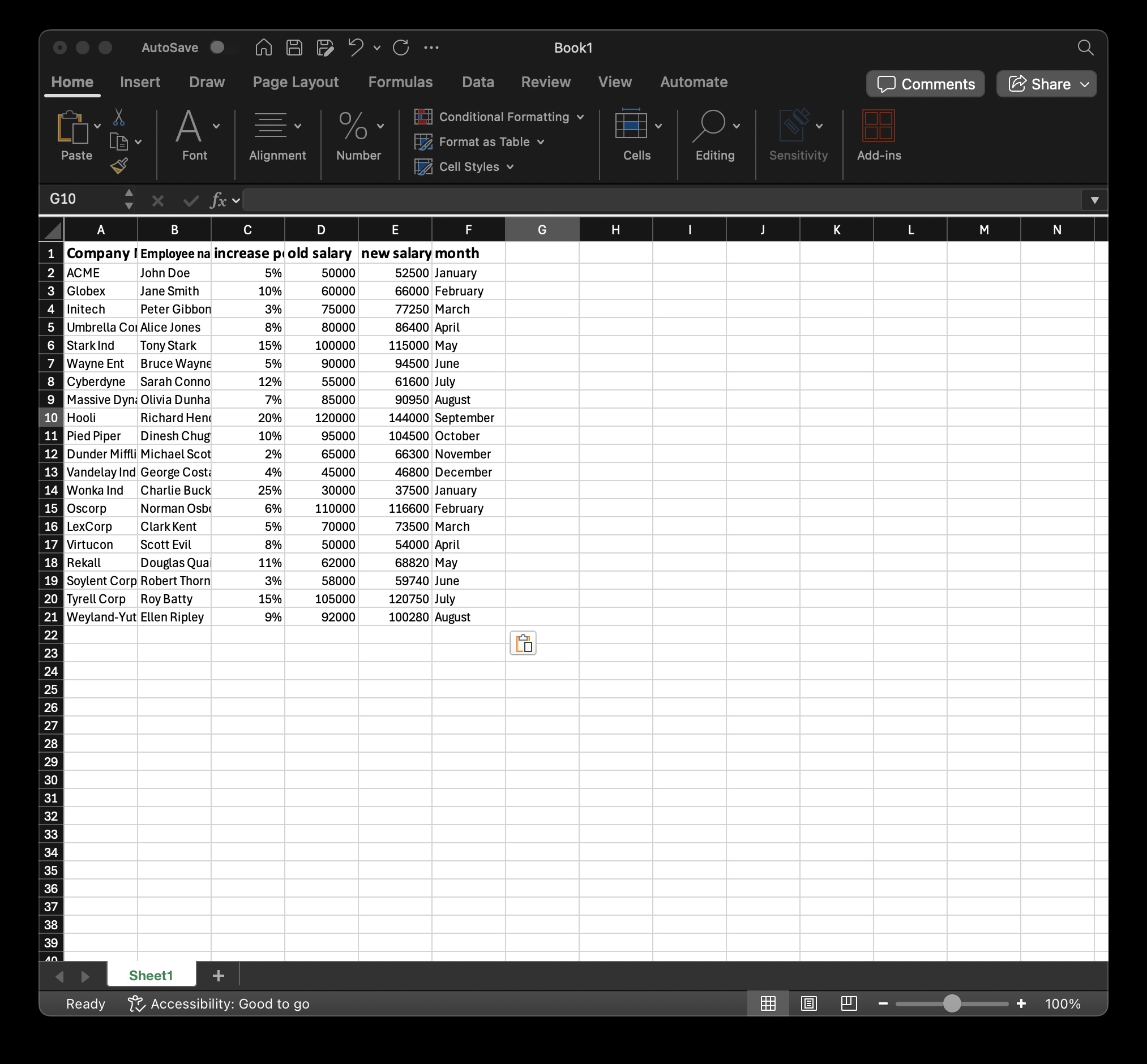
Each column header will become a variable placeholder in your Word template. Ensure there are no empty rows or merged cells in your dataset.
Step 2: Create a Word template
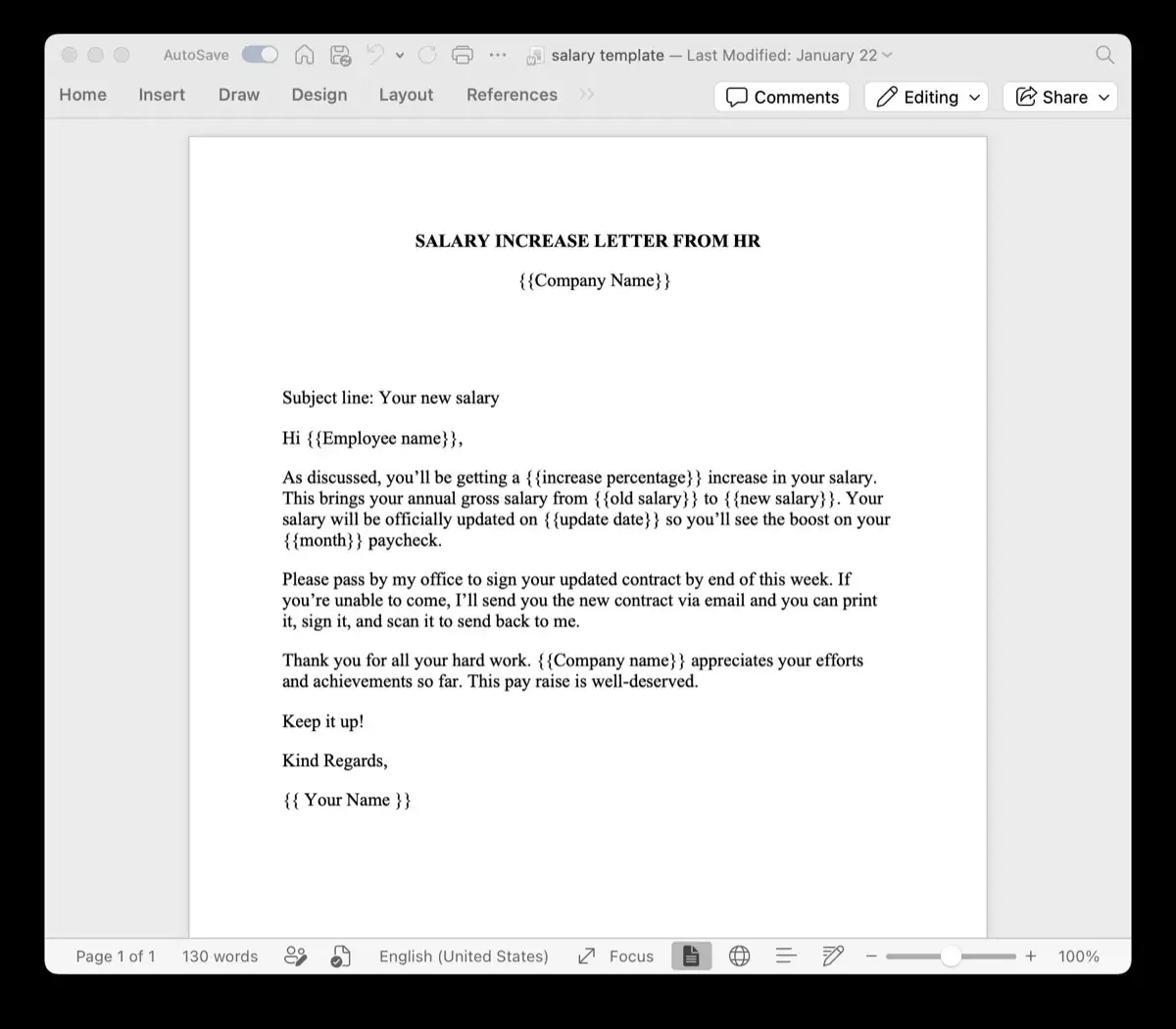
Next, open Microsoft Word and design your document exactly how you want the final output to look. Where you want the Excel data to appear, insert a placeholder wrapped in double curly braces.
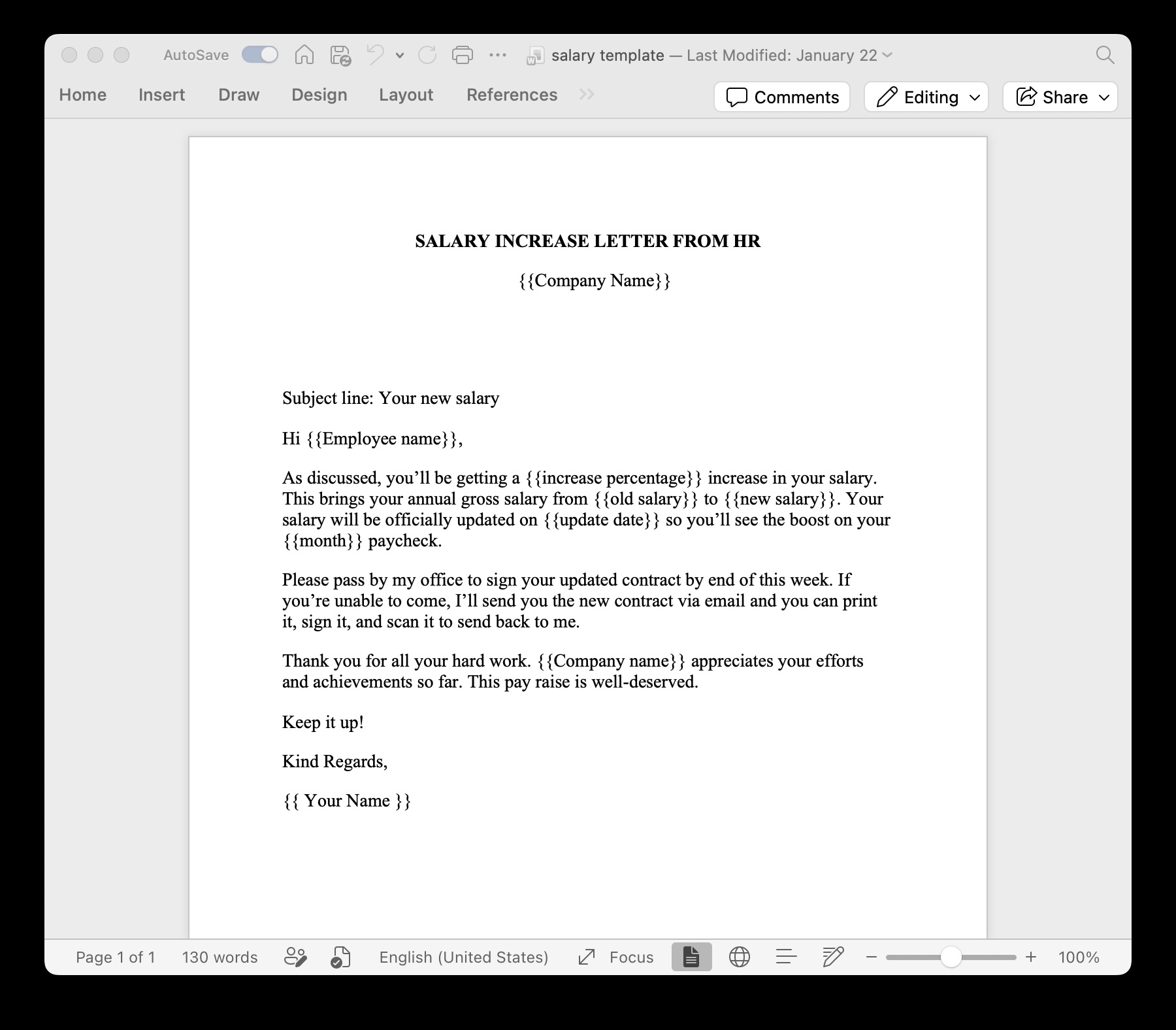
For example, if your Excel column header is "First Name", type {{First Name}} in your Word document. You can place these anywhere—in the main text, inside headers, footers, or even within tables. If you have line items, learn how to repeat table rows with dynamic loops.
Step 3: Upload your template to TRYDOKU
Now that your data and template are ready, it's time to connect them. Log in to TRYDOKU and upload your prepared .docx file to the Template Dashboard.
Our engine will automatically parse your document and detect all the {{placeholders}} you created to ensure they are ready for mapping. (You can also pre-validate variables and download a matching spreadsheet using our free Word template placeholder inspector).
Step 4: Import your Excel data
Upload your .xlsx Excel file to the TRYDOKU composer. The platform uses this spreadsheet as the row-by-row data source for your new documents.
Step 5: Map columns to placeholders
TRYDOKU will auto-match your Excel column headers to the placeholders in your Word template. You can review and confirm the mapping visually. If a column name differs slightly from a placeholder, you can simply select the correct column from a dropdown menu.
Step 6: Download generated documents
Click the "Generate" button. The system will automatically produce one uniquely filled document per Excel row. You can then download all the generated documents in a single, organized ZIP file, or convert them directly to PDF.
Automatic Word Document Generation from Excel without Code
For organizations looking to eliminate manual document preparation entirely, cloud-based automatic word document generation removes the technical bottlenecks of legacy macros and desktop software. You get reproducible, enterprise-grade output every time without risking spreadsheet macro security warnings or broken layout formatting.
Frequently Asked Questions
How do I generate multiple Word documents from an Excel list?
You can generate multiple Word documents from an Excel list automatically by uploading a .docx template containing {{placeholder}} tags to TryDoku, importing your Excel spreadsheet, mapping columns to placeholders, and clicking Generate to create batches of personalized documents in seconds.
Can I automate Word documents from Excel without writing VBA code?
Yes! TryDoku is a 100% web-based document automation platform that eliminates the need for complex VBA macros, Office add-ins, or desktop software installations.
How do I handle repeating table rows or line items from Excel in Word?
Use dynamic loop syntax in your Word template, such as {> items }} and {< items }} around table rows. TryDoku will automatically repeat table rows for each item or record without breaking document formatting.
What is the best alternative to Microsoft Word Mail Merge for Excel?
TryDoku provides a modern cloud-based alternative to Word Mail Merge. It supports dynamic repeating rows, conditional blocks, batch ZIP downloads, direct PDF conversion, and does not require Microsoft Outlook or desktop Office 365.