How to Create Purchase Orders from Excel Data

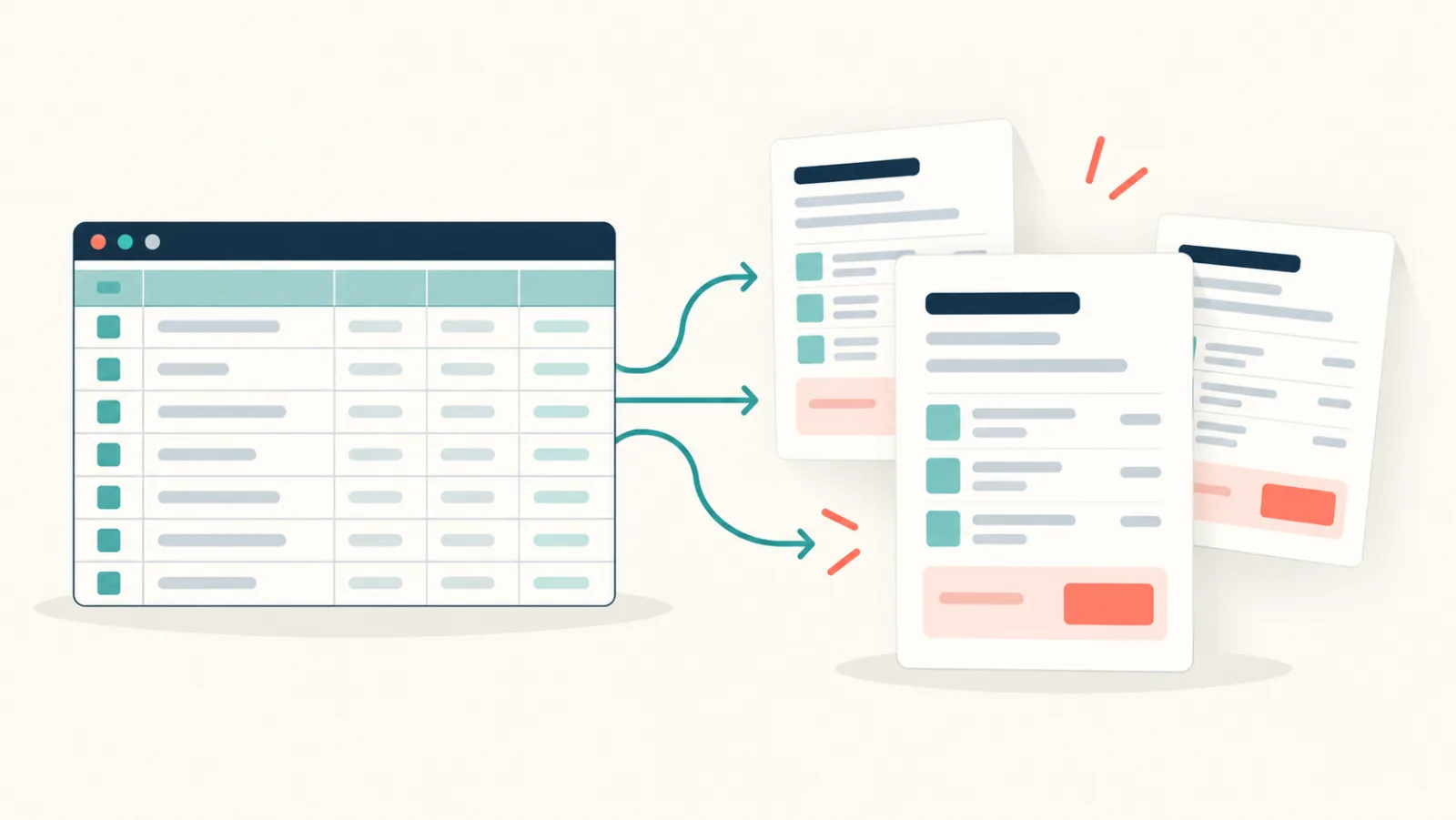
Creating purchase orders from Excel data works best when the source sheet, Word template, and review process follow the same structure. The finished purchase orders should be easy for buyers, suppliers, and finance teams to check without guessing where a value came from.
This guide explains how to turn spreadsheet rows into separate purchase order documents. It focuses on the practical work: choosing the right row structure, building a reusable Word template, handling line items, naming the files, and checking the result before it is sent.
When a spreadsheet-based purchase order process makes sense
Many small teams already keep purchasing data in Excel or Google Sheets. The sheet may contain approved requests, supplier details, delivery dates, item descriptions, and agreed prices. If that data is clean, it can become the source for a document-generation process.
This approach is useful when:
- the purchase order layout is mostly fixed;
- the values change for each supplier or order;
- staff create several purchase orders at once;
- each order needs its own Word or PDF file;
- an ERP purchase module would be too large for the current workflow; or
- the team wants to keep an approved Word design.
It is less suitable when stock, approvals, budgets, and supplier records must update each other in real time. A full procurement system is better for that. Document automation prepares the files; it does not replace purchasing controls.
Start with one row per purchase order
The safest starting point is one spreadsheet row for each purchase order. Each column holds one value that may appear in the document.
| PO_Number | Supplier_Name | Supplier_Address | Order_Date | Delivery_Date | Currency | Total |
|---|---|---|---|---|---|---|
| PO-1042 | Nordwerk GmbH | Hafenweg 18, Hamburg | 20 October 2026 | 28 October 2026 | EUR | 2480.00 |
| PO-1043 | Lindholm Office AB | Storgatan 7, Malmö | 20 October 2026 | 30 October 2026 | SEK | 18900.00 |
Choose clear column names and keep them stable. Supplier_Name is easier to map than a vague heading such as Name. Avoid blank headers, merged cells, decorative title rows, and totals placed below the main data table.
Keep identifiers as text when leading zeroes matter. A purchase order number such as PO-0017 should not become PO-17. Dates and currency values also need a deliberate display format. The value stored in the sheet and the value shown to a supplier are not always the same.
For a wider explanation of spreadsheet structure, see how to populate a Word template from Excel.
Decide how to represent line items
A purchase order usually has one header and several item rows. That creates the main design choice.
Option 1: a fixed number of item columns
For very small orders, the spreadsheet can contain columns such as Item_1_Description, Item_1_Quantity, and Item_1_Price. This is easy to understand, but it becomes awkward when some orders contain two items and others contain twenty.
Option 2: structured repeating items
A better long-term model keeps order-level data separate from an item collection. Each item contains values such as:
- description;
- SKU or internal code;
- quantity;
- unit;
- unit price;
- tax rate; and
- line total.
The Word template then uses a repeating table row. This is the right choice when item counts vary. Before adopting it, confirm how your document tool expects repeating data to be structured. Test an order with no items, one item, and many items.
Option 3: one line per spreadsheet row
Some teams store each item on its own spreadsheet row and repeat the purchase order number. This format is useful for analysis, but it must be grouped before one document can contain several items. Do not assume a document tool will group these rows automatically. Define that transformation as a separate step.
Build a Word purchase order template
Create the approved layout in Word. Keep company details, payment instructions, standard terms, and table headings as fixed content. Add placeholders only where the data changes.
For example:
Purchase order: {{PO_Number}}
Order date: {{Order_Date}}

Supplier:
{{Supplier_Name}}
{{Supplier_Address}}

Deliver to:
{{Delivery_Name}}
{{Delivery_Address}}

Requested delivery: {{Delivery_Date}}
Currency: {{Currency}}
Use the same placeholder names as the spreadsheet headers. Exact names reduce mapping mistakes and make the template easier for another person to maintain. The free Word template variable parser can help you inspect placeholders before a generation run.
In the item table, keep each value in its own cell. Do not type several fields into one long placeholder. Separate cells make alignment, number formatting, and empty values easier to manage.
Add the terms that people actually need
A purchase order is not only a list of products. It often needs operational instructions. Your template may include:
- billing and delivery addresses;
- buyer name and contact details;
- supplier reference;
- delivery method;
- payment terms;
- tax details;
- cost centre or project code;
- requested delivery date;
- approval name or status; and
- a note about where invoices should be sent.
Do not add fields simply because another company uses them. Ask finance, purchasing, and the person receiving the goods which values they need. Each extra field creates another value that can be missing or wrong.
Legal and tax requirements vary by country and business. Have the final template checked by the person responsible for purchasing and accounting. A document-generation tool can place data into a template, but it cannot decide whether your terms are correct.
Prepare data before generating files
The best quality check happens before document generation. Add spreadsheet validation where possible and flag rows that are not ready.
At minimum, check:
- Every row has a unique purchase order number.
- The supplier name and address are present.
- Dates use one consistent interpretation.
- Quantities and prices are numeric.
- Currency is present and valid for the order.
- Line totals match quantity multiplied by unit price.
- The order total matches the sum of its lines.
- Approval has been recorded outside the document-generation step.
Treat totals as a control, not decoration. If the spreadsheet calculates a total, compare it with the document output. If the document tool also performs calculations, decide which system is authoritative and test rounding rules.
Generate separate Word or PDF purchase orders
With TRYDOKU, the basic workflow is:
- Prepare a
.docxpurchase order template. - Add placeholders that match the source fields.
- Upload the template and provide the spreadsheet data.
- Review the field mapping.
- Generate the required Word or PDF documents.
- Download the results and complete the business review.
Editable Word output is useful when an approved employee must make a final change. PDF is useful when the layout should remain stable for sending and archiving. Some teams keep both: Word as a controlled working copy and PDF as the issued record.
If you want a broader overview of the same pattern, read how to automate document generation from Excel.
Plan file names for work outside the ZIP
Do not name files only purchase-order.pdf. The files will become hard to identify after download or forwarding.
A useful downstream pattern is:
PO-1042_Nordwerk-GmbH_2026-10-20.pdf
Include a stable identifier first. Supplier names help people scan a folder, and an ISO-style date sorts correctly. Avoid characters that cause problems across operating systems, such as slashes, colons, or quotation marks.
The file name should not expose information that should remain private. For example, do not place bank details, personal phone numbers, or confidential project descriptions in the name.
TRYDOKU currently names downloaded files with the source row number and a cleaned version of the Word template name, such as 1-purchase-order.docx. Spreadsheet values do not directly control that name. If your archive requires the purchase order number or supplier name, keep a planned name column in Excel and rename the files after download while the row order is unchanged. The guide to naming generated Word files from Excel data explains that process.
Review a sample before generating the full batch
Always test the edges, not only the cleanest row. A useful sample contains:
- the longest supplier name;
- a multi-line address;
- the largest item count;
- a description long enough to wrap;
- a zero-value discount, if allowed;
- a non-default currency;
- an optional field left blank; and
- characters such as
&,ö, orø.
Open the generated Word file and PDF. Check page breaks, table headers, totals, footer placement, and whether a long item description pushes important content onto a new page. Then compare the visible values with the source row.
For a larger batch, review a small random sample plus every row flagged by your validation rules. Keep the source spreadsheet and issued files under your normal record-retention policy.
Common mistakes to avoid
Using one cell for a full address
This can work, but inconsistent line breaks make the output unpredictable. Separate address fields are easier to validate. If the source system provides one block, test it with both short and long addresses.
Mixing currencies in one order
One order should normally use one stated currency. If prices come from several sources, convert or separate them before generation. Do not let a currency symbol imply a rule that the spreadsheet does not enforce.
Treating a draft as an approved order
Generation and approval are different actions. A produced PDF is not proof that the purchase was authorized. Keep the approval record in the system or process your company uses for that purpose.
Hiding spreadsheet errors with a polished template
A clean document can make incorrect data look convincing. Validate supplier records, totals, dates, and identifiers first. Formatting is not a substitute for control.
Editing generated files without updating the source
If someone changes a generated order by hand, the spreadsheet no longer matches the issued file. Either update the source and regenerate, or record the manual change clearly.
A practical operating checklist
Before each batch, confirm:
- the correct template version is being used;
- all required rows are approved;
- placeholder names still match the data fields;
- totals and currencies have been checked;
- the output format is correct;
- file names are unique;
- a sample has been reviewed; and
- the issued files will be stored in the right location.
Also assign an owner for the template. When bank details, addresses, tax wording, or approval rules change, that person should update the master file and record the new version.
Frequently asked questions
Can Excel create a separate purchase order for every row?
Yes, if each row represents one order and a document-generation workflow maps those fields into a template. Orders with several line items need an agreed structure for grouping or repeating item data.
Should purchase orders be generated as Word or PDF files?
Use Word when a controlled editing step is still required. Use PDF for a stable issued copy. Your process may keep both, but it should make clear which file is the final record.
Can Google Sheets be used instead of Excel?
Yes. Copy the selected rows into the TRYDOKU data grid, or export the sheet as .xlsx or CSV before upload. This is an import, not a live two-way sync. Keep the same rules: one clear header row, consistent values, stable identifiers, and validation before generation.
Does document automation approve the purchase?
No. It creates the document from supplied data. Budget checks, authorization, supplier approval, and record retention remain separate business controls.
Build the process around clean data
The Word template is the visible part of a purchase order workflow, but the spreadsheet structure determines whether the result can be trusted. Start with clear headers, stable order identifiers, explicit currencies, and a tested line-item model. Review a difficult sample before processing the full set.
When the sheet and template are ready, you can create a TRYDOKU account and test the process with a small batch. Keep the first run as a draft until purchasing and finance have checked the layout and values.