Mail Merge Alternative Checklist: What to Compare Before You Switch
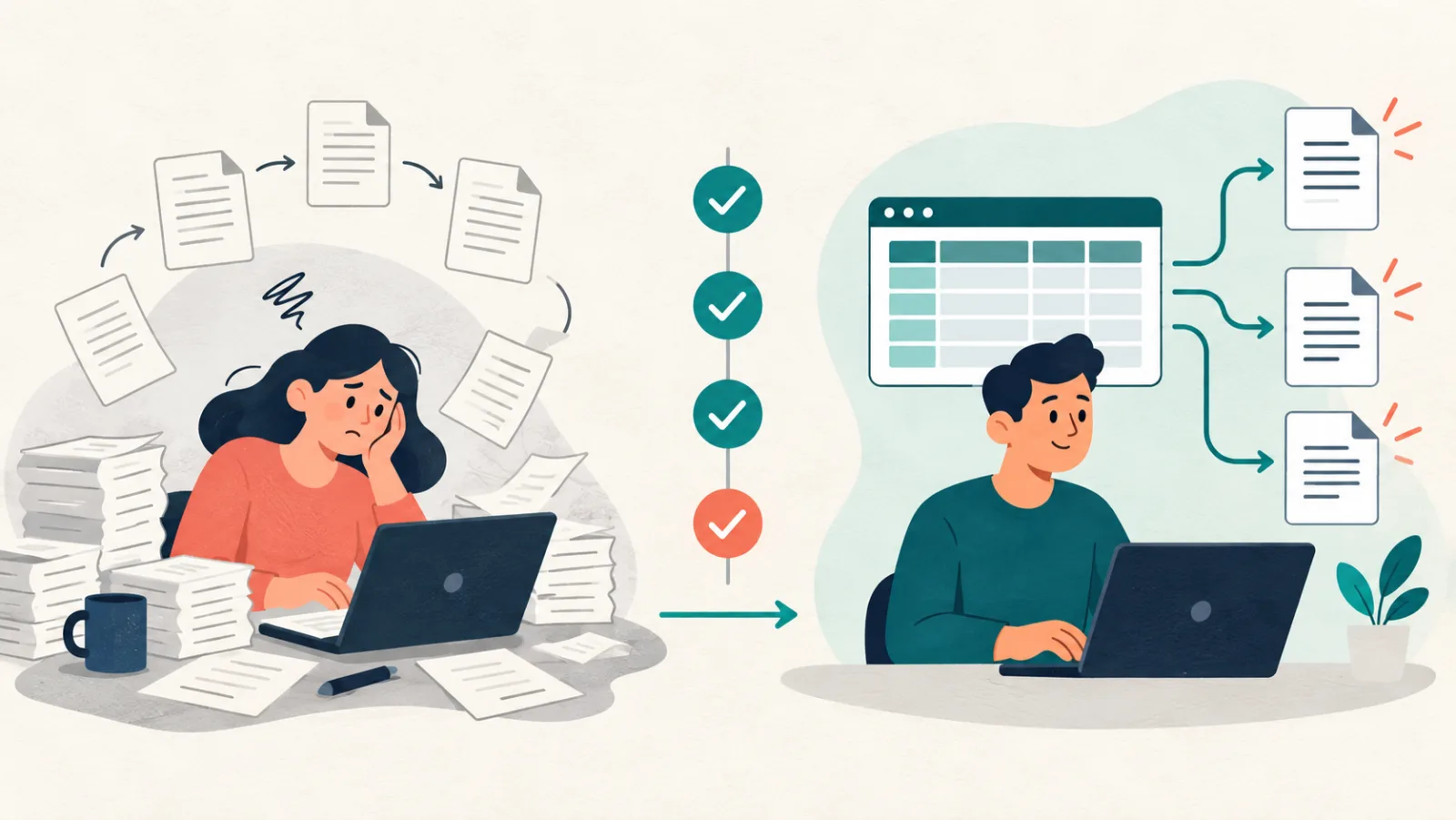
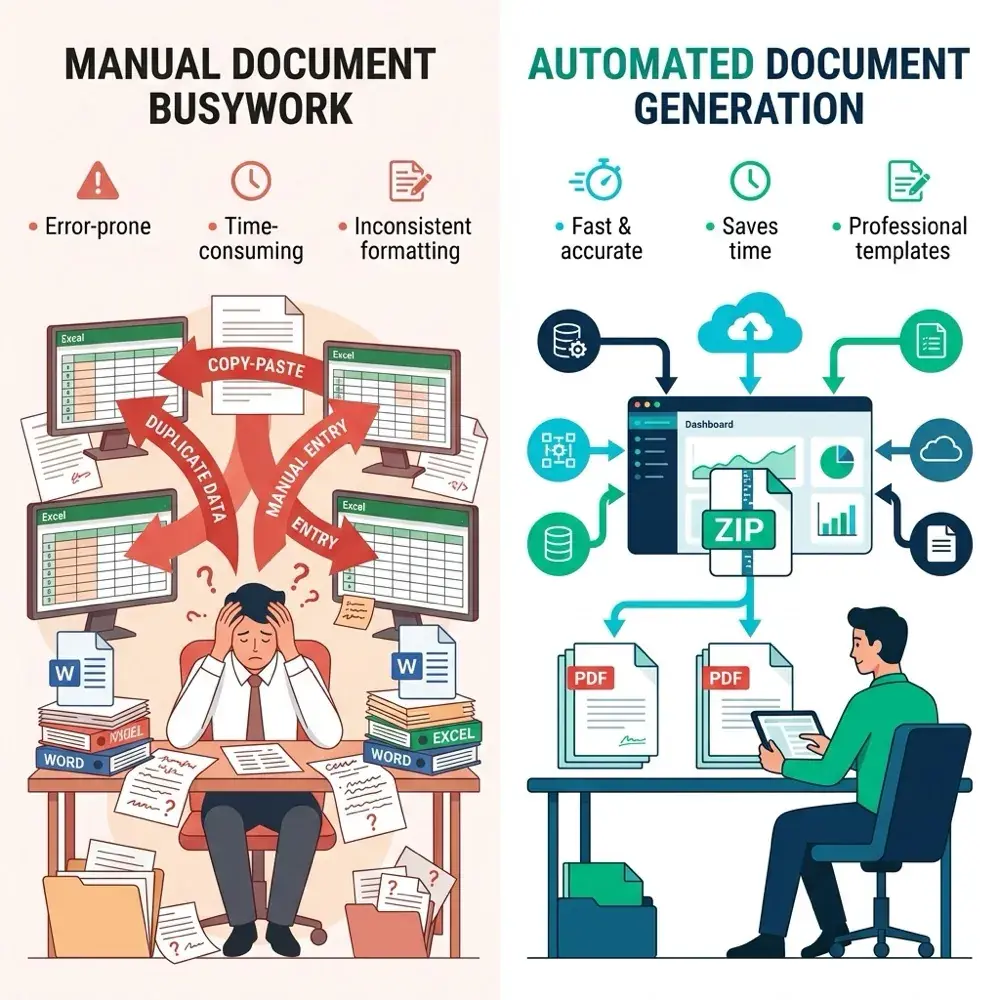
A mail merge alternative should solve the part of your current workflow that causes trouble. It should not force the team to rebuild every template, change every data source, or accept a new set of manual steps.
This checklist is for teams comparing desktop mail merge with browser-based document automation, add-ins, scripts, or custom systems. It focuses on evidence you can collect during a trial: files, error messages, timings, security documents, and a clear cost estimate.
First, write down why you want to switch
Mail merge is still useful for many jobs. If you need to print a small set of standard letters from an Excel list, the built-in Word workflow may be enough.
Teams usually look for an alternative when they need:
- one separate file per record;
- PDF output without manual saving;
- clear, data-based file names;
- variable-length table rows;
- a browser-based process;
- repeatable batch downloads;
- an API or connection to another system;
- simpler training for occasional users; or
- clearer handling of mapping errors.
Rank these problems. A product that fixes the highest-priority issue may be a better choice than one with a longer general feature list.
Checklist 1: can you keep the Word template?
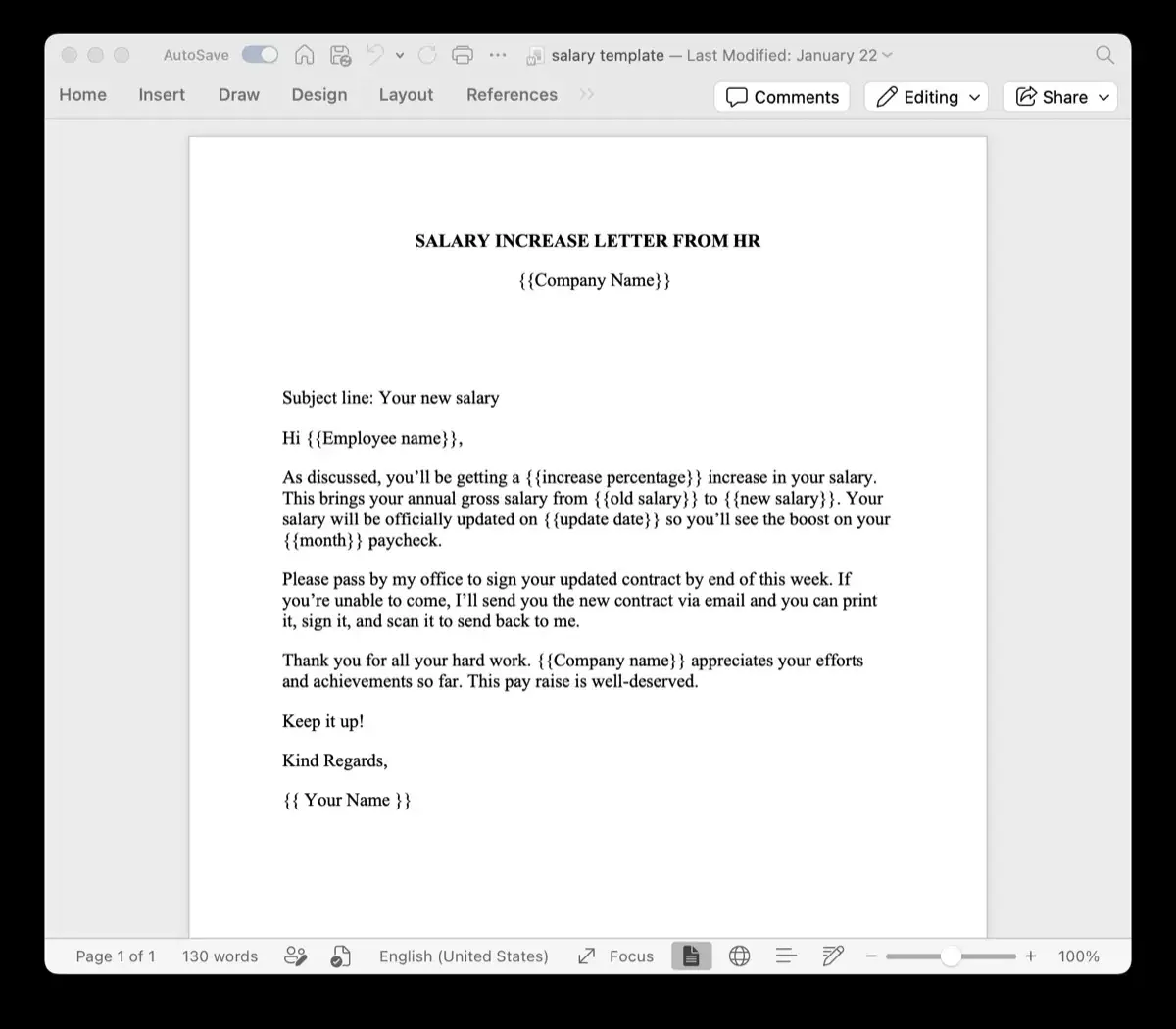
If the team already has approved Word files, replacing the template system can be expensive. Check whether the alternative uses a normal .docx file or imports content into its own editor.
Test:
- paragraphs and styles;
- headers and footers;
- tables and borders;
- page numbers;
- logos and other images;
- numbered lists;
- manual page breaks;
- fonts; and
- signature blocks.
Do not rely on a screen preview. Download the generated Word file and open it in the application your team uses. If PDF is required, compare that output separately.
Checklist 2: how are merge fields created?
Traditional mail merge uses Word merge fields. Alternatives may use simple placeholders, a visual mapping screen, content controls, or a proprietary template language.
Ask a regular template owner to:
- Add a field.
- Rename it.
- Move it into a table.
- Find an unmatched field.
- Explain what an empty value will do.
A syntax such as {{Client_Name}} is easy to read, but the surrounding rules still matter. Check case sensitivity, allowed characters, and whether formatting can split a placeholder.
The Word template variable parser can help inspect placeholders in a Word file.
Checklist 3: does it accept your real data source?
List what the team uses today: .xlsx, CSV, Google Sheets data, a CRM export, a web form, or an internal application.
Test the actual source format with:
- dates;
- leading zeroes;
- decimal and thousands separators;
- currency values;
- blank cells;
- multi-line addresses;
- special characters;
- duplicate names; and
- unused columns.
If data needs to be copied into a special sheet before every run, include that step in the time and risk comparison.
For a clean spreadsheet setup, read how to populate a Word template from Excel.
Checklist 4: can it create separate files?
This is a common reason to leave a desktop mail merge workflow. Test the exact output rule you need.
Confirm:
- one row creates one file;
- each file has a unique name;
- the name can include a stable identifier;
- unsafe file-name characters are handled;
- duplicate names do not overwrite files;
- failed records are listed; and
- the batch is easy to download.
A useful file name might be:
SOW-2026-081_Bergmann-Systems.pdf
Do not put confidential details into the file name. File names often appear in email logs, download history, and shared folders.
Check this requirement explicitly when evaluating TRYDOKU. Its current download names use the source row number and a cleaned template name; spreadsheet fields do not directly set the filename. If data-based names are required, plan and test a rename step after download. Do not score that requirement as native support.
If separate PDFs are your main requirement, see how to save mail merge as individual PDF files.
Checklist 5: does PDF output match Word?
PDF output can expose font, spacing, and page-break differences. Create a test pack that includes the hardest pages in your normal documents.
Check:
- page count;
- line wrapping;
- table width;
- repeated table headings;
- footer position;
- page numbers;
- image quality;
- links; and
- non-English characters.
Decide what happens when the Word document is edited after generation. If PDF is the final record, there must be a clear step to create it again from the approved Word version.
Checklist 6: can it handle lists and repeating rows?
Mail merge works well for flat fields. It is less comfortable when one record contains a variable number of invoice lines, deliverables, products, attendees, or findings.
Ask the alternative to generate:
- one record with no items, if allowed;
- one with a single item;
- one with many items;
- one with a long description; and
- one whose table crosses onto another page.
Look for empty rows, broken borders, duplicate headings, and lost items. Find out how the source data must be structured and whether staff can maintain that structure.
Checklist 7: what happens to optional content?
An empty field should not leave text such as “Discount:” with nothing after it. An optional section should not leave an empty page.
Test at least one blank value in every optional area. Ask whether the system can:
- hide a label and value together;
- remove an empty table row;
- remove a whole section;
- use a safe default; or
- stop generation when the field is required.
The right behaviour differs by document. A blank middle name may be fine. A blank currency in a contract fee may not be.
Checklist 8: are errors clear?
Create errors on purpose. Use an unknown placeholder, remove a required column, add an invalid date, and provide a record that creates a duplicate file name.
The system should identify the affected field or record. Record how long a normal user takes to understand and fix the problem.
Also ask whether one bad row blocks the whole batch. A partial batch can save time, but it needs a clear report so missing files are not overlooked.
Checklist 9: does it fit the team's devices and access rules?
Desktop mail merge ties the workflow to installed office software. A browser-based alternative may be easier for mixed devices, but it introduces account and network requirements.
Check:
- supported browsers and operating systems;
- whether desktop Word is still needed for template editing;
- account roles;
- multi-factor authentication options;
- how access is removed when staff leave;
- whether several people can use the same template safely; and
- whether shared credentials are prohibited.
Test the workflow on the devices staff actually use.
Checklist 10: how is data protected?
Mail merge can run on a local computer. A cloud alternative processes data outside that machine, so the review must cover the provider and your own account setup.
Ask:
- where data is processed;
- how it is protected in transit and at rest;
- how long source and output files are retained;
- how deletion works;
- which subprocessors are involved;
- what staff access is possible;
- what contractual data terms are available; and
- how incidents are handled.
Use sample data until the service is approved for the intended information. Match the review to the sensitivity of the documents rather than treating every merge as identical.
Checklist 11: can the process be automated later?
You may start with manual uploads and later connect the workflow to a CRM or application. If that is likely, check API availability and terms now.
Review:
- authentication;
- input format;
- output retrieval;
- rate and file-size limits;
- error responses;
- retries;
- duplicate prevention;
- testing support; and
- documentation.
Do not make API access a requirement merely because it sounds flexible. It has value only when someone owns the integration.
Checklist 12: what does it really cost?
Compare the whole workflow, not only the subscription price.
Include:
- user seats;
- document or credit charges;
- Word and PDF output;
- retries and tests;
- API access;
- setup work;
- template conversion;
- support;
- training; and
- ongoing administration.
Calculate a normal month and a peak month. Compare that with the staff time and error handling in the current process.
Checklist 13: can you leave without rebuilding everything?
An exit plan is part of a sound purchase. Confirm that you can keep:
- your source Word templates;
- source spreadsheets;
- generated files;
- placeholder documentation; and
- process notes.
Check whether templates remain usable outside the service. Keep a manual fallback for urgent jobs.
A simple comparison table
Use a table like this for each option and attach evidence from the trial.
| Area | Current Mail Merge | Custom Script | TRYDOKU |
|---|---|---|---|
| Existing Word template | Native | Depends on build | Uses Word template |
| Separate files | May need extra steps | Can be built | Supported workflow |
| Combined batch download | May need extra steps | Can be built | ZIP of generated DOCX files |
| PDF output | May need extra steps | Can be built | Individual PDF download per generated record |
| Repeating data | Limited | Can be built | Template structure available |
| Coding needed | No | Yes | No for web workflow |
| Browser operation | No | Depends on build | Yes |
| API path | Not the core workflow | Custom | Available |
Verify current capabilities and terms during your own evaluation. Product features and pricing can change.
Score evidence, not impressions
Give each requirement a weight before testing. A simple scale is:
- 0: does not meet the requirement;
- 1: meets it with significant manual work;
- 2: meets it with a manageable workaround;
- 3: meets it directly.
Attach an output file, screenshot, contract reference, or test note to each score. This prevents a smooth demo from outweighing a failed requirement.
Run the same pilot for every option
Use one template and one dataset. Time these stages:
- Prepare the source data.
- Set up or update the template.
- Map the fields.
- Generate the batch.
- Fix errors.
- Download and name files.
- Review the output.
Include the difficult records. A five-file pilot with carefully chosen edge cases is more useful than a hundred identical names and addresses.
Frequently asked questions
What is the best reason to replace mail merge?
Replace it only for a problem your team has measured. Common reasons include separate files, repeatable PDF output, repeating rows, browser access, or an API.
Should we keep Word as the template editor?
If staff already maintain approved Word designs, keeping .docx templates can reduce retraining and lock-in. Test the output because not every Word feature behaves identically.
Can a mail merge alternative remove all review?
No. It can reduce manual entry and make formatting repeatable. Staff still need to check source data, important terms, and output quality according to the document's risk.
Is a custom script always more flexible?
It can be, but the business then owns development, testing, security, and maintenance. Include those costs in the comparison.
Switch only when the evidence is clear
A good alternative should improve the specific parts of mail merge that slow your team down. Test real templates, awkward data, separate files, PDF rendering, and error recovery. Then compare security, cost, and ownership.
If Word templates and spreadsheet batches are central to the job, you can create a TRYDOKU account and include it in the same controlled pilot. Keep the existing workflow available until the new process has passed a real supervised batch.