How to Generate Statements of Work from Excel

Generating statements of work from Excel can remove repetitive editing, but the source process still needs clear ownership. Decide which terms belong in the approved Word template, which project facts belong in the spreadsheet, and which decisions still need a person's review.
A statement of work, often called an SOW, describes the work a supplier will perform for a client. It may cover deliverables, dates, responsibilities, assumptions, fees, and acceptance rules. These details need careful review. Automation should place approved data into the right sections, not write or approve commercial terms on its own.
What should be fixed and what should be variable?
Start by marking every section in your current SOW as fixed, variable, or optional.
Fixed content may include:
- the document structure;
- standard definitions;
- general payment wording;
- confidentiality references;
- change-control rules; and
- signature labels.
Variable content may include:
- client and project names;
- addresses and contacts;
- project dates;
- deliverables;
- milestone dates;
- fees and currency;
- named team members; and
- project-specific assumptions.
Optional content appears only in some projects. An on-site work section, for example, may be needed for one engagement but not another. Decide how optional sections will be handled before building the data sheet. Empty placeholders can leave awkward labels or blank pages.
Legal and commercial owners should approve the fixed wording. Project managers should own project facts. This division makes later updates easier to control.
Design the Excel source around one engagement
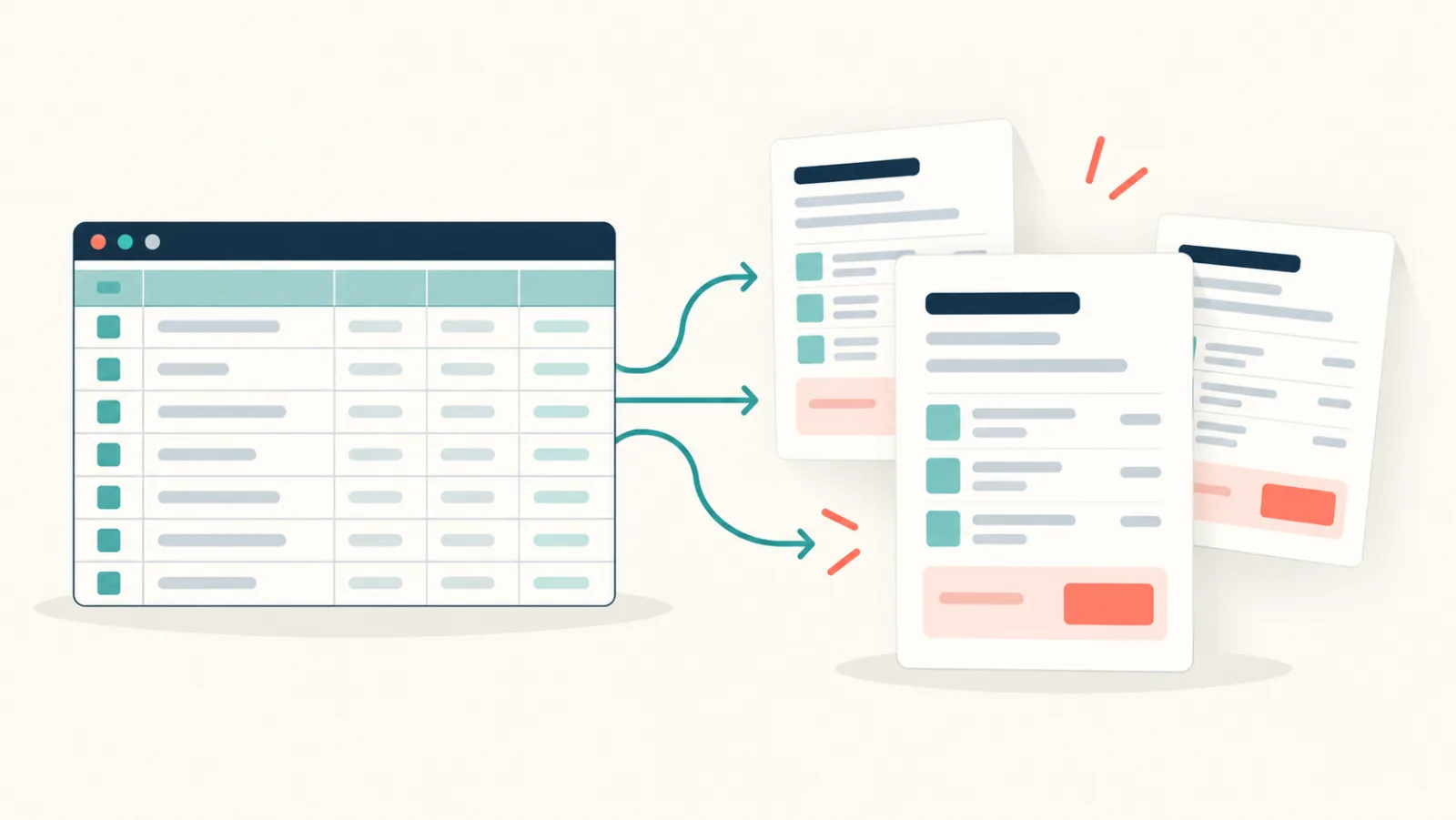
For a basic SOW, use one row for each engagement. Give every row a stable identifier such as SOW_Number or Project_Code.
| SOW_Number | Client_Name | Project_Name | Start_Date | End_Date | Fee | Currency |
|---|---|---|---|---|---|---|
| SOW-2026-081 | Bergmann Systems GmbH | Support Portal Review | 2 November 2026 | 27 November 2026 | 9600 | EUR |
| SOW-2026-082 | Lindholm Studio AB | Reporting Setup | 9 November 2026 | 18 December 2026 | 14200 | SEK |
Use specific headers. Client_Legal_Name is clearer than Client, and Project_Start_Date is clearer than Date. Clear names make the template readable and reduce the chance that similar values are swapped.
Keep final display values separate from calculations where useful. For example, a spreadsheet may store a date for sorting and also contain a formatted date column for the document. The team should agree on one source of truth.
If this is your first spreadsheet-to-document workflow, populate a Word template from Excel explains the basic mapping pattern.
Model deliverables and milestones carefully
Deliverables rarely fit into a single cell. A project may have three deliverables, each with its own owner, due date, and acceptance condition. There are three common approaches.
Separate columns for a small fixed set
You can create Deliverable_1, Deliverable_2, and Deliverable_3. This is easy for a stable service with the same number of deliverables every time. It becomes hard to maintain when projects vary.
A structured repeating list
A repeating list allows each project to contain as many deliverables as needed. A deliverable record can include:
- title;
- description;
- due date;
- responsible party;
- acceptance owner; and
- acceptance condition.
The Word template repeats one table row or section for each record. Test this method with a short description and a long one, as well as with one and many deliverables.
A pre-approved text block
For some services, the whole scope is selected from a library of approved blocks. The spreadsheet contains a service code, and a preparation step inserts the matching text. This keeps wording consistent, but the library needs an owner and version control.
Avoid placing unreviewed free text directly into a binding document. If staff can type anything into a scope cell, the workflow needs a review state before generation.
Build the SOW template in Word
Create the document with your normal Word styles. Set headings, page numbers, header and footer content, tables, and signature blocks first. Then add placeholders for changing values.
Statement of Work: {{SOW_Number}}

Client: {{Client_Legal_Name}}
Project: {{Project_Name}}
Project lead: {{Project_Lead}}

Start date: {{Start_Date}}
Target end date: {{End_Date}}
Fee: {{Currency}} {{Fee}}
Use short, meaningful placeholder names and keep a list of them. If a placeholder is split by Word formatting, it may not be recognized as one value. The Word template variable parser can help check a template before generation.
Do not use placeholders for whole sections when smaller fields would be easier to review. A single {{Everything}} field hides structure. Separate fields make missing content visible and support better validation.
Write acceptance criteria that can be checked
Acceptance language is often the weakest part of an SOW. Phrases such as “completed to a high standard” do not tell either party how to decide whether work is accepted.
For each deliverable, try to record:
- what will be delivered;
- the required format;
- who reviews it;
- the review period;
- the objective acceptance condition; and
- what happens when changes are needed.
The spreadsheet can hold approved criteria, but it should not invent them. A project owner must confirm that the values fit the actual engagement.
Separate scope generation from pricing calculations
Spreadsheets are useful for pricing, but hidden formulas can cause trouble. Protect or clearly identify calculation cells. Before generation, verify:
- Rate multiplied by quantity produces the expected line amount.
- Discounts use the intended basis.
- Tax treatment is correct for the engagement.
- Currency is shown for every relevant amount.
- The total matches the approved proposal or order.
- Rounding rules are consistent.
If fees are entered manually, require a second check. If fees are calculated, test the formulas with boundary values. Document automation should receive the approved result rather than deciding the price.
Generate the documents with TRYDOKU
The core TRYDOKU process is straightforward:
- Prepare the approved Word template.
- Add placeholders that match your data fields.
- Prepare the Excel data with one engagement per row or a defined structured-data model.
- Upload the template and supply the data.
- Review the field mapping.
- Generate Word or PDF output.
- Review the documents before approval or signature.
Word output is useful if a controlled legal or project review still needs edits. PDF output is useful for a stable review copy. Do not confuse a generated document with an executed agreement. Signature, approval, and contract storage remain separate steps.
Test difficult content before running a batch
A good test set includes:
- a long client legal name;
- a project title that wraps onto two lines;
- several deliverables;
- an empty optional field;
- a large fee with thousands separators;
- a project that crosses a year boundary;
- Nordic or German characters such as
ä,ö, andø; and - a long assumption or acceptance condition.
Open both Word and PDF versions when both matter to the process. Check page breaks, table rows, heading placement, signature blocks, and headers. Confirm that no placeholder remains unresolved.
For each sample, compare the generated document with the source row. A visual check alone is not enough because the wrong value can still look well formatted.
Keep versions and approvals visible
SOWs often move through several versions. Use a stable file name such as:
SOW-2026-081_Bergmann-Systems_v01.docx
TRYDOKU currently downloads generated files with the source row number and a cleaned version of the template name. It does not build the filename from SOW_Number or Client_Name. Keep the SOW number in the document and source sheet, then apply your planned filename after download if the project archive requires it.
If the file is approved, record that status in your contract or project system. Do not rely on a file name alone to prove approval. If someone edits the generated Word file, either update the source data and regenerate or document the difference.
The Word template also needs a version. A simple template register can include:
- template name;
- version;
- owner;
- approval date;
- approved by;
- reason for change; and
- date replaced.
This prevents an old template from being used after commercial wording changes.
Common SOW automation mistakes
Putting every project detail in one spreadsheet cell
Large text blocks are hard to validate and hard to format. Break content into deliverables, assumptions, responsibilities, and acceptance criteria.
Allowing blank dates without a rule
An empty end date may be acceptable for a support service, or it may be an error. Define which fields are required for each service type.
Reusing scope wording without checking fit
Template text saves time, but each engagement still needs review. Remove deliverables that do not apply and make responsibilities clear.
Automating signatures or approval assumptions
The presence of a name in a signature block is not a signature. Generation should stop before the approval and signing steps unless your wider process handles them explicitly.
Mixing draft and final records
Store drafts separately from signed or issued copies. Use a clear status field and do not overwrite the final record with a later working file.
A review checklist for every SOW
Before sending a statement of work, confirm:
- the correct legal entities are named;
- the project and SOW identifiers are unique;
- scope and exclusions are clear;
- deliverables have owners and dates;
- acceptance criteria can be checked;
- dependencies and client responsibilities are stated;
- fees, currency, and payment details match the approved deal;
- optional sections behave correctly;
- the right template version was used; and
- the document passed legal or commercial review where required.
This checklist should be part of the process, not an informal memory aid.
Frequently asked questions
Can Excel generate a separate SOW for each client?
Yes. Use one row per engagement and map its fields to a Word template. If each SOW has several deliverables or milestones, use a defined repeating structure rather than an arbitrary block of text.
Can one template support different service types?
It can, but too many optional sections make a template hard to understand. For clearly different services, separate templates may be safer and easier to maintain.
Should the spreadsheet contain full legal wording?
Usually, approved standard clauses belong in the controlled Word template. Put project-specific facts in the spreadsheet. If a clause varies, use a reviewed library or a clear approval process.
Does generating an SOW make it legally approved?
No. Generation places data into a document. Legal review, commercial approval, signature, and storage are separate responsibilities.
Make review easier, not optional
The best SOW automation process reduces repetitive typing while keeping important decisions visible. Use the spreadsheet for structured project facts, the Word template for approved wording, and a named reviewer for scope and price.
Once you have a tested data sheet and template, you can create a TRYDOKU account and generate a small draft set. Check the hardest example first, then expand the process only after the project and legal owners are satisfied.