How to Mail Merge Repeating Table Rows and Dynamic Lists in Word
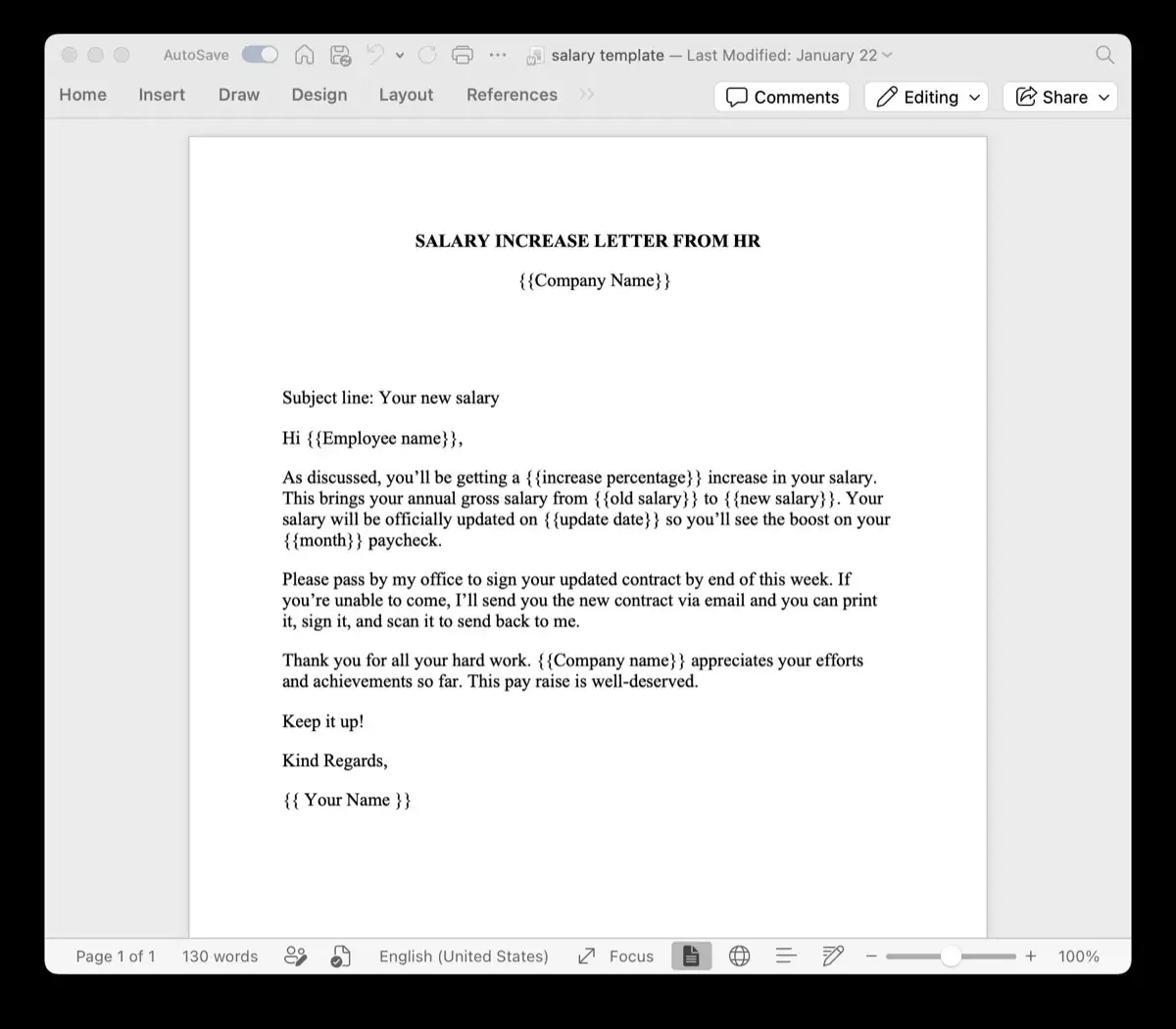
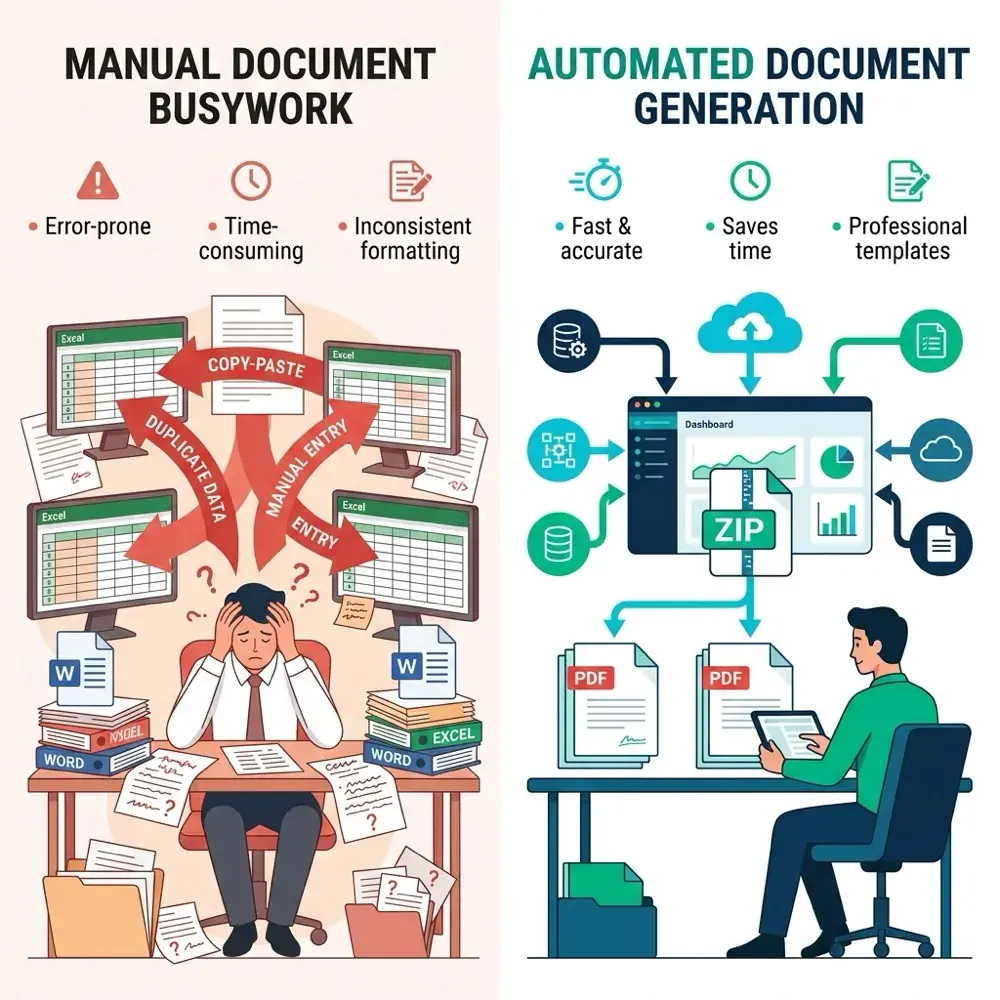
Microsoft Word's built-in Mail Merge cannot handle repeating table rows and dynamic lists. If an invoice has four line items, a contract has three project milestones, or a shipping manifest has ten packages, standard Word Mail Merge cannot dynamically repeat table rows for each item. Instead, it either forces you to flatten your data into awkward columns (Item_1_Price, Item_2_Price, Item_3_Price) or generates a separate page for every row.
This guide explains why Word Mail Merge struggles with one-to-many table relationships and shows how cloud document automation with TRYDOKU uses built-in loops to repeat table rows automatically.
Understanding One-to-Many Data in Documents
Business documents rarely contain only one-to-one fields (like First_Name and Last_Name). Most operational documents involve a one-to-many relationship:
- An Invoice: One customer, but multiple line items (services, quantities, prices).
- A Statement of Work (SOW): One project, but multiple project deliverables and milestones.
- A Logistics Manifest: One truck dispatch, but multiple pallets and destination drops.
Representing these relationships with Word’s built-in tools leaves you with workarounds that do not solve the problem:
- Flattening Columns: Creating fixed column headers like
Item1,Item2,Item3in Excel. If a customer orders 8 items instead of 3, your Word template cuts off the remaining 5 items. If they order 1 item, your document is left with unwanted blank rows. - Complex Database Setfields: Trying to use obscure Word field switches like
{ NEXTIF }or{ SKIPIF }. These rules are fragile, fail across page boundaries, and take hours of trial and error to configure. - Third-Party Macro Plugins: Installing desktop macro add-ins that frequently break with Office 365 security updates.
For more detail on our template syntax, read our article on introducing dynamic loops for DOCX Word templates.
Workflow Comparison
| Capability | Word Mail Merge | Excel / VBA Macro Workaround | TRYDOKU |
|---|---|---|---|
| One-to-Many Handling | ❌ Flattened columns only | ⚠️ Unstable script loops | ✅ Native {> items }} loops |
| Table Formatting Parity | ❌ Distorts borders and padding | ⚠️ Frequently breaks column widths | ✅ Preserves 100% of Word table styles |
| Setup Complexity | Complex { NEXTIF } codes |
Hours of custom VBA code | Simple curly brace block syntax |
| File Output | 1 monolithic document | Local folder export | Organized ZIP of individual files |
| Export Formats | Word only | Word or print | Choice of editable DOCX or vector PDF |
How to Mail Merge Repeating Table Rows with TRYDOKU
TRYDOKU creates repeating lists using loop tags inside Microsoft Word tables.
Step 1: Design Your Table in Microsoft Word
Open Word (.docx) and insert a table with a header row and a single data row.
Place the opening loop tag {> items }} before your first variable and the closing tag {< items }} after your last variable in the table row:
+-----------------------+----------+------------+--------------+
| Item Description      | Quantity | Unit Price | Line Total   |
+-----------------------+----------+------------+--------------+
| {> items }}{{desc}}   | {{qty}}  | {{rate}}   | {{total}}{< items }} |
+-----------------------+----------+------------+--------------+
When TRYDOKU generates the document, it detects that {> items }} is inside a table row and copies that row once for every item in the dataset, preserving your background shading, borders, fonts, and cell alignments perfectly.
You can preview and convert Excel tables with our free Excel to Word table tool.
Step 2: Structure Your Data (JSON or Grouped Spreadsheet)
If you are using our web composer with Excel, simply use an order or invoice identifier to group matching rows together.
If you are using TRYDOKU's REST API, pass nested arrays within your JSON payload:
{
  "customer_name": "Nordic Solutions AB",
  "invoice_date": "September 25, 2026",
  "items": [
    {"desc": "Cloud Infrastructure Setup", "qty": 1, "rate": "$2,500", "total": "$2,500"},
    {"desc": "Security Audit & Pen Testing", "qty": 2, "rate": "$1,200", "total": "$2,400"},
    {"desc": "Onboarding Training Session", "qty": 4, "rate": "$250", "total": "$1,000"}
  ]
}
Step 3: Batch Generate Documents
Upload your template and data into TRYDOKU and click Generate.
In seconds, TRYDOKU renders documents with crisp vector output. Each document contains an itemized table populated with the exact number of rows required—no clipped text, no blank spacer rows, and no broken borders. For more details on advanced conditional rules and formatting, explore our full platform features.
Frequently Asked Questions
Can I format alternate row shading on repeating tables?
Yes. If your master Word table uses alternating row shading (zebra striping), TRYDOKU preserves the alternating pattern across all dynamically generated rows.
What happens if an invoice has zero line items?
If an array is empty, TRYDOKU removes the row without leaving empty gaps or broken borders.
Can I include repeating bullet points instead of table rows?
Yes. The {> loop }} syntax works in standard paragraphs and bulleted lists just as easily as inside tables.