Mail Merge into Separate PDF Files: Word Limitations and Cloud Workflows
One of the most persistent frustrations when working with Microsoft Office is attempting to perform a mail merge into separate PDF files. You configure your template, link your Excel records, click Finish & Merge, and select PDF—only to watch Microsoft Word spit out a single monolithic 500-page document containing every merged letter, invoice, or certificate back-to-back.
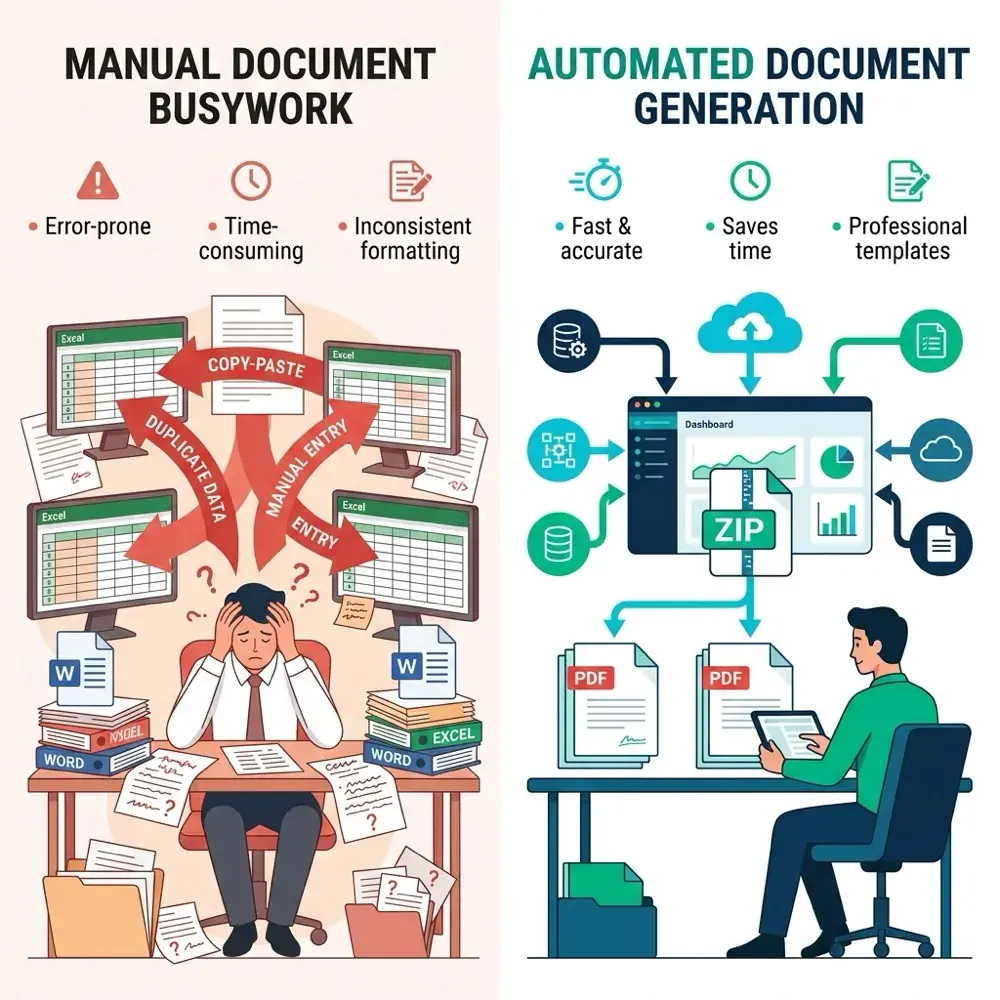
In this deep-dive guide, we explore why Microsoft Word cannot separate PDF documents natively, examine the risks of relying on Visual Basic (VBA) macro splitters, and show you how modern automated workflows with TRYDOKU produce clean, individually named PDFs in seconds.
Why Microsoft Word Merges into a Single Monolithic PDF
Microsoft Word's Mail Merge feature was architected in the 1990s for two physical, legacy tasks:
- Continuous Physical Printing: Spooling hundreds of envelopes, statements, or notices directly to an office laser printer.
- Email Body Dispatch: Connecting directly to a local Microsoft Outlook client to send raw text or HTML emails.
Digital document archiving—specifically generating individual, password-free, vector-crisp PDF files named dynamically according to spreadsheet data (such as Statement_Acme_Corp.pdf)—was never conceived as a native desktop Word feature.
Comparing Methods to Produce Separate PDFs
When administrative, operations, or accounting teams face this limitation, they generally choose between three approaches:
| Approach | Setup Time | Maintenance & Security Risk | Native Dynamic Loops | Batch Reliability |
|---|---|---|---|---|
| Manual PDF Splitting | Extremely high (hours per batch) | High human error rate | ❌ None | ❌ Prone to missed pages |
| VBA Macro Scripts | Moderate (30–60 mins setup) | Blocked by macro security policies | ⚠️ Requires code edits | ⚠️ Frequent Word freeze/crash |
| TRYDOKU Cloud Engine | Zero (upload & click) | Secure EU hosting (GDPR compliant) | ✅ Native {> loop }} blocks |
✅ 100% deterministic ZIP export |
If you need a tested VBA script for desktop environments, you can read our comprehensive tutorial on how to save mail merge as individual PDF files. However, for teams running high-volume or recurrent workflows, macros quickly become an operational liability.
The Pitfalls of Desktop VBA Macro Workarounds
While VBA macros can loop through mail merge records, they suffer from fundamental technical shortcomings:
- Security Restrictions: Many corporate IT policies disable Word macros (
.docm) by default to protect against ransomware and malicious macros. - Lack of Mac Parity: Microsoft Word for macOS has limited COM automation and different PDF rendering pipelines, meaning Windows macros often fail on Mac.
- Layout and Page Breaks: Word macros that split by section breaks frequently introduce blank pages, misplaced headers, or broken table borders when exporting to PDF.
- Slow Sequential Execution: A macro renders documents one by one through Word's single-threaded print engine, freezing your workstation for 20 to 45 minutes on large batches.
How to Mail Merge into Separate PDF Files with TRYDOKU
With TRYDOKU, document generation happens asynchronously in a high-performance cloud engine. Here is how to create hundreds of individual PDFs from your spreadsheet data:
Step 1: Design Your Template with Placeholders
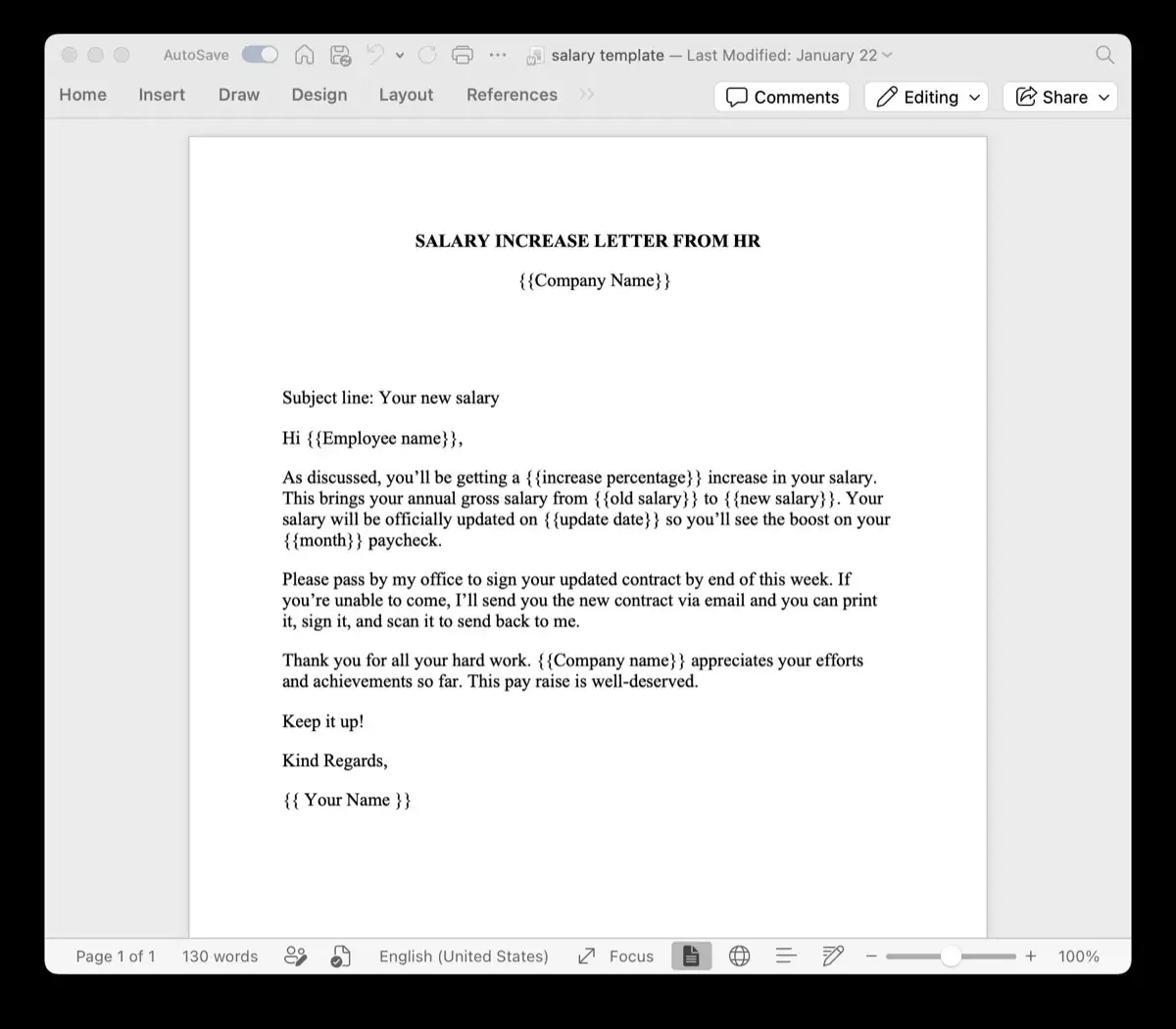
Create your document in regular Microsoft Word (.docx). Wherever variable data should appear, insert simple placeholder tags wrapped in double curly braces:
Dear {{Client_Name}},

Enclosed please find your quarterly account summary for the period ending {{Report_Date}}.

Account ID: {{Account_Number}}
Current Balance Due: {{Balance_Due}}
You have complete creative freedom: use your brand fonts, high-resolution logos, multi-column layouts, and tables.
Step 2: Prepare Your Excel Data Source
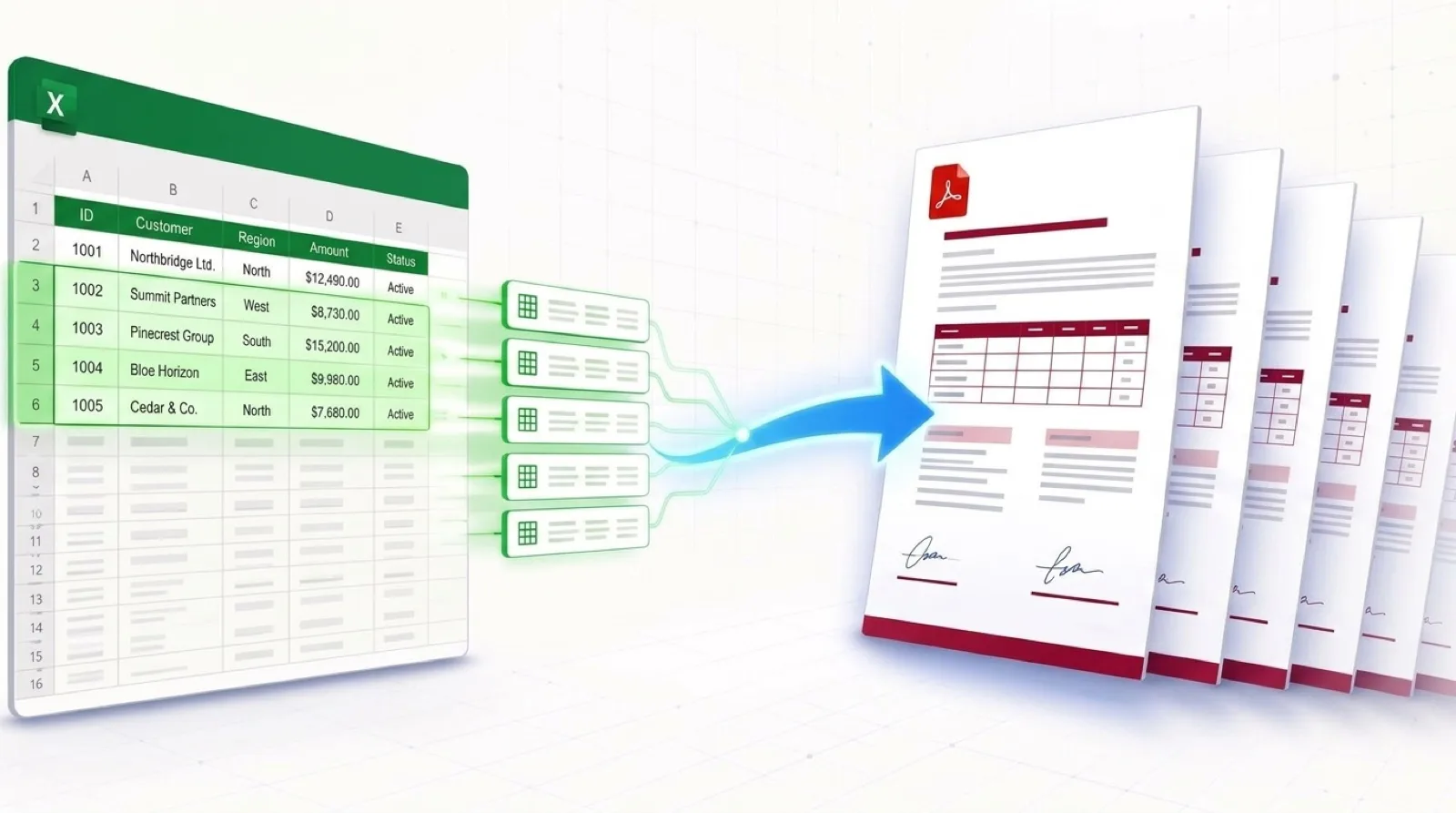
Ensure row 1 of your spreadsheet contains column headers matching your placeholders (Client_Name, Report_Date, etc.). You can organize client IDs, dates, and amounts without worrying about formulas breaking.
If you have combined PDFs that you previously split and need to merge or inspect, you can also use our free browser-based Merge PDF tool or inspect document metadata with our PDF metadata tool.
Step 3: Upload and Match in TRYDOKU
- Upload your
.docxtemplate to the TRYDOKU composer. - Upload your
.xlsxor CSV spreadsheet. - TRYDOKU auto-detects and matches all fields. Confirm the mapping in the intuitive visual interface.
Step 4: Batch Export as Individual PDFs
Select PDF as your desired output format and click Generate.
TRYDOKU instantly iterates across your dataset, generating an individual, publication-grade PDF file for each row. The output is packaged into a clean, downloadable ZIP archive where each PDF is dynamically named according to your chosen fields (e.g., Statement_{{Client_Name}}_{{Account_Number}}.pdf).
Frequently Asked Questions
Can I name each generated PDF file dynamically from a spreadsheet column?
Yes. TRYDOKU allows you to specify file naming patterns using any column from your dataset, such as Invoice_{{Invoice_Number}}_{{Customer_Name}}.pdf.
Does this require Microsoft Word or Office 365 to be installed?
No. TRYDOKU runs entirely in your modern web browser. It does not require Microsoft Office, desktop Outlook, or custom print drivers.
How does TRYDOKU handle multi-page documents?
Each row in your spreadsheet generates its own complete multi-page document. Headers, footers, page numbering, and table formatting remain consistent across every individual file.