How to Save Mail Merge as Individual PDF Files: VBA and No-Code Options
If you have ever used Microsoft Word's Mail Merge feature to generate invoices, certificates, contracts, or personalized letters from an Excel spreadsheet, you have likely run headfirst into one of Microsoft Office's most persistent limitations: Word cannot natively save your mail merge as separate, individual PDF files.
When you click Finish & Merge in Word and choose Print Documents to a PDF printer, Word merges every single record into a single, monolithic multi-page PDF document. If you need to email each document to an individual client, archive contracts by employee name, or upload specific invoices to an accounting portal, you are stuck with an unmanageable file that requires tedious manual splitting.
In this in-depth guide, we explore why Microsoft Word behaves this way, provide a hardened VBA macro script for users working in desktop Word, examine the practical friction points of macro maintenance, and explain how modern document automation with TRYDOKU streamlines the process through browser-based batch workflows.
The Core Problem: Why Doesn't Word Split PDFs Automatically?
To understand why this limitation exists, it helps to look at how Microsoft Word's Mail Merge architecture was designed. Mail Merge was originally conceived for two primary physical and legacy office workflows:
- Mass Physical Printing: Sending hundreds of letters, certificates, or envelopes to an office printer spool in one continuous job.
- Direct Email Dispatch via Microsoft Outlook: Sending individual emails directly through a desktop Outlook client with the document body inserted as raw HTML or plain text.
Saving individual digital files to disk—specifically standalone PDF documents named dynamically from spreadsheet values (such as Invoice_AcmeCorp.pdf or Employment_Agreement_Jane_Doe.pdf)—was never built into Word's native graphical interface.
The Standard Workarounds and Their Drawbacks
When teams search for solutions, they typically encounter three common workarounds:
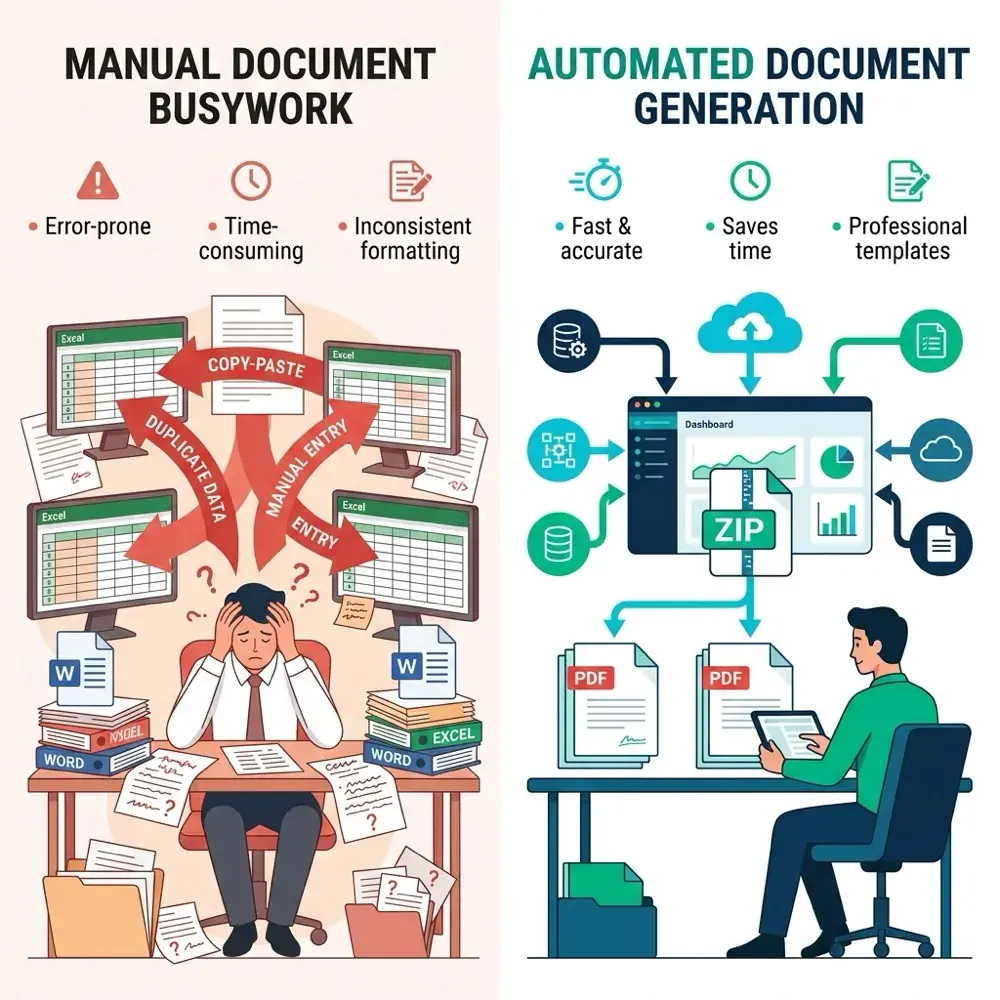
- Manual Page Extraction in PDF Editors: Printing the giant PDF, opening it in a commercial PDF editor, manually extracting each page range, and typing filenames by hand. For batches of dozens or hundreds of documents, this consumes hours of repetitive staff time.
- Custom VBA Macros: Writing or copy-pasting Visual Basic for Applications (VBA) scripts into Word's developer console. While functional, macros require technical maintenance, may trigger corporate security policies, and encounter platform-specific quirks.
- Enterprise CLM Platforms: Adopting complex contract lifecycle management (CLM) platforms that cost thousands of dollars annually and require extensive IT implementation for what should be a routine document workflow.
Method 1: The Hardened VBA Macro (For Desktop Word)
If you are working inside desktop Microsoft Word and have permission to run macros, you can use Visual Basic for Applications (VBA) to loop through your merged records and export each one as a distinct PDF file.
Below is a robust VBA script that incorporates proper document validation, illegal character sanitization, and screen updating restoration:
Sub SaveMailMergeAsIndividualPDFs()
    Dim MasterDoc As Document
    Dim SingleDoc As Document
    Dim RecordIndex As Long
    Dim TotalRecords As Long
    Dim OutputFolder As String
    Dim RawClientName As String
    Dim CleanClientName As String
    Dim TargetFilePath As String

    On Error GoTo ErrorHandler

    Set MasterDoc = ActiveDocument

    ' Validate that the active document is a Mail Merge main document
    If MasterDoc.MailMerge.MainDocumentType = wdNotAMergeDocument Then
        MsgBox "The active document is not configured as a Mail Merge document." & vbCrLf & _
               "Please link your Excel recipient list before running this macro.", vbExclamation, "TRYDOKU Guide"
        Exit Sub
    End If

    ' Define destination folder (ensure trailing backslash)
    OutputFolder = "C:\Users\Public\Documents\MergedPDFs\"

    ' Verify or create destination directory
    If Dir(OutputFolder, vbDirectory) = "" Then
        On Error Resume Next
        MkDir OutputFolder
        If Err.Number <> 0 Then
            MsgBox "Unable to create destination folder: " & OutputFolder & vbCrLf & _
                   "Please check permissions or create the folder manually.", vbCritical, "TRYDOKU Guide"
            Exit Sub
        End If
        On Error GoTo ErrorHandler
    End If

    MasterDoc.MailMerge.DataSource.ActiveRecord = wdFirstRecord
    TotalRecords = MasterDoc.MailMerge.DataSource.RecordCount

    ' Handle dynamic record count detection
    If TotalRecords <= 0 Then
        MasterDoc.MailMerge.DataSource.ActiveRecord = wdLastRecord
        TotalRecords = MasterDoc.MailMerge.DataSource.ActiveRecord
        MasterDoc.MailMerge.DataSource.ActiveRecord = wdFirstRecord
    End If

    If TotalRecords <= 0 Then
        MsgBox "No recipient records detected in the linked data source.", vbExclamation, "TRYDOKU Guide"
        Exit Sub
    End If

    Application.ScreenUpdating = False

    For RecordIndex = 1 To TotalRecords
        MasterDoc.MailMerge.DataSource.ActiveRecord = RecordIndex

        ' Retrieve name field from data source (adjust 'Client_Name' to your exact column header)
        On Error Resume Next
        RawClientName = MasterDoc.MailMerge.DataSource.DataFields("Client_Name").Value
        If Err.Number <> 0 Or Trim(RawClientName) = "" Then
            RawClientName = "Record_" & RecordIndex
        End If
        On Error GoTo ErrorHandler

        ' Sanitize filename by stripping characters prohibited by Windows filesystems (< > : " / \ | ? *)
        CleanClientName = SanitizeFilename(RawClientName)

        TargetFilePath = OutputFolder & "Document_" & CleanClientName & "_" & RecordIndex & ".pdf"

        ' Merge single active record into a new temporary document
        MasterDoc.MailMerge.Destination = wdSendToNewDocument
        MasterDoc.MailMerge.DataSource.FirstRecord = RecordIndex
        MasterDoc.MailMerge.DataSource.LastRecord = RecordIndex
        MasterDoc.MailMerge.Execute Pause:=False

        Set SingleDoc = ActiveDocument

        ' Export as PDF using Word native fixed format engine
        SingleDoc.ExportAsFixedFormat _
            OutputFileName:=TargetFilePath, _
            ExportFormat:=wdExportFormatPDF, _
            OpenAfterExport:=False, _
            OptimizeFor:=wdExportOptimizeForPrint, _
            CreateBookmarks:=wdExportCreateNoBookmarks, _
            DocStructureTags:=True

        SingleDoc.Close SaveChanges:=wdDoNotSaveChanges
    Next RecordIndex

    Application.ScreenUpdating = True
    MsgBox "Successfully exported " & TotalRecords & " individual PDF files to:" & vbCrLf & OutputFolder, _
           vbInformation, "Export Complete"
    Exit Sub

ErrorHandler:
    Application.ScreenUpdating = True
    MsgBox "An unexpected error occurred during export: " & vbCrLf & Err.Description, _
           vbCritical, "Macro Error"
End Sub

Function SanitizeFilename(InputString As String) As String
    Dim BadChars As Variant
    Dim i As Long
    Dim Result As String

    Result = InputString
    BadChars = Array("<", ">", ":", """", "/", "\", "|", "?", "*")

    For i = LBound(BadChars) To UBound(BadChars)
        Result = Replace(Result, BadChars(i), "-")
    Next i

    ' Strip trailing periods and whitespace
    Result = RTrim(Result)
    While Right(Result, 1) = "."
        Result = Left(Result, Len(Result) - 1)
    Wend

    If Trim(Result) = "" Then Result = "Document"
    SanitizeFilename = Result
End Function
Setup Instructions
- Link your Excel spreadsheet in Word using Mailings > Select Recipients > Use an Existing List.
- Press
ALT + F11to launch the Visual Basic Editor. - In the menu, click Insert > Module and paste the code above.
- Verify that
"Client_Name"matches the exact header name of the column in your spreadsheet you wish to use for naming. - Press
F5to execute. The macro will process the records sequentially and notify you upon completion.
Operational Considerations When Using VBA
While the macro provides a working local workaround, teams should evaluate several practical constraints:
- Security Policy Restrictions: Many enterprise environments disable macro execution (
.docmfiles) via Windows Group Policy or endpoint protection systems to mitigate malicious macro scripts. - Cross-Platform Differences: While Word for Mac supports VBA, differences in filesystem path conventions, sandboxing prompts, and local printer subsystems can require separate script adjustments across macOS and Windows workstations.
- Absence of Dynamic Table Loops: Standard Mail Merge cannot dynamically repeat table rows for variable line items (such as invoice items or shipping entries) without complex nested field code workarounds.
- Local Hardware Utilization: Merging large datasets sequentially inside desktop Word locks the user interface during generation, tying up local workstation resources until the process finishes.
Method 2: Modern Document Automation with TRYDOKU (No Code Required)
If your team requires a collaborative, platform-independent solution that handles document batches without scripts or software installations, TRYDOKU provides a modern alternative.
TRYDOKU is a web-based document generation platform built specifically for teams that need to generate batches of personalized Word and PDF documents from Excel spreadsheets and structured data.
The TRYDOKU Workflow in Three Stages
Stage 1: Prepare Template (.docx) with {{placeholders}} and {> loops }}
                         │
                         ▼
Stage 2: Import Spreadsheet (.xlsx / .csv) & Auto-Map Columns
                         │
                         ▼
Stage 3: Generate Batch Output & Download High-Fidelity Documents
Stage 1: Design Your Template in Standard Microsoft Word
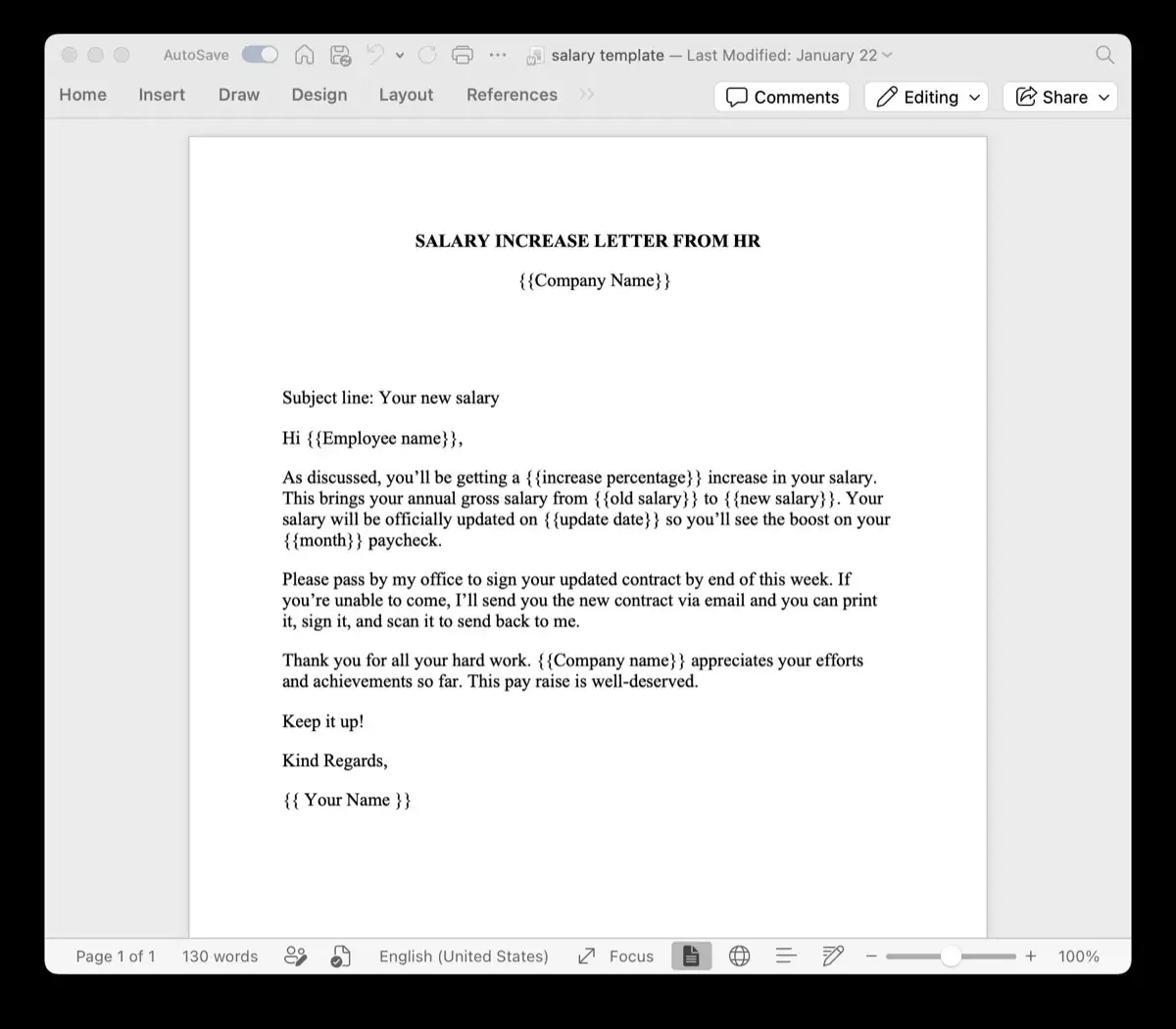
Create your document in Microsoft Word exactly as you normally would. Use your standard corporate typography, margins, brand palettes, and headers. Wherever variable data belongs, insert simple double curly braces:
{{Client_Name}}{{Agreement_Date}}{{Total_Due}}
Unlike traditional Mail Merge fields, TRYDOKU placeholders are standard text characters. You can style them, apply bold formatting, or position them inside multi-column tables.
Dynamic Repeating Table Rows (Loops):
For itemized documents (such as invoices or manifests), TRYDOKU supports native dynamic loops:| Item Description | Quantity | Unit Price | Line Total | | {> items }}{{description}} | {{qty}} | {{price}} | {{total}}{< items }} |The generation engine duplicates the middle row for every item in your record while preserving all table styling and border formatting.
Stage 2: Upload Template and Map Data
Upload your .docx file to TRYDOKU. The system inspects your document and identifies all declared placeholders.
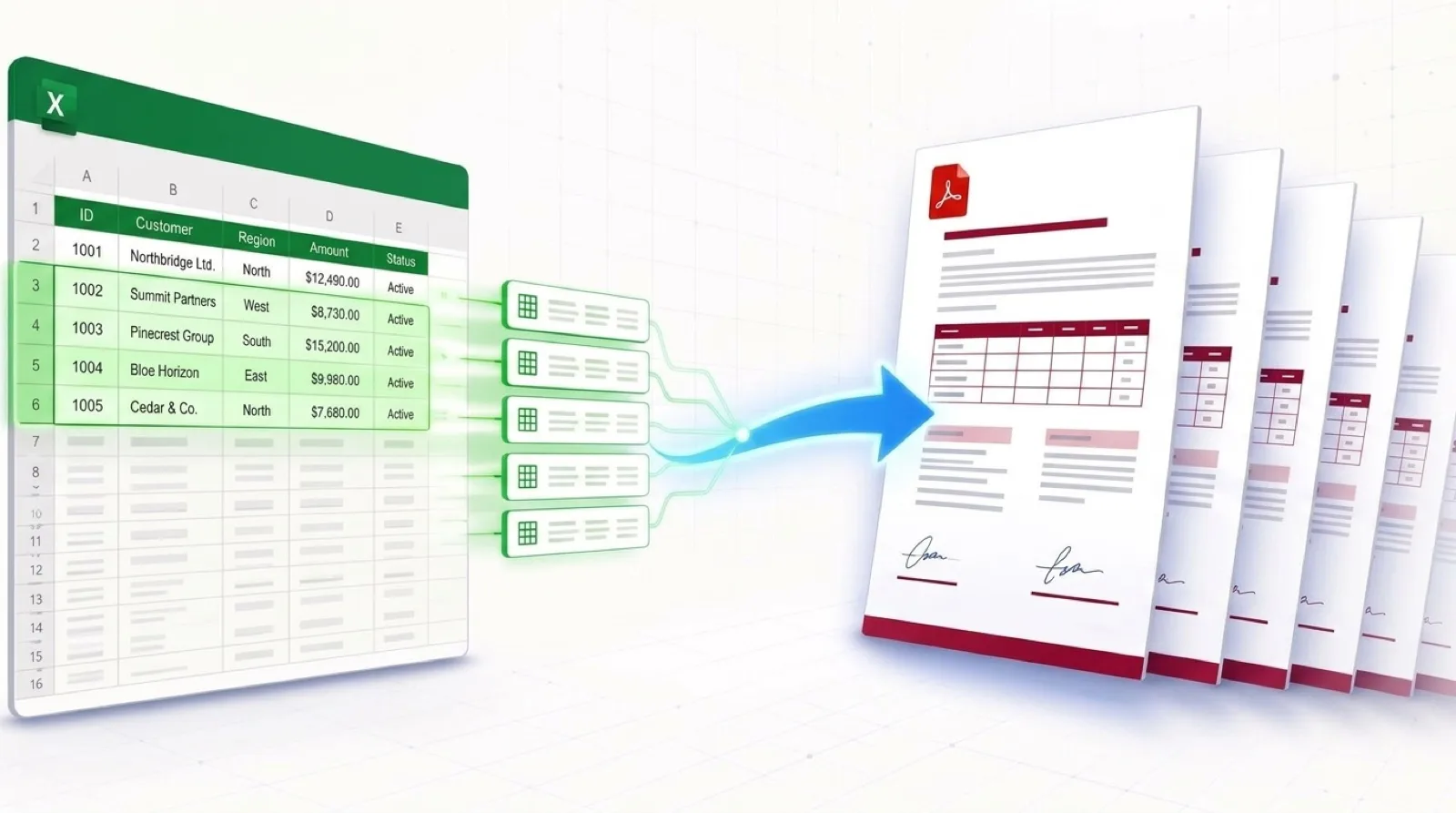
Next, upload your spreadsheet (.xlsx or .csv). TRYDOKU automatically matches column names to your placeholders. If headers differ slightly (for example, ClientName instead of Client_Name), you can adjust the mapping with a dropdown selection.
You can also use our free client-side Word Template Variable Parser to inspect your document's variables and generate an aligned starter spreadsheet before uploading.
Stage 3: Generate and Access Documents
Click Generate Documents. TRYDOKU processes your records—supporting batches of up to 500 documents per run—and packages the generated files into an organized ZIP archive ready for download.
From your dashboard, individual documents can also be converted to high-fidelity PDF format on demand, ensuring consistent formatting across all operating systems.
Objective Method Comparison
To assist in evaluating the right approach for your team, the following table compares native Word Mail Merge, custom VBA scripts, and TRYDOKU:
| Capability | Word Mail Merge (Native) | Word with Custom VBA Script | TRYDOKU |
|---|---|---|---|
| Document Output | Single merged document | Individual local PDFs | Batched individual DOCX & on-demand PDF |
| Setup Overhead | Low (Built-in) | High (Requires VBA scripting) | Zero (Web interface) |
| Requires Local Macro Execution | No | Yes (Security risk in some orgs) | No (Cloud-managed engine) |
| Cross-Platform Usability | Desktop Word required | Varies across Windows/macOS | 100% Web-based (Any modern browser) |
| Dynamic Table Rows (Loops) | Not supported | Complex field workarounds | Native {> loop }} syntax |
| Conditional Content | Basic IF fields |
Requires custom code | Native {% if %} blocks |
| Batch Capacity | Local workstation dependent | Local workstation dependent | Up to 500 documents per batch |
| Developer API | None | None | REST API available |
For a broader feature comparison with other document generation tools, consult our Mail Merge Alternatives Guide.
Practical Tips for Clean Batch Document Generation
Whether you implement the VBA macro or utilize web-based automation, the following practices help maintain data integrity:
1. Ensure Consistent Column Headers
Verify that the first row of your Excel workbook contains concise, clean headers. Avoid symbols like #, $, or / in column names, as these can interfere with data binding in both VBA and automated parsers.
If you need to prepare or clean messy spreadsheet exports, our free in-browser Excel to CSV Converter lets you convert and inspect data locally without uploading files to third-party servers.
2. Standardize Dates and Numeric Formatting
Excel frequently stores dates as raw serial numbers. To avoid unformatted dates appearing in generated documents, apply explicit date formatting to your spreadsheet columns prior to merging, or format them as text strings to ensure consistent representation.
3. Handle Special Characters in Dynamic Names
When generating filenames from customer or employee names, sanitize characters prohibited by major operating systems. Characters such as slashes, colons, and question marks should be replaced with hyphens or underscores to prevent file creation errors.
If you have already generated individual PDF files and need to combine specific subsets into combined packets, you can organize them directly in your browser using our secure Merge PDF Tool.
Frequently Asked Questions (FAQ)
Can Microsoft Word natively export Mail Merge records as separate PDFs?
No. Standard Microsoft Word only allows merging to a single continuous document, directly to a physical printer, or to email via Outlook. It does not provide built-in functionality to export each merged record as a distinct, individually named PDF file. Achieving separate files requires writing a custom VBA macro or using a dedicated document automation platform like TRYDOKU.
How do I name each output file based on spreadsheet data?
In Word VBA, you must write code to extract the record field using DataFields("Column_Name").Value and sanitize the resulting text. In TRYDOKU, document generation handles record indexing and organization automatically, mapping each document directly to its corresponding row in the dataset.
Does Word VBA work the same way on macOS as on Windows?
While Word for Mac supports VBA, differences in filesystem path syntax (colons and POSIX paths), Apple sandboxing permissions, and available system libraries mean scripts written for Windows often require modifications to run reliably on macOS. Web-based platforms avoid these platform differences entirely by executing in standard web browsers.
How does TRYDOKU handle data security and privacy?
TRYDOKU infrastructure is hosted in Frankfurt, Germany (EU) under strict European data protection standards (GDPR). Data is secured using TLS 1.2+ in transit and AES-256 encryption at rest. Uploaded batch inputs are cleared after successful generation, and remaining batch artifacts are automatically deleted under an automated 24-to-72-hour retention schedule. Detailed architectural specifications can be reviewed on our Security Overview page.
Summary
Saving mail merge documents as separate PDF files addresses a common operational bottleneck in administrative, legal, and financial workflows.
For individuals working with desktop Word on Windows, the provided VBA macro delivers a functional local workaround. For organizations seeking a scalable, script-free workflow that supports repeating table rows and team collaboration across any operating system, TRYDOKU provides a purpose-built alternative.
Create an account at TRYDOKU to begin automating your Word and PDF document generation workflows.