Mastering Document Automation: Connecting TRYDOKU to n8n
Manual document generation is one of the most persistent bottlenecks in modern business operations. Whether compiling monthly client invoices, assembling multi-page commercial proposals, drafting customized employment agreements, or generating compliance certificates, knowledge workers still spend hundreds of cumulative hours copy-pasting data between spreadsheets and Microsoft Word templates.
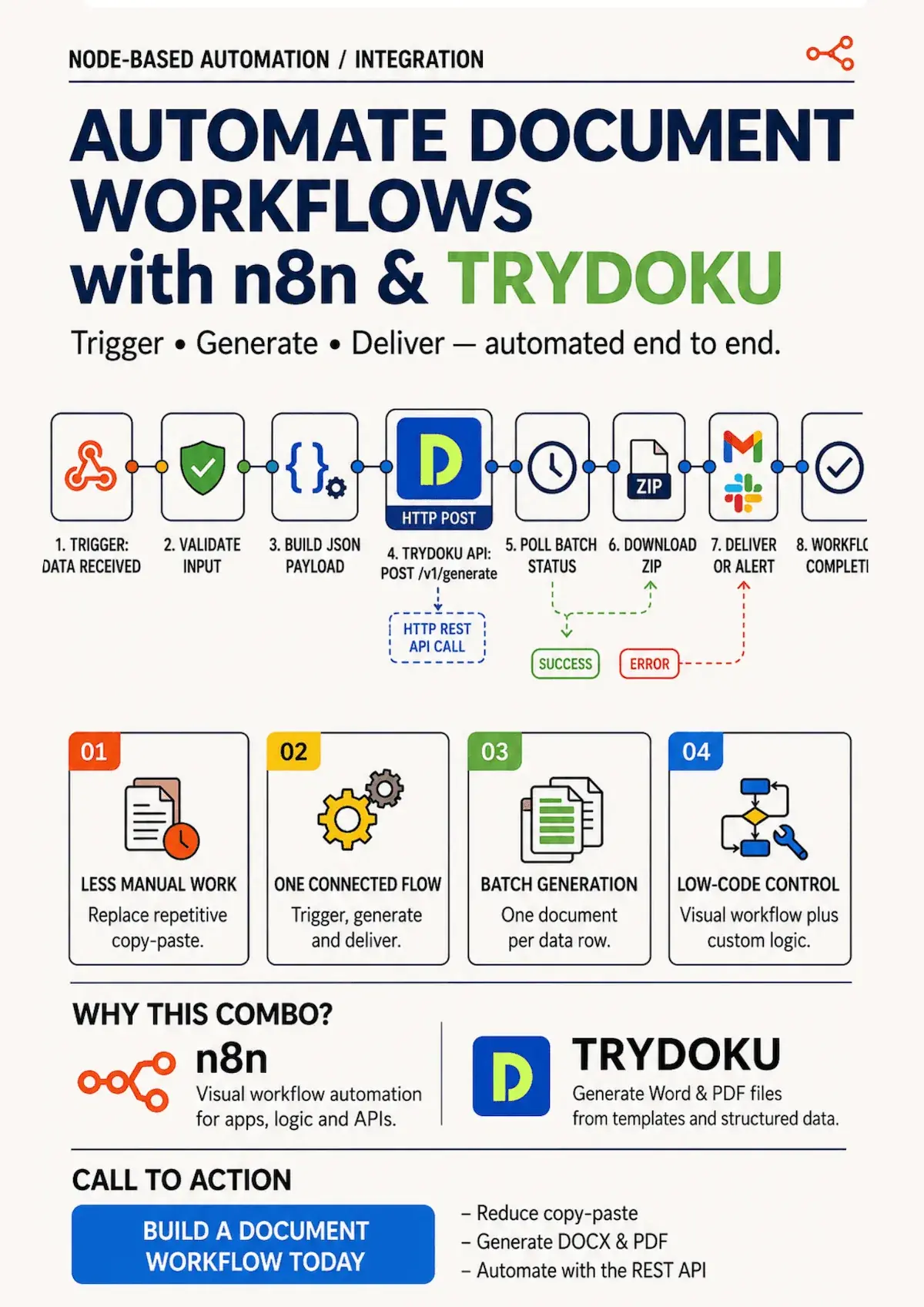
By connecting n8n—the leading workflow automation platform—with TRYDOKU, you can build a resilient, end-to-end document automation pipeline. This comprehensive technical guide walks you through configuring automated document generation in n8n, leveraging TRYDOKU's template-based batch engine, mapping nested dynamic table rows, polling job statuses, and delivering generated .docx packages directly to cloud storage, messaging tools, and client inboxes.
Why Pair n8n with TRYDOKU?
Workflow automation tools excel at extracting data from CRM platforms, PostgreSQL databases, Airtable bases, and webhook triggers. However, when it comes to converting structured JSON payloads into client-ready documents, traditional methods fall short:
- Brittle HTML-to-PDF Engines: Headless browser wrappers (like Puppeteer or wkhtmltopdf) frequently suffer from CSS rendering quirks, broken table pagination, clipped footers, and unpredictable page breaks.
- Maintenance Overhead: Hardcoding document layouts in code (such as PDFKit, jsPDF, or Python ReportLab) turns minor design tweaks into multi-day engineering tickets.
- Loss of Non-Technical Ownership: Business stakeholders—such as finance managers and legal counsel—cannot modify HTML templates or coordinate math without developer assistance.
TRYDOKU eliminates these issues through template-first document generation. You design your templates in standard Microsoft Word (.docx) using familiar double curly braces ({{ variable }}), dynamic repeating loops ({> items }} ... {< items }}), and conditional blocks ({% if is_discounted %} ... {% endif %}).
When triggered from n8n, TRYDOKU merges raw JSON data directly into your Word template styles, typography, tables, and headers with 100% typographic fidelity.
Architectural Comparison
| Capability | Manual Word Editing | Headless HTML/PDF Wrappers | TRYDOKU + n8n |
|---|---|---|---|
| Setup Time | Immediate (Manual) | Weeks of CSS & Scripting | Minutes via REST API |
| Non-Technical Editing | High | Impossible (Code Only) | Native Microsoft Word (.docx) |
| Nested Table Loops | Manual Copy-Paste | Complex DOM Manipulation | Native {> loop }} Syntax |
| Data Privacy & Security | Unmanaged / Decentralized | Custom Infrastructure | Ephemeral Processing + Self-Hostable n8n |
| Throughput & Speed | 5–10 docs/hour | 50–100 docs/hour | Thousands of docs/minute |
Prerequisites
To follow this step-by-step tutorial, ensure you have the following ready:
- A TRYDOKU Account: Sign up at trydoku.com/register to obtain your account and API access.
- A TRYDOKU API Token: Navigate to Settings > API Tokens in your TRYDOKU dashboard and generate a new Personal Access Token.
- An n8n Instance: Either a self-hosted n8n installation (via Docker/npm) or an active n8n Cloud workspace.
- A Microsoft Word Template (
.docx): A template containing dynamic placeholders and loop syntax.
Step 1: Preparing Your Word Template (.docx)
TRYDOKU uses clean, human-readable placeholder tags inside standard Microsoft Word documents. Unlike legacy mail merge systems that require cumbersome field codes, TRYDOKU parses simple text tokens:
- Scalar Placeholders:
{{ client_name }},{{ invoice_number }},{{ issue_date }} - Repeating Table Loops:
{> items }}in the first column and{< items }}in the last column of your Word table row. - Sub-item Fields:
{{ description }},{{ quantity }},{{ unit_price }},{{ line_total }} - Conditional Visibility:
{% if has_discount %}Special Discount:{{ discount_pct }}%{% endif %}
INVOICE: {{ invoice_number }}
Date: {{ issue_date }}
Billed To: {{ client_name }} ({{ client_email }})

Table:
-----------------------------------------------------------------------------
| Description                  | Qty          | Price        | Total        |
| {> items }}{{ description }}  | {{ qty }}    | {{ price }}  | {{ total }}{< items }} |
-----------------------------------------------------------------------------

Subtotal: {{ subtotal }}
{% if has_discount %}Discount ({{ discount_rate }}%): -{{ discount_amount }}{% endif %}
Total Due: {{ grand_total }}
Save your template as a standard .docx file (e.g. invoice_template.docx). Store it in your project filesystem, Google Drive, AWS S3, or load it directly in n8n using a Read Binary Files node.
Pro-Tip: Before automating your workflow, test your template in TRYDOKU's free Word Template Variable Parser to verify that all placeholders, loop tags, and conditional blocks are detected correctly.
Step 2: Designing the n8n Workflow
A standard document generation workflow in n8n consists of four functional stages:
- Trigger Node: Receives incoming trigger events (such as a Webhook, Typeform submission, Stripe invoice event, or scheduled database query).
- Template Loader Node (Read Binary Files / Google Drive / S3): Reads the
.docxtemplate file into n8n's binary state. n8n automatically encodes binary files as Base64 in$binary.data.data. - HTTP Request Node (Generate): Dispatches an authenticated
POSTrequest to TRYDOKU's REST API withtemplate_base64and the structureddataarray. - Delivery Nodes: Downloads the compiled document and routes it to email, cloud storage (Google Drive, AWS S3), or Slack.
graph LR
    A[Trigger: Webhook / CRM] --> B[n8n Read Binary File: Load .docx Template]
    B --> C[HTTP Request: POST /api/v1/generate]
    C --> D[HTTP Request: GET /api/v1/batches/:id/zip]
    D --> E[Deliver: Google Drive / Email / S3]
Step 3: Configuring the n8n HTTP Request Node
In your n8n workflow canvas, add an HTTP Request node to trigger the document generation.
Node Parameters:
- Method:
POST - URL:
https://www.trydoku.com/api/v1/generate - Authentication:
Generic Credential Type->Header Auth(or custom Header parameter)- Header Name:
Authorization - Header Value:
Bearer YOUR_TRYDOKU_API_TOKEN
- Header Name:
- Send Headers:
Accept:application/jsonContent-Type:application/json
- Specify Body:
Using JSON
Request Payload Example:
{
  "template_base64": "={{ $binary.data.data }}",
  "data": [
    {
      "invoice_number": "INV-2026-0042",
      "issue_date": "2026-08-24",
      "client_name": "Acme Logistics Global",
      "client_email": "billing@acmelogistics.com",
      "items": [
        {
          "description": "Enterprise Document Automation Setup",
          "qty": 1,
          "price": "$1,500.00",
          "total": "$1,500.00"
        },
        {
          "description": "Monthly Batch Processing License",
          "qty": 3,
          "price": "$250.00",
          "total": "$750.00"
        }
      ],
      "subtotal": "$2,250.00",
      "has_discount": true,
      "discount_rate": "10",
      "discount_amount": "$225.00",
      "grand_total": "$2,025.00"
    }
  ]
}
Understanding the Response:
When TRYDOKU receives the request, it validates the template and data payload, creates a new batch processing job, and returns a 201 Created JSON response containing the batch metadata and download endpoints:
{
  "data": {
    "id": 1428,
    "status": "completed",
    "setup_status": "ready",
    "total_items": 1,
    "processed_items": 1,
    "failed_items": 0,
    "created_at": "2026-08-24T10:15:00.000000Z",
    "updated_at": "2026-08-24T10:15:01.000000Z",
    "items": [
      {
        "row_index": 0,
        "status": "completed",
        "download_url": "https://www.trydoku.com/batch/items/docx/eyJpZCI6MTQyOC.../download",
        "error": null
      }
    ],
    "links": {
      "self": "https://www.trydoku.com/api/v1/batches/1428",
      "zip": "https://www.trydoku.com/api/v1/batches/1428/zip"
    }
  }
}
Step 4: Downloading and Distributing the Output
Once the batch generation finishes, you can download the generated document in n8n using a second HTTP Request node.
Option A: Direct Single-Document Download
If you are generating an individual document per workflow execution, target the download_url provided in the items[0] array of the response:
- Method:
GET - URL:
={{ $json.data.items[0].download_url }} - Response Format:
File(Binary) - Put Output in Field:
data
Option B: Batch ZIP Archive Download
When executing multi-row batch generations (e.g. generating 250 employee contracts or monthly invoices at once), fetch the unified ZIP package from the links.zip endpoint:
- Method:
GET - URL:
https://www.trydoku.com/api/v1/batches/{{ $json.data.id }}/zip - Authentication:
Header Auth(Authorization: Bearer YOUR_TRYDOKU_API_TOKEN) - Response Format:
File(Binary)
Option C: Handling Asynchronous Jobs with Wait / Polling
For large batch workloads exceeding several hundred documents, configure a simple polling loop in n8n:
- Check if
$json.data.status === 'completed'. - If
pendingorprocessing, route to an n8n Wait node set to 2 seconds. - Query
GET https://www.trydoku.com/api/v1/batches/{{ $json.data.id }}until the status resolves tocompleted(polling requests are free and do not consume credits).
Step 5: Connecting Downstream Actions
With the binary document safely loaded into n8n's workflow state, you can pipe it to any downstream system:
- Send via Gmail / SMTP: Attach the
.docxfile to an automated customer email with dynamic merge variables in the email subject and body. - Upload to Google Drive / OneDrive: Store the document in a dedicated client folder (e.g.
/Clients/Acme/Invoices/INV-2026-0042.docx). - Archive to Amazon S3: Upload the file to a secure, private bucket with custom object tags.
- Post to Slack / Discord: Send a direct notification to your operations team with the document attached or a direct link to review.
Best Practices for Enterprise n8n Workflows
To ensure maximum performance and stability in high-volume production environments, implement these operational best practices:
1. Secure Credential Storage
Never hardcode API keys inside n8n workflow expressions or code nodes. Always use n8n's encrypted Credentials Manager to store your TRYDOKU Personal Access Token.
2. Pre-Validate Data Schemas
Before dispatching requests to TRYDOKU, verify required fields inside an n8n Code node. Ensure numeric values (currency amounts, quantities) are formatted consistently and strings do not contain unintended null characters.
3. Implement Error Handling & Dead Letter Queues
Attach an Error Trigger node to your n8n workflow. If TRYDOKU returns a 402 Insufficient Credits or 422 Unprocessable Entity response, capture the error payload and notify your engineering team in Slack or PagerDuty immediately.
4. Leverage Sub-item Loops for Clean Payloads
When working with line items, arrays, or repeating schedules, pass structured arrays in the data[].items property. TRYDOKU's template engine automatically clones table rows and expands loop blocks without requiring manual array flattening in n8n.
Conclusion
Automating document workflows does not require fragile PDF scraping scripts or complex coordinate-based libraries. By combining the visual orchestration of n8n with the template fidelity of TRYDOKU, your team can construct scalable, self-hosted document pipelines that turn raw data into professional Word documents in seconds.
Get started by creating your free account at trydoku.com/register, upload your .docx template, and start automating your business documents today.