How to Create Dynamic Repeating Rows in Word Templates (Step-by-Step)
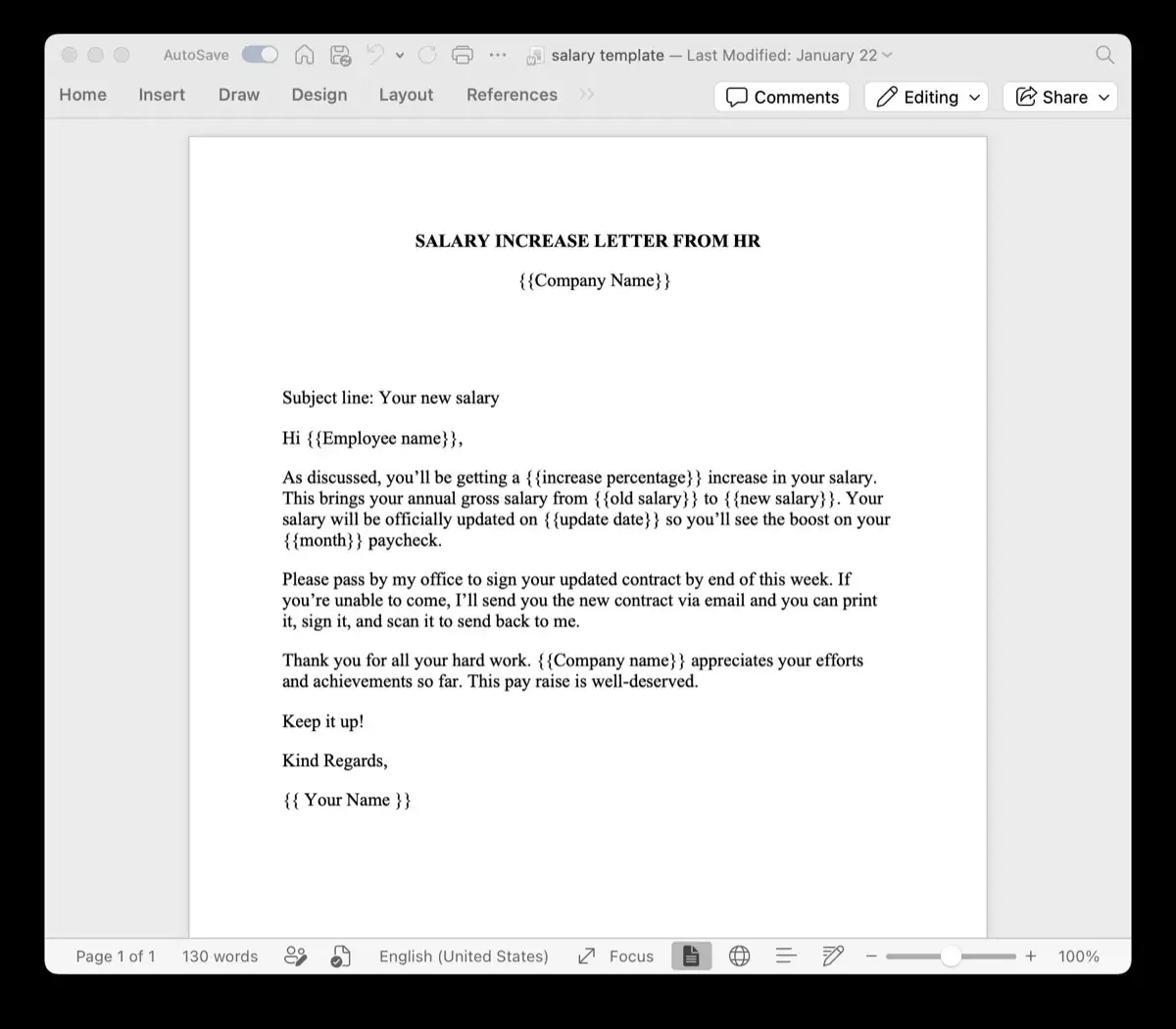
When you design Word templates for automated billing, project statements of work (SOWs), or delivery notes, you soon face a common question: how do you format a table when you don’t know how many rows each recipient needs?
One customer might purchase 2 items, while another purchases 20. If you create a static table with 5 rows, the first invoice will have awkward blank rows, while the second will leave out 15 products entirely.
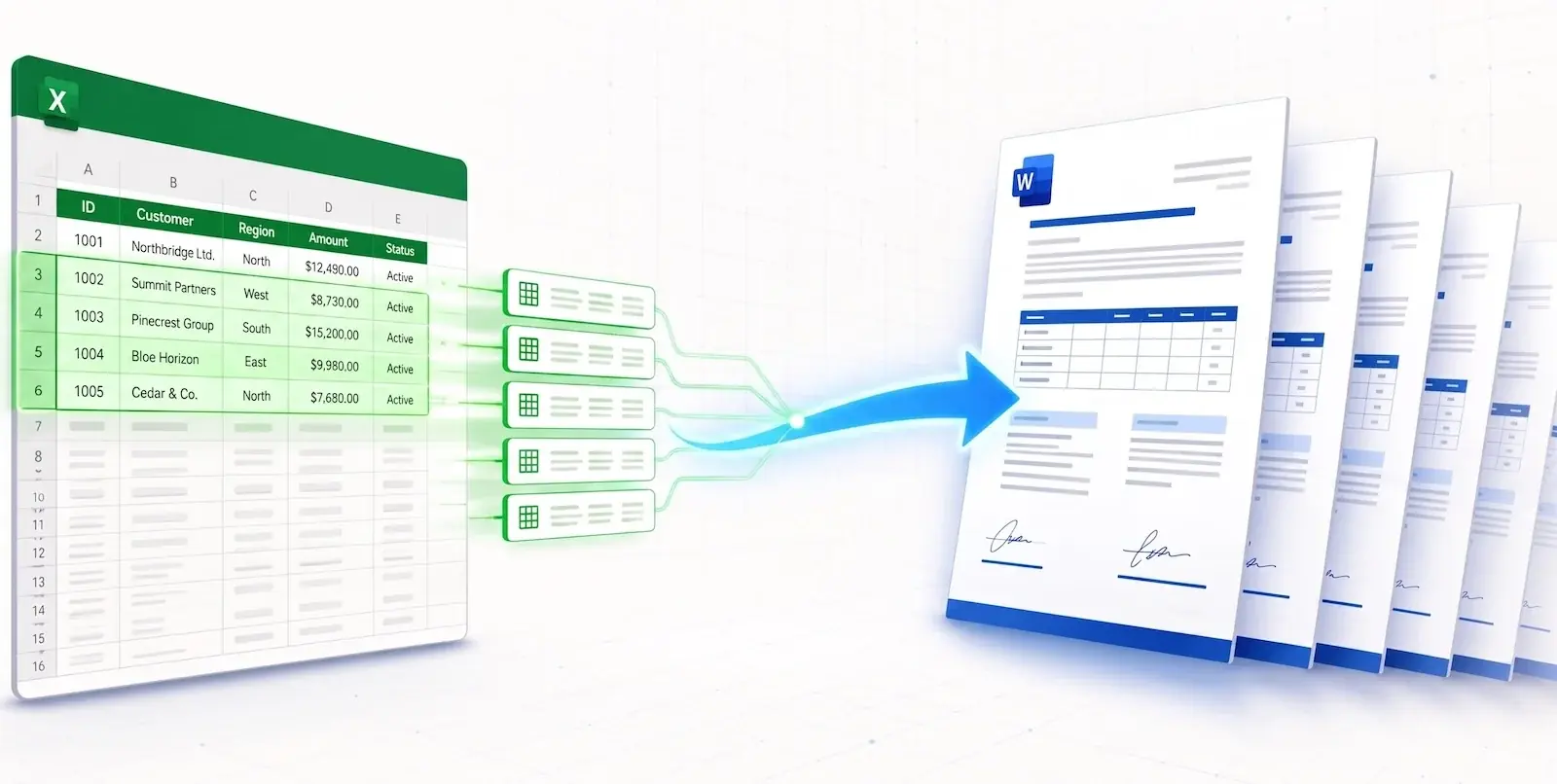
This tutorial shows you how to create dynamic repeating rows in Word templates using TRYDOKU's loop syntax so your tables expand or contract automatically to match your data.
Why Legacy Mail Merge Fails at Dynamic Repeating Tables
Microsoft Word's built-in Mail Merge was created for flat one-to-one letter merges. It does not natively support repeating table rows for one-to-many data structures.
When users try to solve this with Word's native tools, they encounter significant limitations:
- Complex
{ NEXTIF }Rules: Attempting to force Word to read subsequent records within a single table requires complex field rules that frequently break when a table spans multiple pages. - Fixed Column Flattening: Flattening data into fixed columns (
Item_1,Item_2,Item_3) in Excel restricts the layout and means editing templates whenever a customer exceeds the preset limit. - Macro Headaches: Writing custom VBA loops to insert table rows programmatically requires maintaining fragile macro code that triggers enterprise security warnings.
For a detailed explanation of loop processing, read our article on introducing dynamic loops for DOCX Word templates.
Workflow Comparison
| Capability | Word { NEXTIF } Rules |
Custom VBA Scripting | TRYDOKU Dynamic Loops |
|---|---|---|---|
| Syntax Complexity | Arcane nested field codes | Hundreds of lines of VBA | Simple {> items }} block tags |
| Table Style Preservation | ⚠️ Frequently breaks borders | ⚠️ Unstable cell padding | ✅ Preserves 100% of Word table styles |
| Zebra Striping Parity | ❌ Fails on dynamic rows | ⚠️ Manual alternating logic | ✅ Automatic alternating row shading |
| Page Break Handling | ❌ Prone to blank pages | ⚠️ Unstable margin clipping | ✅ Native Word table flow |
| Setup Time | Hours of debugging | Days of testing | Under 2 minutes |
Step-by-Step Guide: Creating Repeating Rows in Word
Step 1: Design Your Table in Microsoft Word
Open your document in Microsoft Word (.docx). Insert a standard Word table with:
- Row 1: Header row (e.g. Description, Quantity, Rate, Total).
- Row 2: Template data row containing your variable placeholders and loop tags.
Place {> items }} at the beginning of the first cell in Row 2, and {< items }} at the end of the last cell in Row 2:
+-----------------------+----------+------------+--------------+
| Service Description   | Hours    | Rate       | Total Amount |
+-----------------------+----------+------------+--------------+
| {> items }}{{desc}}   | {{qty}}  | {{rate}}   | {{total}}{< items }} |
+-----------------------+----------+------------+--------------+
TRYDOKU's template parser recognizes {> items }} as an opening loop boundary and {< items }} as the closing boundary. During generation, it copies Row 2 for every item in your dataset while preserving your exact borders, fonts, and cell alignments.
If you have raw spreadsheet tables that you want to convert into clean Word tables before templating, use our free Excel to Word table converter.
Step 2: Structure Your Data Source
When sending data to TRYDOKU through our REST API or JSON integration, pass repeating rows as a nested array:
{
  "invoice_number": "INV-2026-8801",
  "client_name": "Nordic Solutions AB",
  "items": [
    {"desc": "Architecture Discovery Workshop", "qty": 8, "rate": "$200", "total": "$1,600"},
    {"desc": "API Integration Development", "qty": 32, "rate": "$175", "total": "$5,600"},
    {"desc": "Security Audit & Pen Testing", "qty": 16, "rate": "$225", "total": "$3,600"}
  ]
}
If you are using Excel in the TRYDOKU web composer, simply include an order or document ID column to group matching rows together automatically.
Step 3: Upload and Generate in TRYDOKU
- Upload your
.docxtemplate to TRYDOKU. - Upload your data file.
- TRYDOKU scans the template, recognizes the loop tags, and matches your variables.
- Click Generate.
In seconds, TRYDOKU generates the documents with your formatting intact. A table with 2 items gets 2 rows; a table with 20 items gets 20 rows. Headers repeat when a table spans multiple pages, and column borders stay in place.
Explore our features page to learn about using conditional logic and nested formatting in your automated documents.
Frequently Asked Questions
Can I include repeating bullet points instead of table rows?
Yes. You can place {> items }} and {< items }} around standard bulleted list items or paragraphs to create repeating lists outside of tables.
What happens if an item array is empty?
If an array contains zero items, TRYDOKU removes the template row so that no empty spacer rows or broken borders remain in the final document.
Will table summary formulas (like SUM) update automatically?
TRYDOKU fills in values from your data, so we recommend calculating totals in your application or spreadsheet and inserting them through a {{grand_total}} placeholder in the footer row.