How to Split a Master Excel Sheet Into One File Per Client or Region
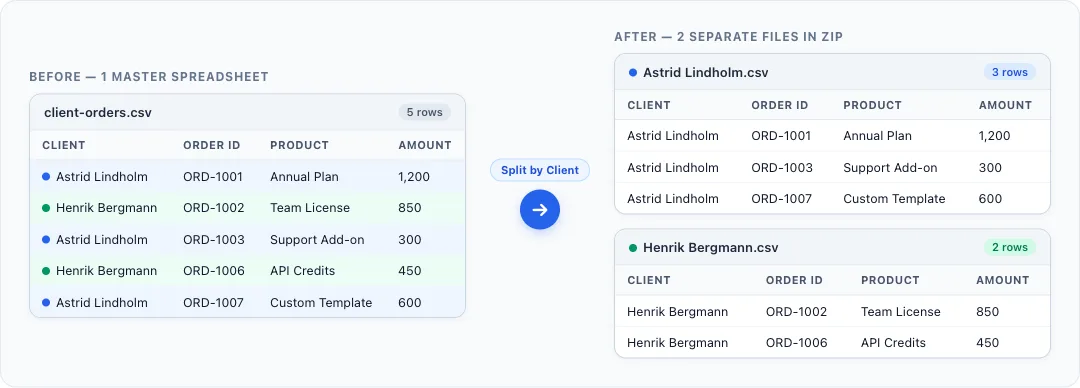
If you have one master spreadsheet with rows for dozens of clients, regions, or departments, sending each person only their own rows usually means tedious manual filtering, copying, and saving. Our free Split Excel by Column Value tool automates that entire step in a few clicks.
Everything runs locally in your browser—your file is never uploaded to a server, so you can safely split client lists, order exports, and internal reports.
What the Tool Does
- Supports
.xlsx,.csv, and.tsvfiles up to 15 MB and 50,000 rows. - Groups rows by any column you choose (for example: Client, Region, Manager, or Status).
- Keeps headers intact by repeating the first row in every generated file.
- Exports everything in one ZIP archive in either the original format, CSV (
.csv), or Excel (.xlsx). - Zero server retention with 100% client-side processing.
How to Split an Excel or CSV File in 4 Steps
1. Upload your spreadsheet
Open the Split Excel by Column Value tool and drop your .xlsx, .csv, or .tsv file into the upload box.

2. Pick the worksheet and split column
If your Excel workbook has multiple tabs, choose the Worksheet you want to split. Then select the column you want to group by under Split by Column—for example, Client or Region.
3. Choose output format and empty-row handling
Adjust three quick options before generating your files:
- Output Format: Keep Same as input, or convert every output file to CSV (
.csv) or Excel (.xlsx). - Empty Values: Choose Skip rows to ignore rows where the split column is blank, or Group as "(blank)" to collect them into a separate file.
- Header Row: Keep First row contains column headers checked so every output file includes column names at the top.
4. Preview the groups and download the ZIP
As soon as you pick a column, the summary table shows every unique value, how many rows belong to it, and the sanitized filename that will be created (for example, Astrid Lindholm.csv or Henrik Bergmann.csv).
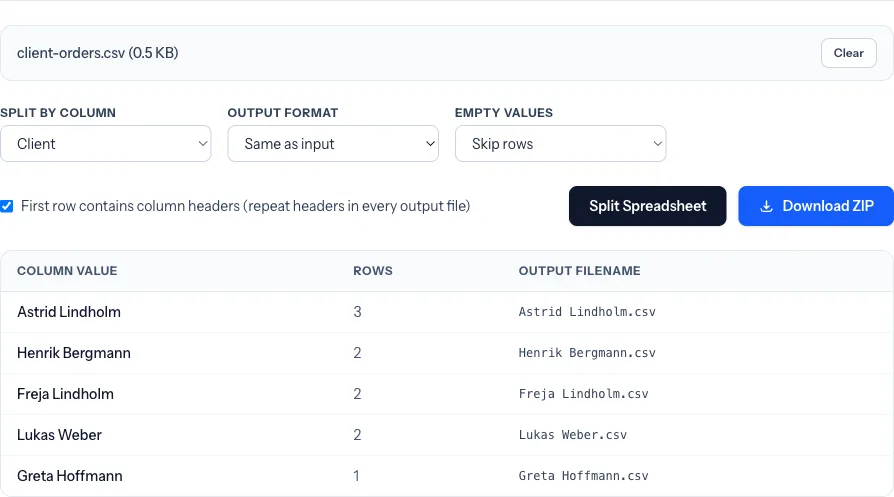
Click Split Spreadsheet, then click Download ZIP to save all files in one archive.
Common Ways Teams Use It
| Use Case | Split Column | Result |
|---|---|---|
| Client order exports | Client |
One clean spreadsheet per customer |
| Regional sales reports | Region |
Separate files for each territory or branch |
| Department budgets | Department |
Individual sheets ready to share with team leads |
| Invoice or delivery batches | Account Manager |
Filtered lists per owner without manual copy-paste |
Related Free Tools on TRYDOKU
If you need a different way to prepare or convert spreadsheet data, explore our other browser-based spreadsheet and data tools:
- Want to export an Excel tab to plain CSV? Try the Excel to CSV Converter.
- Working with developer or API payloads? Convert rows with the CSV to JSON Converter.
- Need a formatted table inside a Word file? Use the Excel to Word Generator.
- Want to strip author or company properties before sharing? Clean files with the Remove Excel Metadata tool.
If you are splitting a master spreadsheet because you need to create personalized Word or PDF documents for each client, you can skip the manual splitting step altogether—learn how in our guide on how to automate documents from Excel or create a free TRYDOKU account to generate documents in bulk from one template.