How to Generate Word Documents from Excel Data Automatically
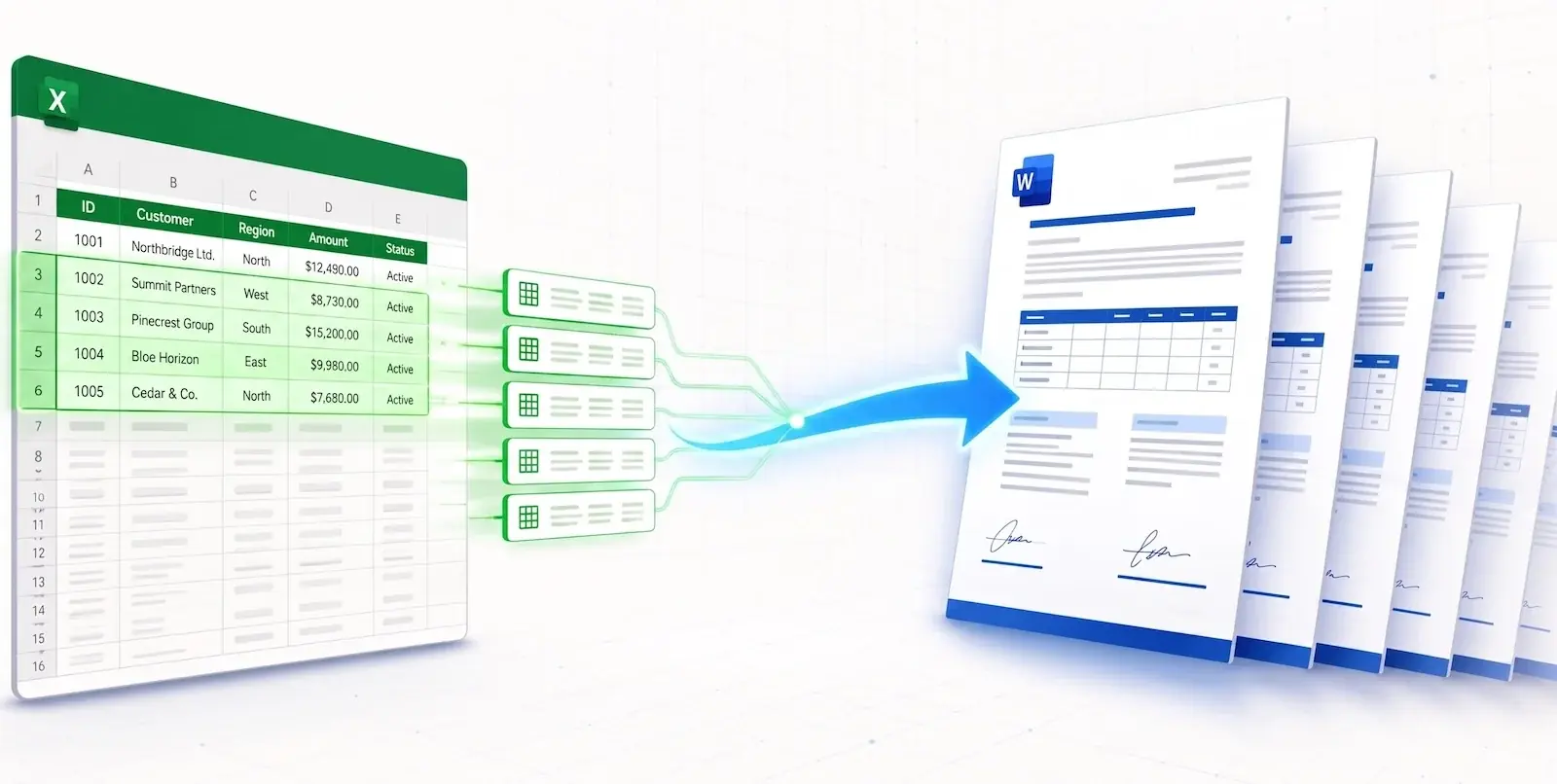
In almost every enterprise, team members spend dozens of hours each month retyping or copy-pasting numbers and customer names from spreadsheet rows into Word documents. Whether generating corporate memos, employment agreements, standardized sales proposals, or compliance checklists, relying on manual data entry is slow, expensive, and a primary source of costly typographical errors.
In this practical guide, we show you how to generate Word documents from Excel data automatically using modern cloud automation with TRYDOKU, transforming hours of repetitive administrative busywork into a fast, repeatable 3-minute workflow.
The Bottleneck of Manual Document Generation
Consider an operations or HR team generating 100 employee reviews or contractor agreements:
- Each document requires opening a Word template.
- You navigate back and forth between Excel and Word, copying names, addresses, compensation figures, and start dates.
- Even at a brisk pace of 3 minutes per document, 100 records require 5 continuous hours of manual typing.
- If a single cell value is pasted into the wrong field, contracts or legal notices become invalid.
By using an automated workflow that connects your spreadsheet rows directly to Word templates, you eliminate human error and produce identical, flawlessly formatted documents at any scale.
Automation Comparison: Python / VBA vs. TRYDOKU
Many technical users attempt to automate Word creation using Python libraries (such as python-docx) or Visual Basic for Applications (VBA) macros:
| Evaluation Metric | Python Scripts (python-docx) |
VBA Macros in Word | TRYDOKU Cloud Engine |
|---|---|---|---|
| Technical Skill Required | Advanced Python programming | Intermediate VBA scripting | Zero Code (Familiar Word UI) |
| Complex Layout Parity | ⚠️ Often breaks complex tables & headers | ⚠️ Single-threaded, unstable | ✅ 100% Visual Parity (.docx native) |
| Setup Time | Days of scripting & testing | Hours of debugging syntax | Under 5 minutes |
| Platform Compatibility | Server-only / Local environment | Windows desktop primarily | Cross-platform Web UI & REST API |
| Data Cleaning Tools | Manual script parsing | Manual Excel cleanup | Built-in Excel to CSV & Table tools |
For operational teams and non-developers, building custom script parsers is rarely sustainable. TRYDOKU provides an enterprise-ready middle ground: you retain the visual power of Microsoft Word without maintaining fragile scripts.
Step-by-Step: Generate Word Documents from Excel Data
Step 1: Format Your Excel Data Correctly
Ensure your spreadsheet data is arranged in a standard tabular format:
- Row 1 must be column headers: Use clear, descriptive headers without special symbols (e.g.,
Employee_Name,Department,Effective_Date,Annual_Salary). - Avoid merged cells: Ensure each row represents one distinct document record.
- Validate your values: You can pre-clean and verify your tabular data with our free browser-based Excel to CSV tool or convert tables directly with our Excel to Word tool.
Step 2: Build Your Word Template with Placeholders
Open Microsoft Word and create your document layout. Format your headings, insert company logos, configure page margins, and set up your typography.
Where dynamic spreadsheet values should be populated, wrap the exact column name in double curly braces:
EMPLOYMENT VERIFICATION LETTER

Date: {{Effective_Date}}

To Whom It May Concern,

This letter serves to confirm that {{Employee_Name}} is currently employed with
our organization in the {{Department}} department.

Annual Base Salary: {{Annual_Salary}}
Supervisor: {{Manager_Name}}
To ensure all placeholder tags are syntactically valid and ready for mapping, you can inspect your template instantly with our free Word template variable parser.
Step 3: Connect Your Template and Spreadsheet in TRYDOKU
- Log into TRYDOKU and upload your
.docxtemplate. - Upload your Excel spreadsheet (
.xlsx). - TRYDOKU scans both files and pairs your Excel columns with your Word placeholders automatically. Review the mappings in the visual confirmation screen.
Step 4: Generate Your Word Batch
Click Generate. TRYDOKU merges each row into a distinct document and compiles the result into a clean ZIP archive. You receive individually named Word documents (.docx) that your team can open, inspect, or further edit if needed.
Handling Repeating Line Items and Nested Lists
Traditional mail merge workflows struggle when a single document contains multiple sub-items, such as an invoice with multiple products or an agreement with multiple milestones.
TRYDOKU solves this through native dynamic loops. By placing {> items }} and {< items }} tags around a table row in your Word template, the system repeats that table row for every sub-item without distorting borders, padding, or headers.
Frequently Asked Questions
Can I output documents as PDF instead of Word?
Yes. TRYDOKU allows you to generate native .docx files, read-only .pdf documents, or both in the same batch.
Does this process modify my original Word template?
No. Your master template remains untouched. TRYDOKU creates independent document copies for each spreadsheet row.
What is the maximum number of documents I can generate at once?
TRYDOKU can process batches ranging from a single custom document to thousands of rows in a single batch operation.