How to Generate Sales Proposals from Excel Data

Sales proposals often repeat the same structure. The customer name, scope, price, dates, and account owner change, but the brand, terms, and main explanation stay the same. When a team copies an old proposal for every new opportunity, old customer details can survive in the new file. Pricing can also drift away from the spreadsheet where it was approved.
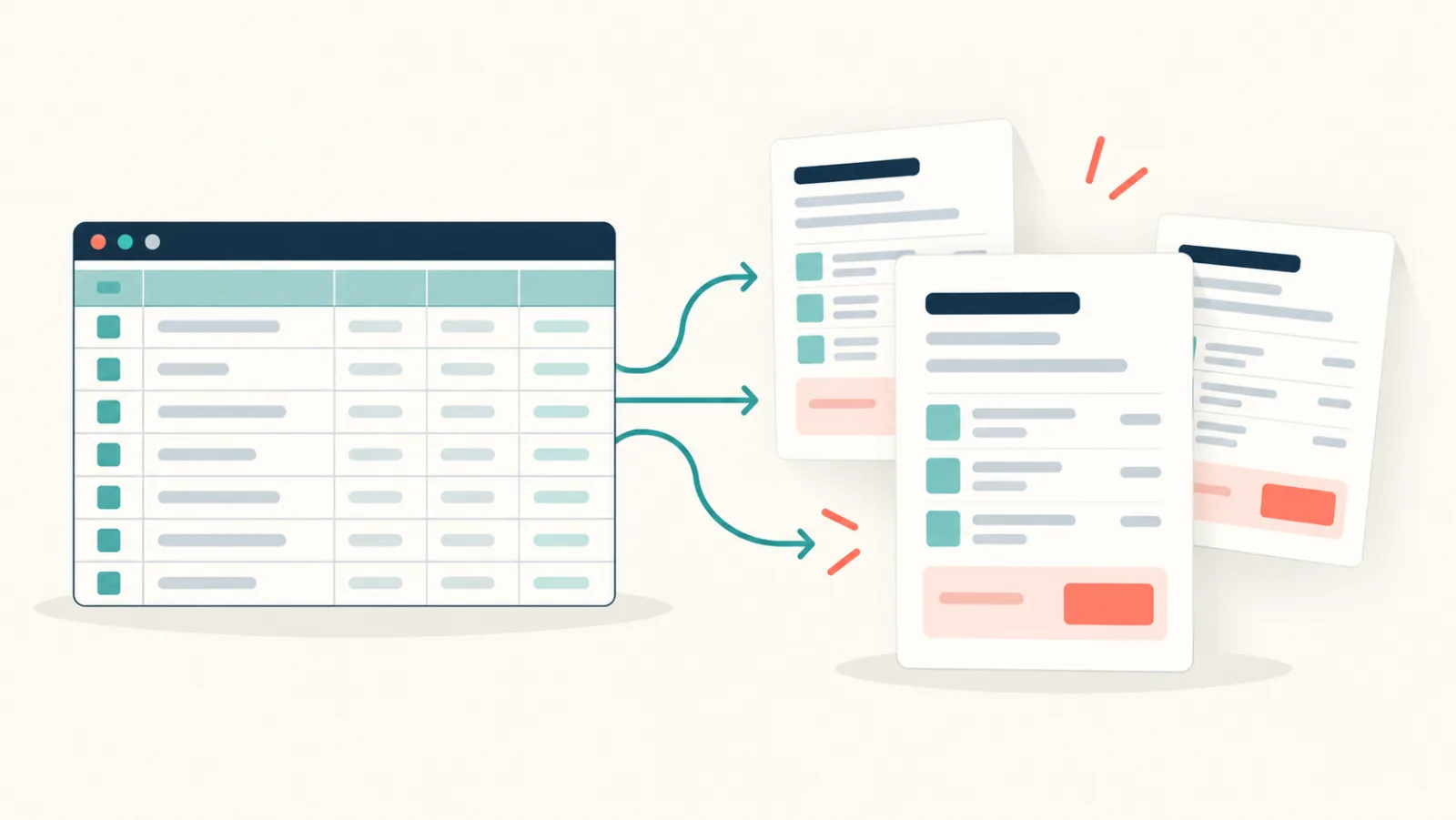
A safer process keeps proposal data in Excel and proposal design in Word. Each spreadsheet row describes one proposal. A Word template contains the approved layout and placeholders. TRYDOKU fills the template for each row. You can then download the generated proposal as Word or PDF.
This guide explains how to structure the source data, handle pricing and options, build the Word template, and review proposals before they reach a customer.
Decide which proposals belong in one batch
Batch generation works best when the proposals share one structure. They may have different customers and prices, but they should use the same sections and commercial model.
For example, a batch can contain renewal proposals for the same service plan. Another batch can contain event sponsorship packages. Do not mix a short renewal letter with a complex consulting statement of work merely because both are called proposals.
Define the batch with a clear sentence:
One row represents one proposal for one customer, using the current standard renewal template.
That rule helps the team decide which fields belong in the sheet and which opportunities need a separate template.
Create a proposal data table in Excel
Start with fields that identify the proposal and its owner:
| Proposal_ID | Company_Name | Contact_Name | Valid_Until | Account_Manager | Package_Name | Total_Display |
|---|---|---|---|---|---|---|
| P-26041 | Nordlicht GmbH | Greta Hoffmann | 2026-11-15 | Astrid Lindholm | Growth | €8,400.00 |
| P-26042 | Fjord Labs AS | Henrik Bergmann | 2026-11-20 | Felix Hartmann | Standard | €4,900.00 |
Add fields for the scope and next step only if they appear in the proposal. A useful sheet often contains:
- A stable proposal ID
- Customer and contact details
- Proposal date and expiry date
- Package or service name
- Scope summary
- Delivery period
- Price and tax display values
- Payment terms
- Account manager details
- A reviewed next-step sentence
Keep internal pipeline notes in separate columns or, better, on a separate worksheet. A private discount limit or sales comment should not be available for accidental mapping into a customer document.
Separate calculations from display fields
Use Excel to calculate quantity, unit price, discounts, tax, and totals. Then create separate display columns containing the exact text for the proposal.
For example:
=TEXT(H2,"€#,##0.00")
=TEXT(I2,"0%")
=TEXT(J2,"yyyy-mm-dd")
Name these columns Subtotal_Display, Discount_Display, and Valid_Until_Display. The raw numeric columns remain available for checks. The Word template uses the display columns.
This separation avoids a common problem: a raw value such as 0.1 appearing where the reader expects 10%. It also gives the finance or sales operations owner one place to control currency and date style.
Do not type a calculated total manually after creating formula-based line items. Add a control column that compares the displayed total with the approved amount. If your workbook has an approval status, filter the export to approved rows and record the filter rule.
Write scope fields for a template
The scope section needs enough detail to be useful, but it must fit a repeatable structure. Divide it into clear fields instead of one uncontrolled block.
For example:
Customer_Goal
Proposed_Approach
Deliverables_Summary
Delivery_Timeline
Customer_Responsibilities
Next_Step
A sales representative can write these in Excel, or the fields can come from a CRM export. Require plain text and a defined length. If a field contains text pasted from another document, remove bullets or unusual line breaks unless the template is designed to handle them.
Use controlled phrases where they are accurate. A Package_Name can map to an approved description maintained in the workbook. Do not allow a formula to create promises the delivery team has not reviewed.
Build an approved Word proposal template
Create the proposal in Microsoft Word and save it as .docx. Set up the cover, headings, body styles, tables, footer, and contact details. Keep all standard wording in this file.
Placeholders mark the content that changes:
Proposal {{Proposal_ID}}
Prepared for {{Company_Name}}
Attention: {{Contact_Name}}

Your objective
{{Customer_Goal}}

Our proposed approach
{{Proposed_Approach}}

Package: {{Package_Name}}
Total: {{Total_Display}}
Valid until: {{Valid_Until_Display}}

Prepared by {{Account_Manager}}
Use standard Word styles instead of formatting each paragraph by hand. A long customer name or scope paragraph should wrap naturally. Avoid fixed-height text boxes for variable content.
Check the template with the Word template variable parser. If you are building placeholders for the first time, use the guide to creating a Word template with placeholders.
Handle line items and package options carefully
Some proposals have one total and a short scope. Others contain a variable list of services. Decide which type you have before building the template.
For a fixed package, use named fields such as Package_Name, Package_Description, and Total_Display. This is simple and easy to review.
For several fixed options, the template can contain a table with a controlled number of rows. Each row has its own fields. Leave unused option fields blank only if the layout still looks correct.
For a truly variable list, you need repeating row data rather than a flat set of columns. Build and test that workflow separately. The guide to dynamic repeating rows in Word templates explains the underlying pattern.
Do not start with dynamic items unless the proposal really needs them. A stable package summary is easier for sales, finance, and the customer to understand.
Import the proposal data into TRYDOKU
Upload the approved Word template, then import the Excel workbook or CSV file. TRYDOKU reads the active worksheet, so make the proposal export table active before saving a multi-sheet workbook. Exporting that table alone as CSV is another clear option.
TRYDOKU maps column headers to template placeholders. Review every match, especially:
- Customer and contact names
- Proposal and expiry dates
- Subtotal and total values
- Discount and tax fields
- Account manager contact details
Use the data grid for a final visual check. If a correction is needed, update the source workbook too. Otherwise, the same error may return in the next batch.
To test the workflow with a copy of your data, create a TRYDOKU account and start with two or three approved opportunities.
Download Word, PDF, or both
Choose the output based on what happens next.
After generation, download an editable Word file when a salesperson or manager must make a controlled final change. Download a PDF when the finished proposal should keep its page layout in email or another system.
If you create both, treat them as two versions of the same proposal. The approved content must match. Do not edit the Word file after creating the PDF without producing a new PDF as well.
For a multi-row batch, TRYDOKU creates one document per row and provides a ZIP containing completed DOCX files. PDF is available per generated item. Keep the proposal ID inside each document so the file can be matched with the Excel record during review.
Test the proposal with difficult data
Before generating a live batch, include test rows with:
- A long legal company name
- A long contact name and title
- The largest realistic price
- A zero discount
- A proposal with no optional note
- A long scope paragraph
- A date in the required customer format
Open each output and check page breaks. Watch for a pricing table separated from its heading, a signature section left alone on a new page, or an expiry date wrapping in the middle.
Also test the final file in the channel used by the team. If the proposal is attached to an email, check the filename and preview. If it is uploaded to a CRM or signing tool, check that the accepted format and size match the workflow.
Review commercial details before sending
Proposal automation does not replace approval. It makes approved data easier to place consistently.
Use a review sequence with clear owners:
- Sales confirms customer, contact, scope, and next step.
- Finance or sales operations confirms price, discount, tax, and payment terms.
- The template owner confirms standard wording and current brand layout.
- A final reviewer checks the generated document against the approved Excel row.
The reviewer should not rely on how professional the document looks. A clean layout can still contain a wrong amount. Compare the critical fields directly with the source.
For a large batch of similar renewals, use workbook controls before generation: required-field checks, duplicate proposal ID checks, and an approval status. Then inspect a documented sample plus all unusual rows. High-value or custom proposals should receive a full review.
Prevent old-customer data from leaking
The safest template contains no customer-specific content. Do not use last month's proposal as the template and hope every old detail is replaced.
Before approving the template:
- Search for the previous customer's name and email domain.
- Remove comments and tracked changes.
- Check headers, footers, links, and document properties.
- Replace variable values with placeholders.
- Confirm that example tables contain neutral text.
TRYDOKU provides a browser-based DOCX metadata inspector that can help you inspect document properties before sharing a template. Metadata review is separate from content review; do both.
Common proposal automation mistakes
One sheet tries to support every proposal type
Create separate export tables and templates for materially different offers. A shorter, specific template is easier to keep current.
Currency is implied but not shown
Include the currency symbol or code in the display field. A bare 5,000 can be misunderstood.
Expiry dates are calculated after generation
Calculate and approve the date in Excel first. Place the final display value in the document.
Optional fields leave visible gaps
Test the template with empty optional values. Adjust paragraph spacing or create a complete sentence in the spreadsheet.
Sales edits the final file without updating the source
If a customer change becomes part of the agreed proposal, update the source record and regenerate. This keeps the spreadsheet and document aligned.
Proposal batch checklist
Before generation:
- One row represents one proposal.
- Every proposal has a unique ID.
- Only approved rows are included.
- Raw calculations and display values are separate.
- Currency, tax, discount, and expiry fields are explicit.
- Scope text has been reviewed.
- The template contains no old customer data.
- The difficult layout cases have been tested.
Before sending:
- The output count matches the approved row count.
- The customer and contact are correct.
- The proposal ID and dates match Excel.
- The total, discount, tax, and payment terms match Excel.
- No placeholder or internal note remains.
- The chosen Word or PDF file is the approved version.
The goal is not to make every proposal identical. It is to make the repeatable parts consistent and leave the important commercial choices visible for review. Excel holds the approved facts. Word holds the approved presentation. TRYDOKU joins them one row at a time, so the team can spend less time copying fields and more time checking the offer.