How to Generate NDAs in Bulk from Excel
Teams often need many non-disclosure agreements at once: before an event, a supplier review, a hiring round, or a partner programme. The agreements may share the same approved wording, while the party name, address, signatory, effective date, and project change for each recipient.
Copying an old NDA and replacing details is risky. A previous party name can remain in a footer or clause. The governing law can be changed in one place but not another. A signatory can receive an agreement meant for someone else.
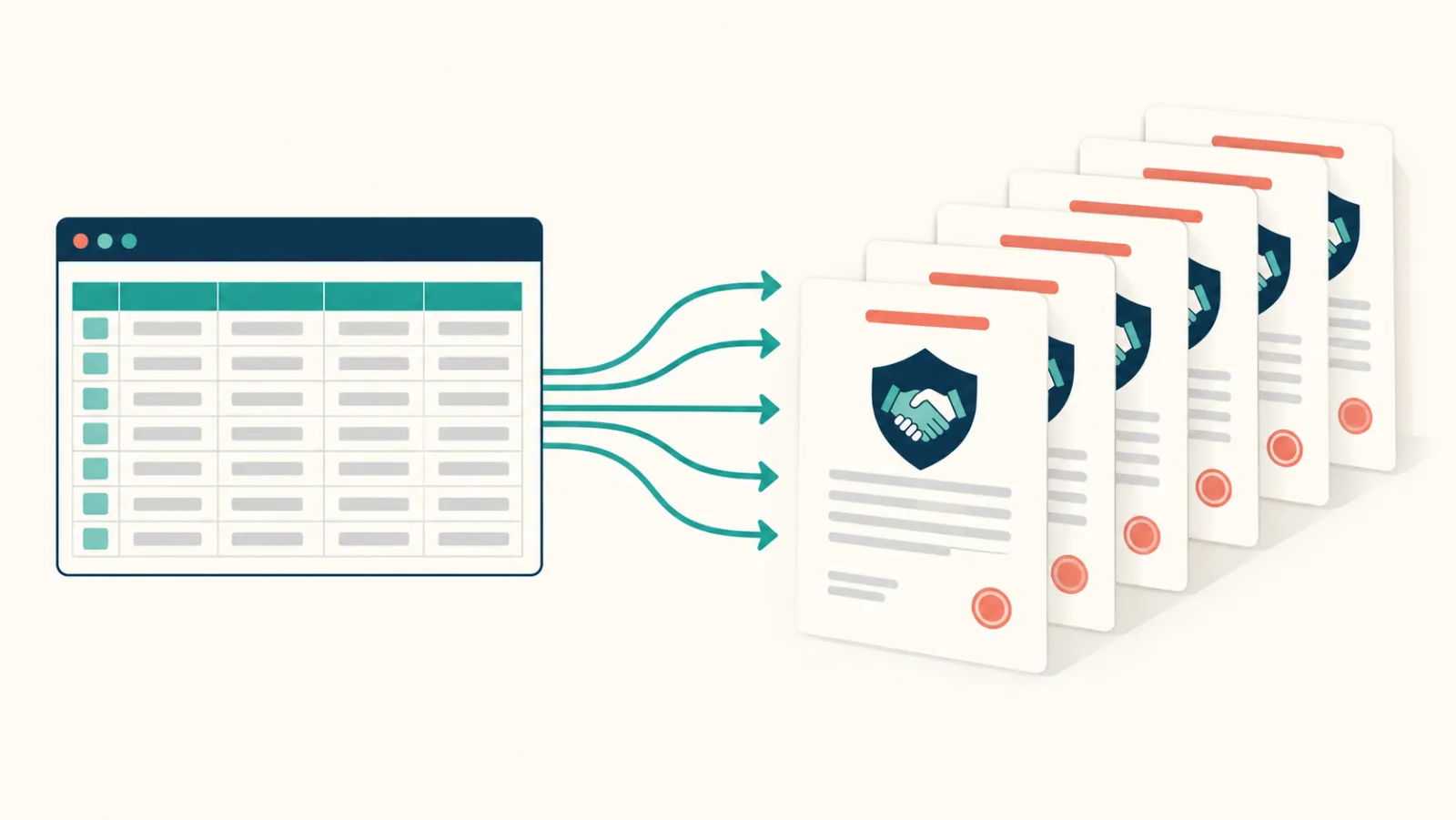
You can generate NDAs in bulk from Excel by using one approved Word template and one controlled row per agreement. TRYDOKU maps the spreadsheet fields to placeholders and produces separate documents that you can download as Word or PDF. The method reduces repetitive editing, but it does not replace legal approval or a check of each party's data.
Use one approved NDA type per batch
Begin with the legal template, not the spreadsheet. Ask the legal owner which NDA form applies.
Common distinctions include:
- One-way or mutual confidentiality duties
- Employee, contractor, supplier, or customer context
- Different governing laws or legal entities
- Different confidentiality periods
- A specific project or general business discussions
If those differences change the legal clauses, use separate templates and separate batches. Do not create one large spreadsheet with a column that invites users to choose legal wording they are not authorised to change.
A clear batch definition could be:
Mutual NDAs for suppliers reviewing Project Aurora, using the approved German-law template dated 2026-10-01.
Record the template owner and version. That note helps you prove which wording was used if the template later changes.
Build a controlled Excel table
One row should represent one agreement. A basic data table may contain:
| NDA_ID | Party_Legal_Name | Party_Address | Signatory_Name | Signatory_Title | Effective_Date |
|---|---|---|---|---|---|
| NDA-26071 | Nordlicht GmbH | Hamburg, Germany | Greta Hoffmann | Managing Director | 2026-10-20 |
| NDA-26072 | Fjord Labs AS | Oslo, Norway | Henrik Bergmann | Operations Director | 2026-10-21 |
Depending on the approved template, you may also need:
- Your contracting legal entity
- The other party's registration number
- Registered office address
- Project or purpose description
- Confidentiality term
- Notice email
- Governing law display value
- Internal owner
- Approval status
Use a stable NDA_ID. Put it inside the document and keep it in any signing or contract record. The ID is more reliable than searching by company name alone.
Verify legal names and authority
An NDA should identify the correct legal parties. A familiar brand name may not be the contracting entity. Ask the responsible person to provide or verify the legal name, entity type, registered address, and registration number when the template requires them.
The signatory field also deserves attention. A name and title can be correct in the spreadsheet while the person lacks authority to sign. Bulk generation cannot verify signing authority. Make that a separate business check.
Add spreadsheet control columns such as:
Party_Verified
Signatory_Verified
Legal_Approved
Ready_To_Generate
Use clear values, for example Yes, No, and Needs review. Filter the generation export to records that are ready. Avoid colour alone as the approval signal; colours are easy to miss and difficult to audit outside Excel.
Keep legal choices out of free text where possible
The data sheet should contain facts and approved selections, not ad hoc clause drafting. A project purpose can be a reviewed text field. Governing law, agreement type, and confidentiality period should follow controlled options defined by the legal owner.
If a term changes the clause wording, it may be safer to use a separate template than a field. A placeholder works well for a date or party name. It is not automatically the right tool for choosing between materially different legal positions.
Do not use spreadsheet formulas to invent clause language. Formulas can format a date or combine an address. Legal text should come from an approved template or a controlled, reviewed source.
Prepare display fields
Create fields containing the exact text that should appear in the NDA. This is especially useful for dates, addresses, and entity descriptions.
Examples:
Effective_Date_Display
Party_Full_Description
Party_Address_Display
Confidentiality_Term_Display
An address may need controlled line breaks. A party description may combine the legal name, entity type, registration number, and jurisdiction. Have legal counsel approve the structure, then use it consistently.
Do not place sensitive personal data in the sheet unless the agreement requires it. Limit access to the workbook and generated files to people involved in the process. Review TRYDOKU's current hosting, retention, and processing information on the Security and Trust page before using live party data.
Create a clean Word NDA template
Start from the approved legal document in Microsoft Word. Remove all details from the previous matter. Search headers, footers, comments, tracked changes, and document properties as well as the main text.
Insert placeholders for variable data:
MUTUAL NON-DISCLOSURE AGREEMENT

Agreement reference: {{NDA_ID}}
Effective date: {{Effective_Date_Display}}

This agreement is made between {{Our_Entity_Description}} and
{{Party_Full_Description}}.

Purpose: {{Purpose_Description}}
Confidentiality period: {{Confidentiality_Term_Display}}

For {{Party_Legal_Name}}
Name: {{Signatory_Name}}
Title: {{Signatory_Title}}
This is only an example of field placement, not legal wording. Use the language approved for your organisation and jurisdiction.
Keep every placeholder as one continuous piece of text. Check the template with the Word template variable parser. The DOCX metadata inspector can help identify document properties that should be reviewed before the template is shared.
Protect the fixed wording
The main value of a template is consistency. Limit who can edit the approved NDA file. Give the file a clear name and version, such as:
mutual-nda-de-v4-approved-2026-10-01.docx
Store the editable legal master separately from the working upload copy. If legal changes a clause, create a new version and test it. Do not silently replace the template while a batch is under review.
Record which version created each batch. A simple batch note can contain the template filename, generation date, row count, and workbook version.
Import the NDA data into TRYDOKU
Upload the approved .docx template. Import the Excel workbook or a CSV export. TRYDOKU reads the workbook's active worksheet, so make the NDA export sheet active before saving a multi-sheet upload file. A CSV containing only the approved records is another clear option.
Review the field mapping carefully. Legal fields often have similar names: Our_Legal_Name, Party_Legal_Name, Our_Signatory, and Party_Signatory. A wrong mapping can create a document that reads smoothly but names the wrong party.
Compare the imported row count with the approved count. Check the first and last records. If you correct data in the browser grid, make the same correction in the source workbook before it is used again.
For the general spreadsheet workflow, read how to generate contracts from Excel. To test an approved template with non-live sample data, create a TRYDOKU account.
Generate a small legal test batch
Before a live run, create fictional test rows that cover difficult cases:
- A long legal entity name
- A multi-line registered address
- An entity name containing an ampersand
- A signatory with a long title
- An optional registration number left blank
- Each approved date and term format
Open every test document. Check defined terms, party descriptions, signature blocks, page numbering, and cross-references. A long party name can change line wrapping throughout a clause. A blank registration number can leave broken punctuation.
Download and inspect the PDF output too, if PDFs will be sent for signature. Check that the signature block stays together and no page is unexpectedly blank.
Review each generated NDA
Legal documents need a stronger review than a routine marketing letter. Define the review depth with your legal owner. At minimum, compare these fields with the approved spreadsheet row:
- NDA ID
- Both legal party descriptions
- Registered addresses
- Effective date
- Purpose
- Confidentiality term
- Governing law, when variable
- Signatory names and titles
Search the document for unresolved placeholders. Search for names from any earlier test matter. Confirm that comments and tracked changes are not visible.
A second reviewer is useful because the person who prepared the sheet may read what they expect to see. The reviewer should have the approved row and template version, not only the finished document.
Keep generation separate from signature
TRYDOKU creates Word and PDF documents. Signing is a separate process. Your organisation may use an electronic signature service, exchange PDFs by email, or sign on paper.
Before moving files into that process:
- Complete the content review.
- Choose the final Word or PDF version.
- Ensure the filename and NDA ID are traceable.
- Upload or send the correct document to the correct party.
- Record the signing status in the system responsible for contracts.
Do not treat a generated file as executed. Generation, approval, sending, and signature are different states.
Handle corrections without losing the audit trail
If a party detail is wrong, correct the Excel row and regenerate the NDA. Do not fix only the final Word file unless your legal process explicitly records that change.
Mark the old output as superseded. Keep the same NDA ID only if your internal policy allows it, and add a revision indicator where needed. Never leave two apparently current versions in the send folder.
If the legal wording changes, create a new template version. Note which records must be regenerated. A spreadsheet value change and a legal-template change are different events and should be reviewed by the right owner.
Common NDA batch mistakes
Brand name used instead of legal entity
Verify the contracting name. Do not assume a website or email footer provides the correct entity.
Mutual and one-way agreements mixed together
Use separate templates and batches. The difference is structural, not a label.
Governing law copied from an old file
Keep fixed legal wording in the approved clean template. Search the file before upload.
Blank fields leave broken clauses
Required legal fields should stop the row from becoming ready. Test optional fields with legal counsel.
The wrong document is sent to a party
Use a unique ID, controlled filenames, and a send checklist. Generation does not remove the need to match recipient and attachment.
NDA batch checklist
Before generation:
- The correct approved NDA type and version are selected.
- One row represents one agreement.
- Every agreement has a unique ID.
- Legal party details have been verified.
- Signatory data and authority have been checked.
- Required legal choices use approved values.
- Only approved rows are included.
- The template contains no old party data, comments, or tracked changes.
After generation:
- The output count matches the approved rows.
- Every variable field matches the source.
- No placeholder remains.
- Fixed legal wording matches the approved template.
- Word and PDF layout has been checked.
- Each file is matched to the correct recipient before sending.
Bulk NDA generation should make the clerical work smaller, not the legal review weaker. Excel can hold verified party data and approval state. Word can hold the controlled agreement language. TRYDOKU can merge one row into one document. The final safeguards are still human: selecting the right template, verifying the parties, reviewing the output, and sending the right file to the right person.