How to Auto Fill Word Documents from Excel Data Without Code
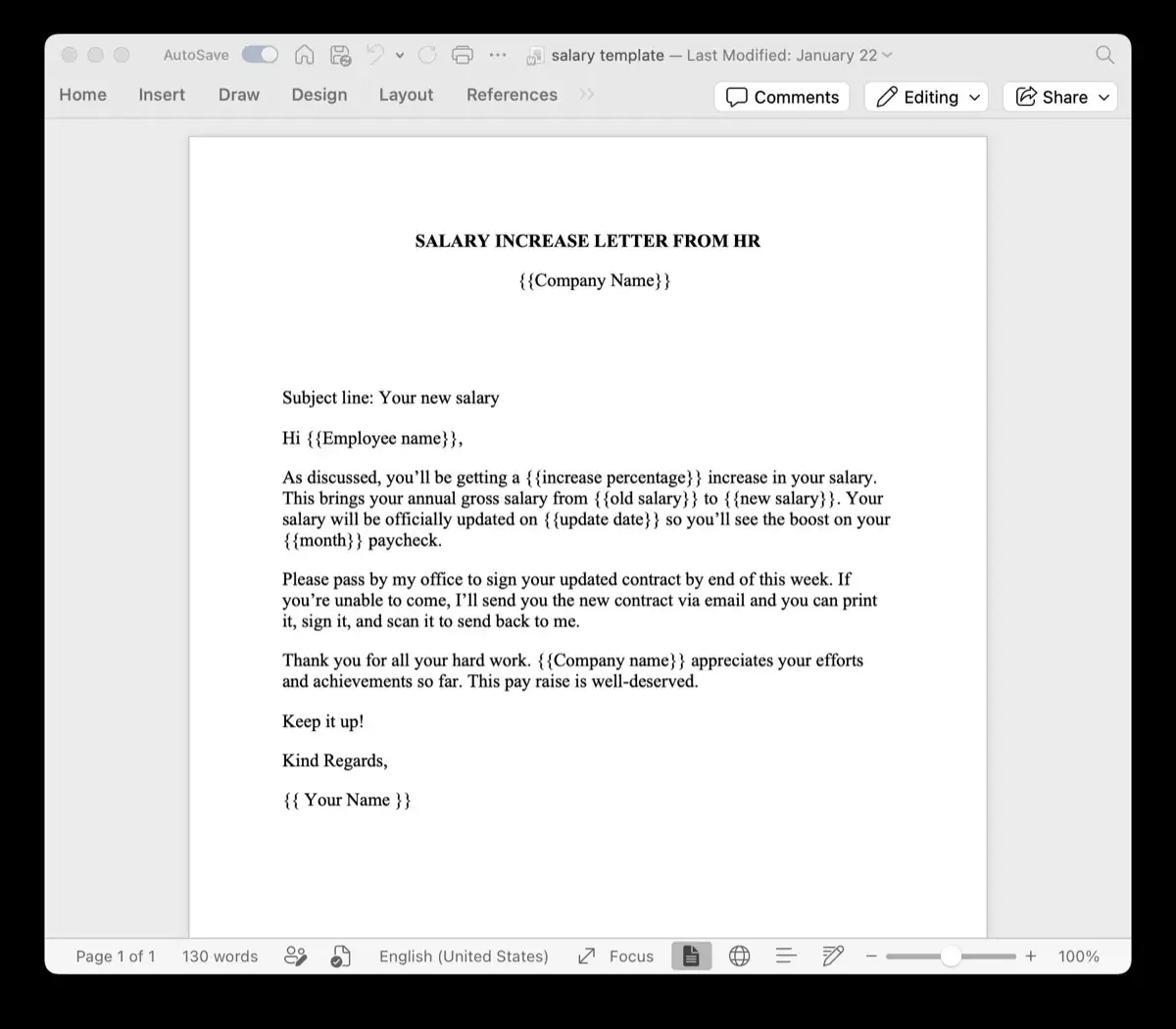
Manual data entry is one of the most widespread productivity killers in modern office work. Administrative professionals, project managers, and operations staff spend countless hours each week transferring names, dates, amounts, and addresses from Excel spreadsheets into Microsoft Word documents.
In this practical tutorial, we show you how to auto fill Word documents from Excel data using lightweight placeholders. By pairing your Microsoft Word templates with TRYDOKU, you can automate document creation across entire datasets in just a few clicks—no programming, complicated macros, or Mail Merge wizardry required.
Why Manual Copy-Pasting Between Excel and Word Fails
When organizations rely on manual copy-pasting, three issues inevitably emerge:
- Slow Output: Even an experienced team member takes 2 to 4 minutes to populate and check a single multi-page Word agreement.
- Copy-Paste Corruption: Pasting data often brings over unwanted Excel formatting, altered fonts, or disrupted paragraph spacing.
- Typographical Disasters: Miscopying an agreement date or swapping two client addresses exposes businesses to financial liability and client disputes.
Automating the data flow ensures that every generated document adheres strictly to approved legal and visual styling guidelines while populating spreadsheet values with mathematical precision.
Solutions Comparison: Mail Merge vs. TRYDOKU
Many users try Word's native Mail Merge before looking for dedicated automation. Here is how the workflows compare:
| Workflow Step | Word Mail Merge | TRYDOKU Cloud Engine |
|---|---|---|
| Placeholder Definition | Complex merge field codes (MERGEFIELD) |
Simple readable tags (e.g. {{Customer_Name}}) |
| Field Verification | Tedious preview navigation | Instant browser variable parser |
| Spreadsheet Handling | Requires locking Excel file, prone to SQL errors | Native cloud upload for .xlsx, CSV, and Google Sheets |
| Batch Export | Single giant file or email dispatch | Downloadable ZIP of individual, neatly named files |
| Output Type | Word or printer output | Choice of editable DOCX or vector PDF |
How to Auto Fill Word Documents from Excel Data (4 Steps)
Step 1: Design Your Template with Readable Placeholders
Open your document template in Microsoft Word. Identify every spot where personalized or variable data belongs.
Replace the static text with a double curly brace tag matching the intended data field:
CLIENT SERVICE AGREEMENT

This Agreement is made on {{Agreement_Date}}, between {{Agency_Name}} and {{Client_Company}}.

Project Scope: {{Project_Title}}
Project Budget: {{Total_Budget}}
Delivery Deadline: {{Completion_Date}}
Because TRYDOKU supports standard Word templates, you can keep your existing brand typography, page layouts, letterheads, headers, and footers intact.
Step 2: Prepare Your Spreadsheet
Open Excel and verify that your column headers match your placeholder names. For example, make sure you have columns named Agreement_Date, Agency_Name, Client_Company, etc.
If you have messy spreadsheet data, you can convert it to clean standard formats using our free Excel to CSV converter in your browser.
Step 3: Match Fields on TRYDOKU
- Head to TRYDOKU and upload your
.docxtemplate. - The parser scans the file and extracts every placeholder.
- Upload your
.xlsxExcel file. The platform automatically maps identical column headers to their corresponding template tags.
Step 4: Auto Fill and Download
Click Generate. TRYDOKU auto fills your Word template once for every single row in your spreadsheet.
Within seconds, you can download a consolidated ZIP archive containing all the generated documents. You can also explore our core features to see how conditional logic and dynamic table repeating can handle even more complex documents.
Frequently Asked Questions
Can I auto fill Word documents if some cells in Excel are blank?
Yes. If an Excel cell is empty, TRYDOKU will cleanly replace the placeholder with an empty string without leaving broken code markers or disrupting the surrounding sentences.
Do I need to learn Visual Basic (VBA) or write code?
No. TRYDOKU is entirely visual and requires zero coding knowledge. Anyone who can type in Microsoft Word can set up an automated template.
Is there a limit on how many placeholders a Word template can have?
No. You can include as many placeholders as necessary, from simple one-page letters to complex 50-page technical contracts.