How to Export Excel Rows into Individual Word Files (DOCX) in 3 Minutes
Teams often collect data for customer proposals, employee contracts, project specifications, or audit checklists in a single master spreadsheet. When they need to share it with external stakeholders, sending a spreadsheet row is not a workable option. Each record needs its own professionally formatted Microsoft Word document (.docx).
If you are looking for a reliable way to export Excel rows into individual Word files, this guide explains why traditional Word Mail Merge falls short and shows you how to automate row-by-row document generation in three minutes using TRYDOKU.
The Problem with Manual Row-by-Row Exporting
For administrative and operations teams, converting spreadsheet rows into Word documents by hand creates several problems:
- Labor-Intensive Typing: Opening a Word template, copying values from an Excel row, and saving the document under a custom filename takes 2 to 4 minutes per row. For a dataset of 150 rows, that adds up to an entire workday of repetitive administration.
- Broken Document Separation: Word's native Mail Merge "Edit Individual Documents" feature combines all merged records into a single continuous 300-page file. Extracting each section into a standalone file requires tedious manual copy-pasting or fragile VBA macros.
- Typing Errors: Transposing client addresses, mistyping compensation figures, or pasting data into the wrong template placeholder introduces critical operational risks.
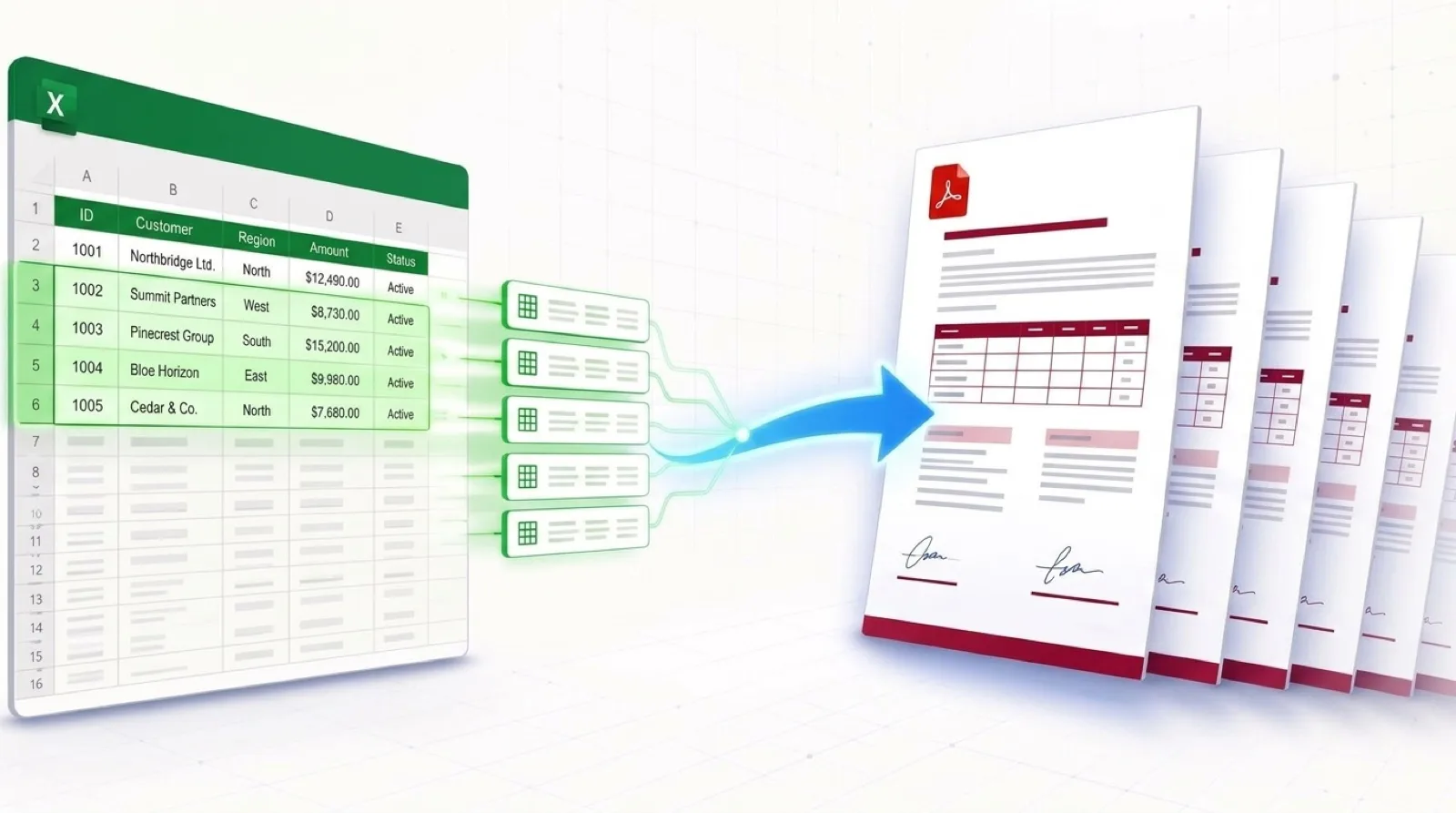
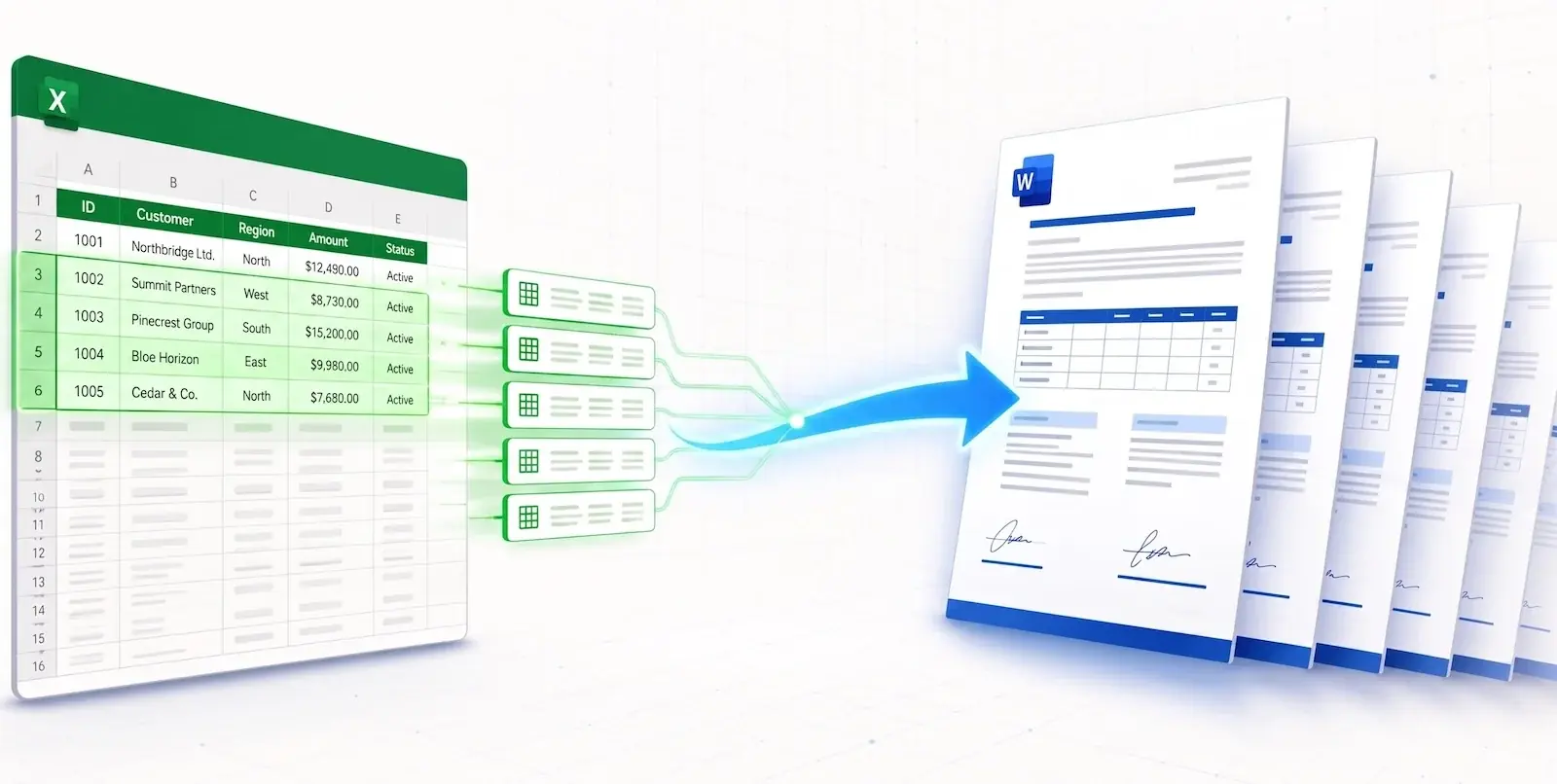
TRYDOKU solves this by automating the conversion: each spreadsheet row becomes a separate Word document with the exact template styling, and all documents are packaged in a single ZIP archive.
Workflow Comparison
| Capability | Manual Copy-Paste | Word Mail Merge + VBA Splitter | TRYDOKU Cloud Automation |
|---|---|---|---|
| Setup Time | Immediate (but hours of manual labor) | 30–60 mins of script tweaking | 2 minutes (Visual interface) |
| Output Delivery | Save each file manually | Local folder export | Clean ZIP of named DOCX files |
| Formatting Integrity | High risk of font mismatches | ⚠️ Frequently drops headers/footers | ✅ 100% Native Word styling preserved |
| File Naming | Manual typing per file | Numeric suffix | Dynamic names from spreadsheet values |
| Ease of Use | Tedious | Technical (VBA required) | Accessible to any business user |
How to Export Excel Rows into Individual Word Files (4 Steps)
Step 1: Format Your Excel Spreadsheet
Organize your spreadsheet as a table with clear column headers in Row 1:
Client_Name(e.g., "Apex Global Logistics")Contract_ID(e.g., "CNT-2026-092")Project_Scope(e.g., "Supply Chain Optimization")Total_Fee(e.g., "€18,500")Start_Date(e.g., "October 1, 2026")
Each row after the header represents one Word document to generate. You can preview and convert tabular spreadsheet data with our free Excel to Word table converter.
Step 2: Build Your Word Template
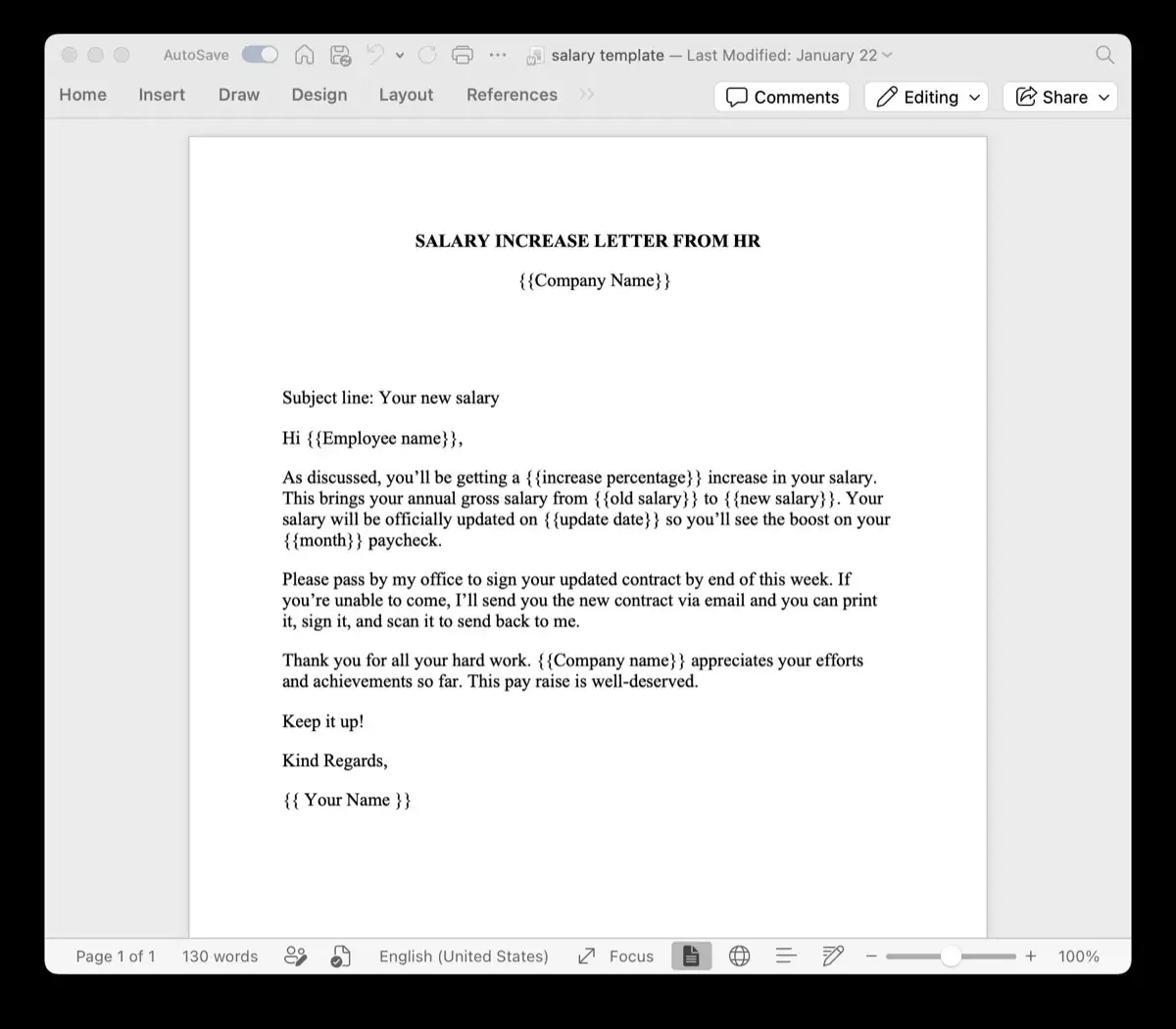
Open Microsoft Word and design your document. Set your company’s standard margins, add your letterhead logos, and format the paragraphs.
Insert placeholders in double curly brackets wherever spreadsheet values should appear:
PROJECT ENGAGEMENT CONFIRMATION

Client Name: {{Client_Name}}
Contract Reference: {{Contract_ID}}
Effective Date: {{Start_Date}}

Scope of Engagement:
{{Project_Scope}}

Agreed Consulting Fee: {{Total_Fee}}
To check that your template variables are correctly formatted and ready to match, use our free Word template variable parser.
Step 3: Connect Files in TRYDOKU
- Upload your
.docxtemplate to TRYDOKU. - Upload your Excel spreadsheet (
.xlsx). - TRYDOKU auto-matches the column headers to your template placeholders. Check the matches in the mapping table.
Step 4: Batch Export to Separate Word Documents
Select Word (.docx) as your output format and click Generate.
In seconds, TRYDOKU processes each row and packages the resulting files in a ZIP archive. Each file inside the archive is an independent, fully editable Word document named using your spreadsheet data (such as Engagement_{{Client_Name}}_{{Contract_ID}}.docx).
Frequently Asked Questions
Can I also generate PDF copies at the same time?
Yes. TRYDOKU lets you generate DOCX files, vector PDFs, or both in the same batch.
What happens if an Excel row contains empty cells?
TRYDOKU replaces blank placeholders with an empty string, avoiding broken formatting or leftover code tags.
Is customer data secure?
Yes. TRYDOKU is hosted in Frankfurt, Germany (EU). All imported spreadsheets and generated documents are encrypted and automatically deleted from temporary storage within 24 to 72 hours in line with GDPR requirements.