Excel Date Format: Codes, Serial Numbers, and Formulas
Dates appear in almost every business spreadsheet. You may use them to calculate payment deadlines, track contract renewals, or prepare delivery notes.
But Excel dates can cause confusing errors:
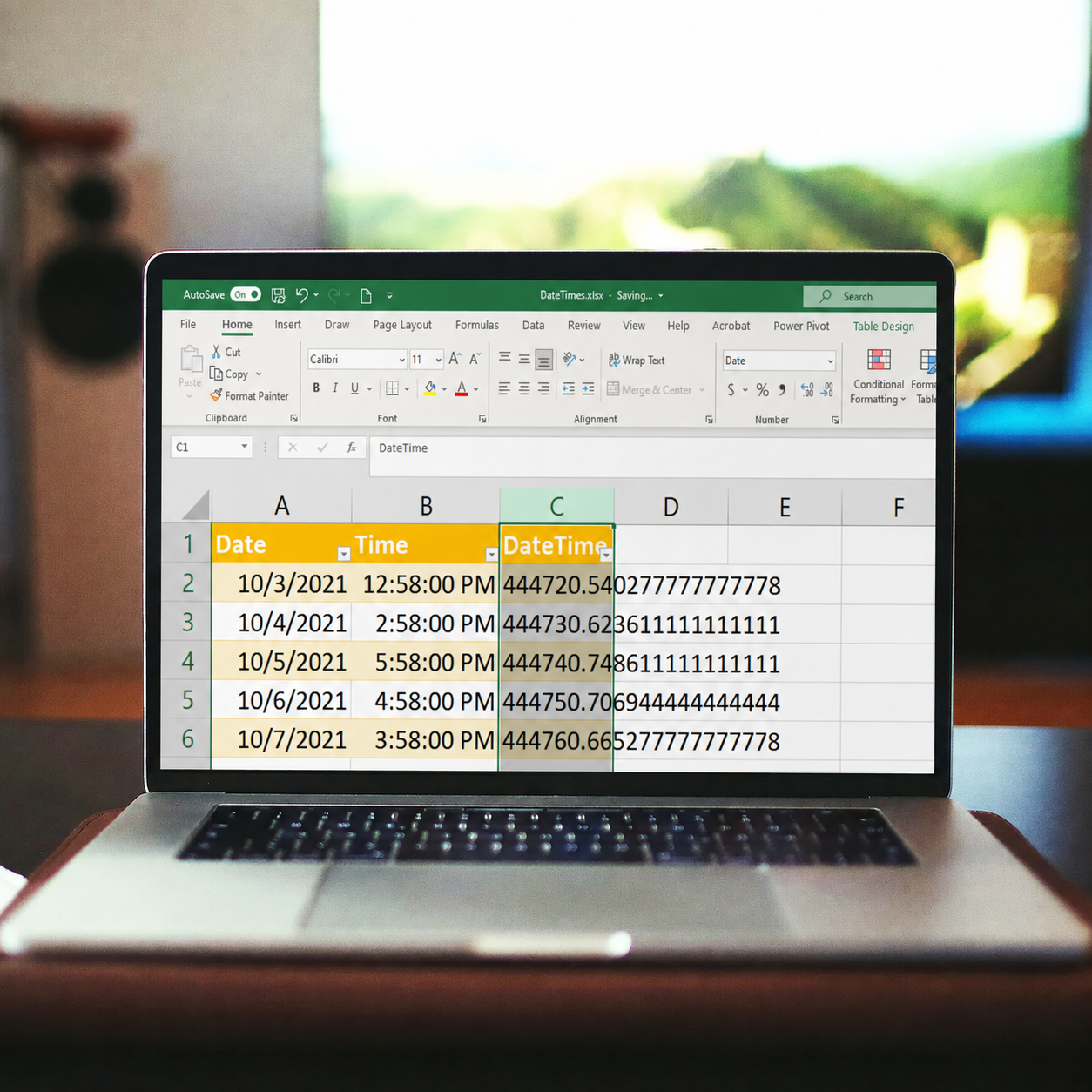
- A date appears as a five-digit number, such as
45884. - A value such as
04/05/2026means April 5 in one country and May 4 in another. - A deadline calculation includes weekends or holidays.
- A document generator inserts a raw serial number instead of a readable date.
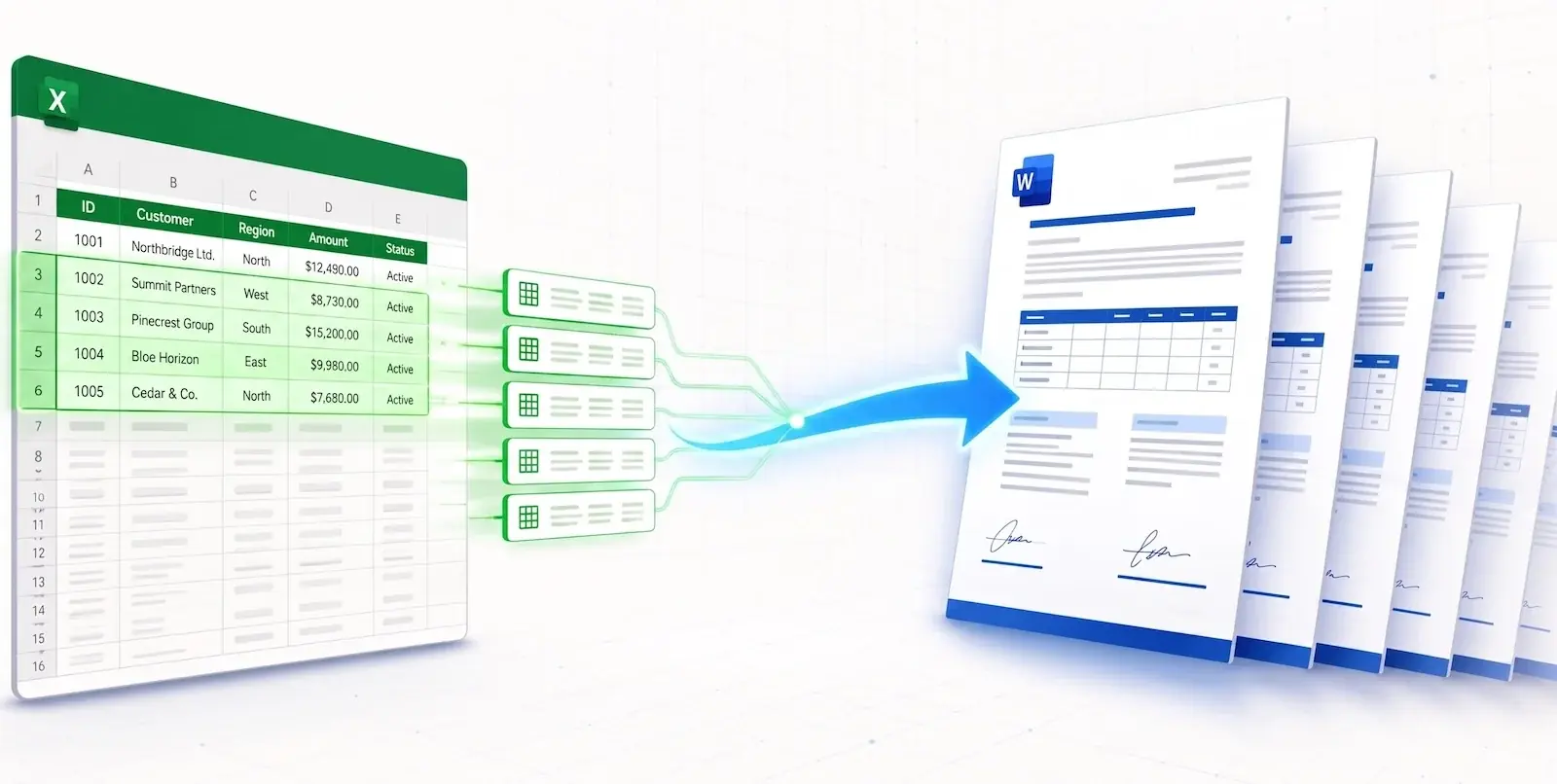
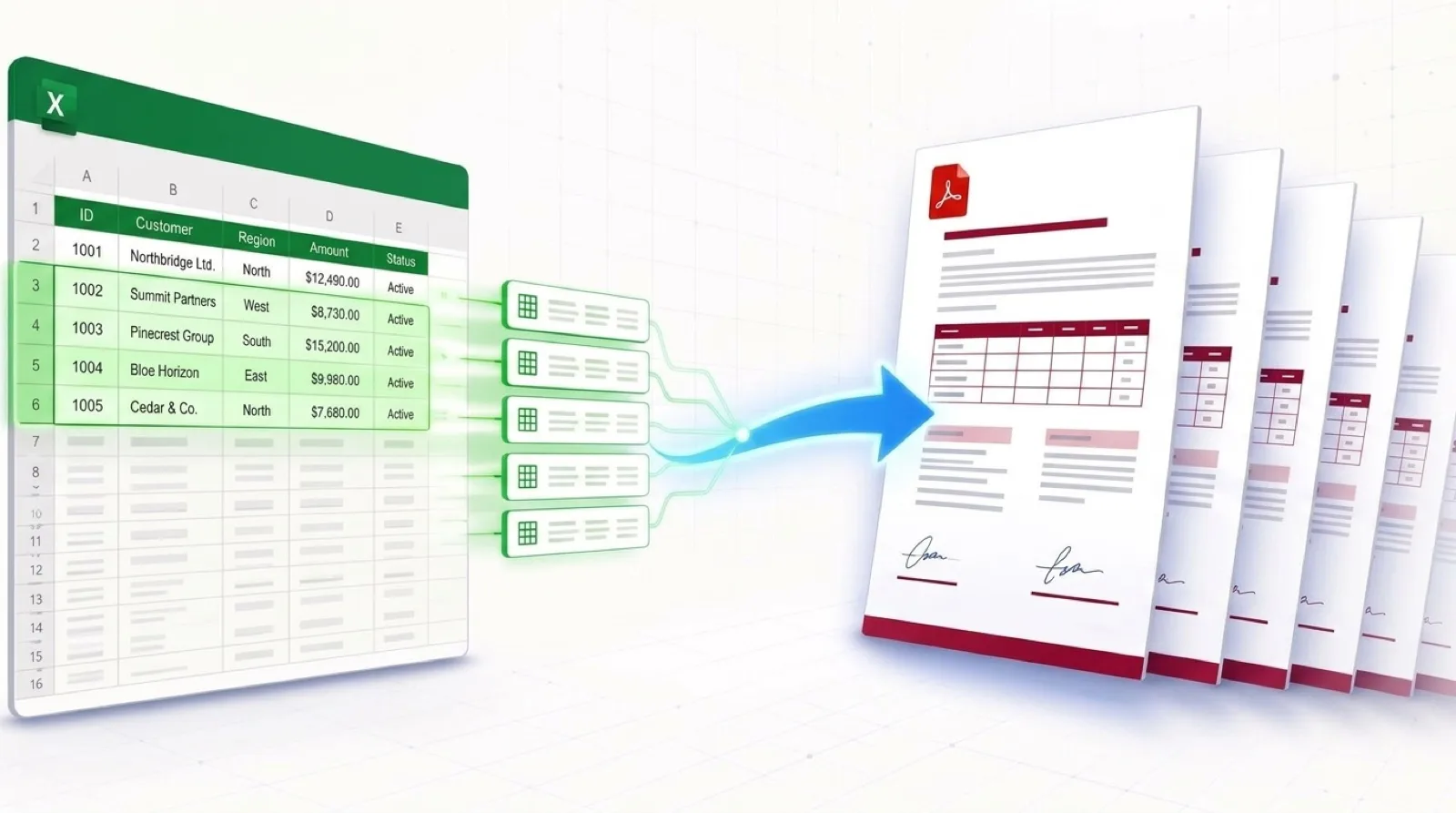
This guide explains how Excel stores dates, how to format them, which formulas are most useful, and how to prepare date values for automated Word and PDF documents.
1. How Excel Stores Dates
Excel usually stores a date as a serial number. In Excel’s default 1900 date system, each whole number represents one day:
1= January 1, 19002= January 2, 190045884= August 15, 2025
Time is stored as a fraction of a day. For example, 0.5 means noon.
45884.5 = August 15, 2025 at 12:00 PMThe cell’s number format controls what you see. The stored value can remain 45884 even when Excel displays August 15, 2025.
Why this matters for document automation: Some export and merge tools read the stored value rather than the cell’s visual format. If that happens, your generated document may contain
45884instead of a readable date.
2. How to Create a Custom Date Format
Excel’s standard date formats depend on regional settings. A workbook may therefore display dates differently on another computer.
To choose a custom format, open Format Cells with Ctrl + 1 on Windows or Command + 1 on Mac. Then select Number → Custom.
Common date format codes
| Code | Example for August 5, 2026 | Meaning |
|---|---|---|
d / dd |
5 / 05 |
Day without or with a leading zero |
ddd / dddd |
Wed / Wednesday |
Short or full weekday name |
m / mm |
8 / 08 |
Month without or with a leading zero |
mmm / mmmm |
Aug / August |
Short or full month name |
yy / yyyy |
26 / 2026 |
Two-digit or four-digit year |
Useful business date formats
- Formal contract date:
mmmm d, yyyy→ August 5, 2026 - European numeric date:
dd.mm.yyyy→ 05.08.2026 - ISO 8601 date:
yyyy-mm-dd→ 2026-08-05 - Date and time:
yyyy-mm-dd hh:mm→ 2026-08-05 14:30
For data exchange and document automation, yyyy-mm-dd is usually the safest choice. It is clear, sortable, and avoids month-and-day confusion. Month and weekday names may change with Excel’s language settings.
3. Useful Excel Formulas for Date Calculations
A. Add days or months
Because Excel stores dates as numbers, you can add calendar days directly:
- Payment due in 30 calendar days:
=A2+30 - Contract renewal in six months:
=EDATE(A2,6) - Last day of the current month:
=EOMONTH(A2,0) - Last day of the next month:
=EOMONTH(A2,1)
Use EDATE when you need whole calendar months. It handles months with different numbers of days.
B. Exclude weekends and holidays
Simple addition includes every calendar day. For delivery estimates, service-level agreements, and other working-day deadlines, use WORKDAY.
-
Find a date after a set number of working days:
=WORKDAY(start_date,days,[holidays]) -
Example:
=WORKDAY(TODAY(),10,$Z$2:$Z$10)
This returns the date 10 working days after today. It skips Saturdays, Sundays, and holidays listed in$Z$2:$Z$10. -
Count working days between two dates:
=NETWORKDAYS(start_date,end_date,[holidays])
If your weekend is not Saturday and Sunday, use WORKDAY.INTL or NETWORKDAYS.INTL.
C. Calculate age, tenure, or duration
The DATEDIF function returns the difference between two dates in years, months, or days. The start date must not be later than the end date.
=DATEDIF(start_date,end_date,"Y")— completed years=DATEDIF(start_date,end_date,"M")— total completed months=DATEDIF(start_date,end_date,"YM")— remaining months after completed years
Example: employee tenure
=DATEDIF(B2,TODAY(),"Y") & " years, " & DATEDIF(B2,TODAY(),"YM") & " months"4. Real Dates vs. Text Dates
A custom number format changes only how a date looks. The value remains a real Excel date that you can sort, filter, and use in calculations.
The TEXT function is different. It converts a date into text:
=TEXT(A2,"mmmm d, yyyy")If A2 contains the serial number 45884, the formula returns August 15, 2025 in an English-language Excel setup.
Use TEXT when:
- You are building a sentence, such as:
="Agreement signed on " & TEXT(B2,"mmmm d, yyyy") - You need an export column with a fixed display format.
- Your document merge tool does not preserve Excel’s cell formatting.
Do not use TEXT when:
- You still need to calculate, sort, or filter by date.
- You are replacing the original date column.
Best practice: Keep the original date as a real date. If needed, add a separate formatted column for export or document generation.
5. Prepare Excel Dates for TRYDOKU
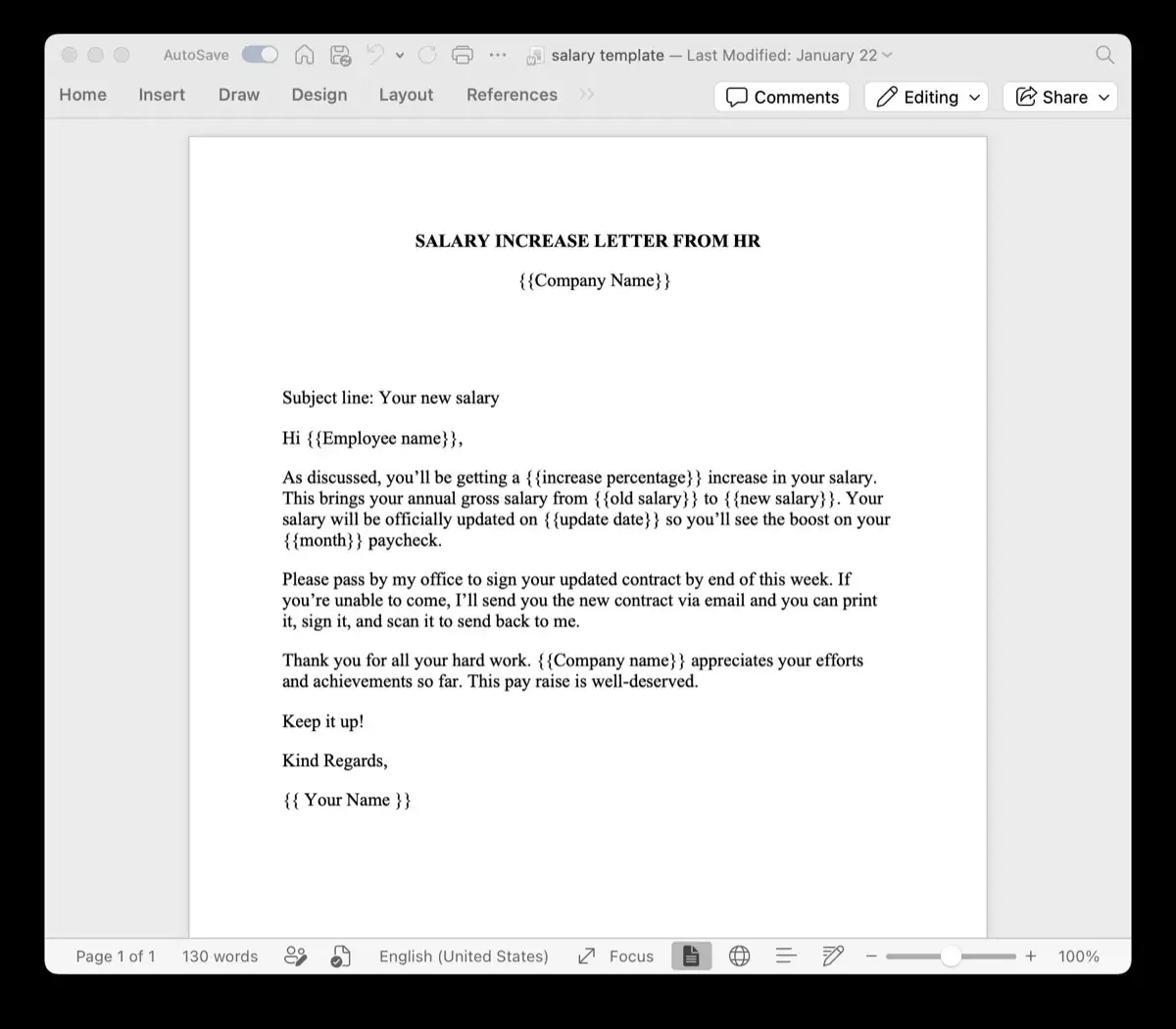
When generating contracts, quotes, NDAs, or delivery notes, you can map Excel columns to placeholders such as {{agreement_date}}, {{due_date}}, and {{effective_date}}.
For example, imagine that column B contains the start date and the document needs a due date 14 working days later:
| Client | Start date | Excel formula | Exported value |
|---|---|---|---|
| Acme Corp | 2026-09-01 | =TEXT(WORKDAY(B2,14),"yyyy-mm-dd") |
2026-09-21 |
Best practices for reliable document generation
- Keep source dates as real dates. This preserves sorting, filtering, and calculations.
- Use dedicated calculation columns. Create separate columns for values such as renewal dates and payment deadlines.
- Add export columns when needed. Use
TEXTonly when your merge process needs a fixed string. - Use clear column names. Match headers such as
due_datewith placeholders such as{{due_date}}. - Avoid ambiguous formats. Prefer
2026-09-01orSeptember 1, 2026over09/01/26. - Test one row first. Confirm the date format in a sample document before generating the full batch.