How to Convert Excel Rows to Word Documents Automatically (1 Row = 1 Document)

Spreadsheets are a common place to keep customer lists, order manifests, survey responses, audit checklists, and payroll summaries. When you share that information with clients, auditors, or employees, though, they often expect a formal document with a clear layout.
If you need to convert Excel rows to Word documents (with each spreadsheet row becoming a separate, personalized .docx file), this guide walks you through the process with TRYDOKU.
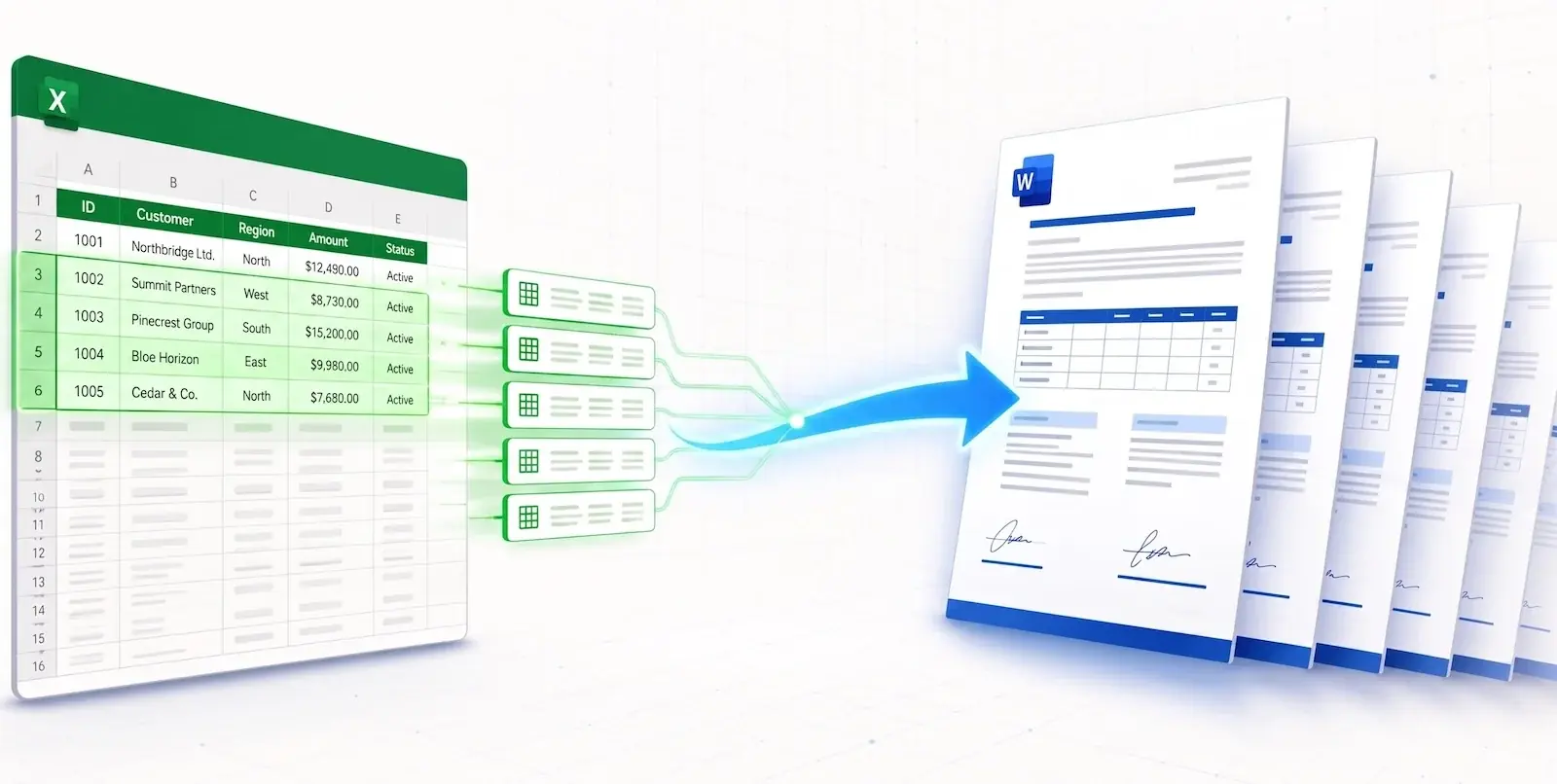
How Row-to-Document Conversion Works
The process has three parts:
- Columns become Fields: Every column header in row 1 of your spreadsheet (e.g.,
Customer_Name,Order_Total,Delivery_Address) represents a variable data field. - Rows become Documents: Every subsequent row in your spreadsheet represents a distinct recipient or transaction record.
- The Template Sets the Layout: A Microsoft Word template sets the page layout, letterhead, fonts, and text that stays the same in every document.
During generation, values from Row 2 fill one copy of the template, values from Row 3 fill another, and so on.
Comparing Methods: Manual vs. Python Scripts vs. TRYDOKU
| Metric | Manual One-by-One | Python Scripts (python-docx + openpyxl) |
TRYDOKU Platform |
|---|---|---|---|
| Setup Effort | None initially (but hours of manual labor) | High (Requires development environment) | 2 minutes (Web browser UI) |
| Styling & Kerning | High (in Word) | ⚠️ Often corrupts complex formatting | ✅ 100% Word fidelity preserved |
| Execution Speed | ~3 minutes per row | Fast (command line only) | 100 rows in under 10 seconds |
| Output Delivery | Save each file manually | Local folder output | ZIP archive with named files |
| Ease of Use | Tedious | Developers only | Accessible to any business user |
How to Convert Excel Rows to Word Documents in 4 Steps
Step 1: Organize Your Excel Spreadsheet
Arrange your data in a single table with no merged cells or empty rows:
Row 1: Must contain your column headers (Client_Name,Invoice_ID,Issue_Date,Amount_Due).Row 2 and beyond: Each row contains the specific values for one individual document.
If you have messy spreadsheet data, you can clean, parse, and convert your files using our free client-side Excel to CSV converter or convert raw tabular selections using our Excel to Word tool.
Step 2: Create Your Word Template
Open Microsoft Word and create your document layout. Insert your company logo, set your margins, and format the paragraphs.
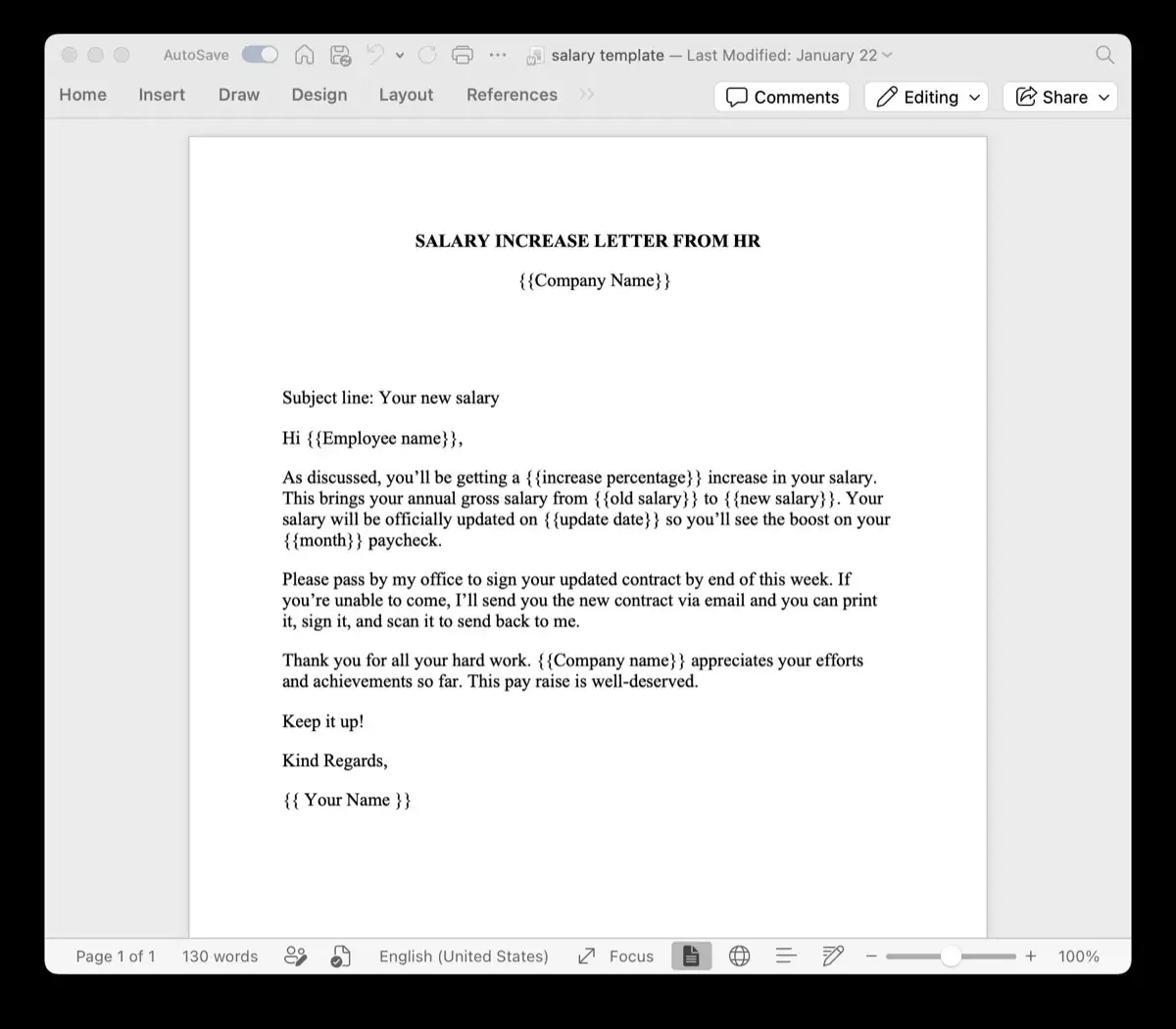
Wherever you want data from an Excel row to be inserted, type the exact column header wrapped in double curly brackets:
ORDER CONFIRMATION

Order Reference: {{Invoice_ID}}
Order Date: {{Issue_Date}}

Customer Name: {{Client_Name}}
Billing Amount: {{Amount_Due}}

Thank you for your business!
Check your placeholders in seconds with our free Word template variable parser.
Step 3: Connect Files in TRYDOKU
- Upload your
.docxtemplate to TRYDOKU. - Upload your Excel spreadsheet (
.xlsx). - TRYDOKU scans both files and pairs your spreadsheet columns with your document variables. Check the matches in the mapping table.
Step 4: Generate Your Individual Word Files
Select Word (.docx) as your output format and click Generate.
In seconds, TRYDOKU creates a document for each row and collects the files in a ZIP archive. Each Word document is editable and named using your spreadsheet data (such as Order_{{Invoice_ID}}_{{Client_Name}}.docx).
Frequently Asked Questions
Can I also generate PDF files instead of Word documents?
Yes. You can generate editable DOCX files, read-only vector PDFs, or both in the same batch.
How does TRYDOKU handle numeric and date formatting from Excel?
TRYDOKU preserves standard spreadsheet formatting so currency amounts, percentages, and dates appear correctly in your Word documents.
What happens if an Excel row contains missing data?
If a cell is blank, TRYDOKU removes the matching placeholder without leaving code tags behind or changing the surrounding paragraphs.