How to Bulk Generate PDF from Excel Data Without Code
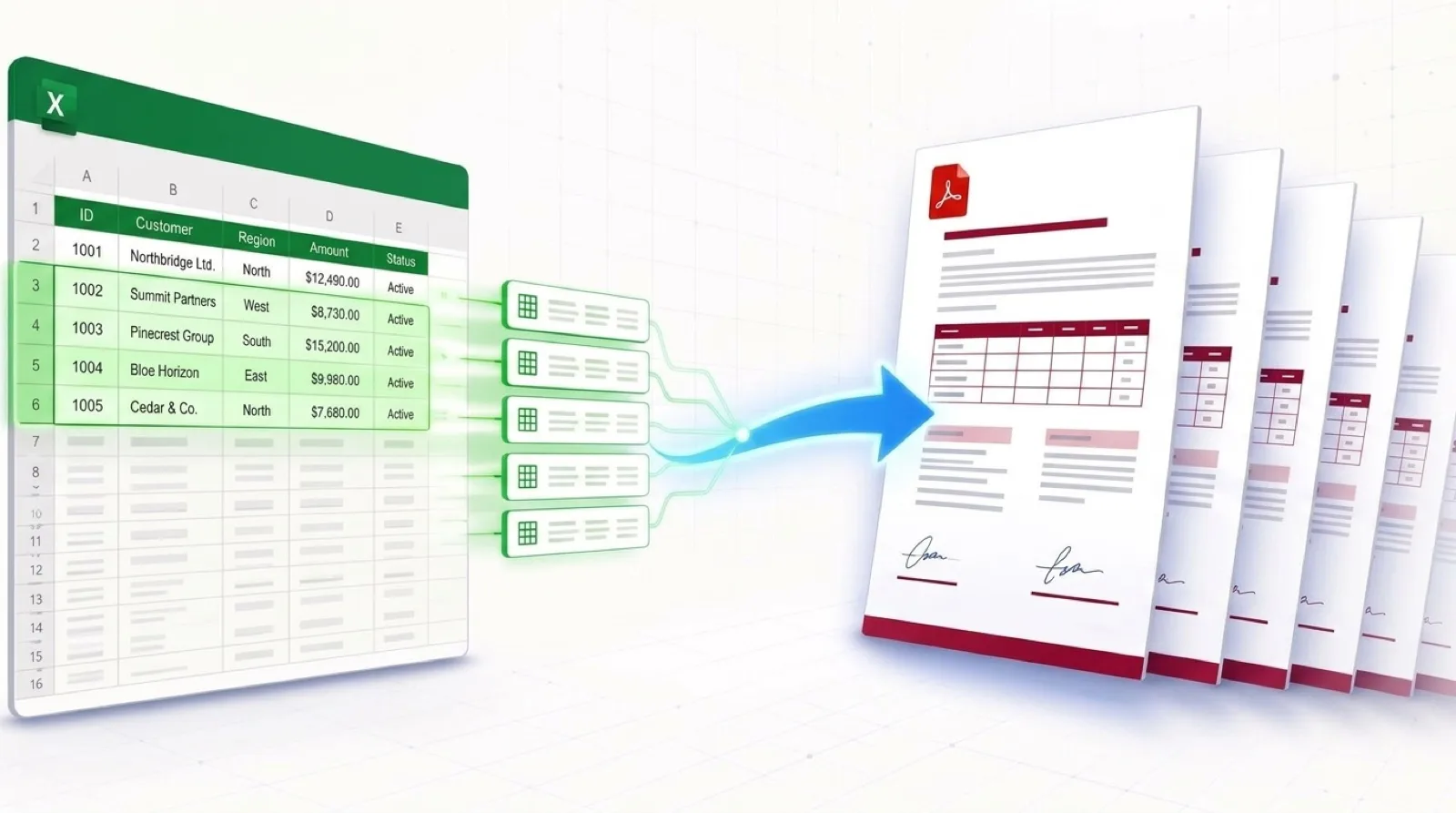
Many teams need to create multiple PDFs from an Excel spreadsheet for receipts, employee offer letters, monthly account summaries, or compliance certificates. Trying to bulk generate PDF from Excel by exporting or printing each document manually can take hours.
This guide explains where desktop tools and print-to-PDF macros run into trouble, and how TRYDOKU handles large batches of documents in the cloud.
Why Bulk PDF Generation from Excel Is Frustrating
Creating separate PDFs from a spreadsheet with standard office tools can bring up a few recurring problems:
- One Combined File: Microsoft Word's Mail Merge combines all output records into one giant PDF file. Splitting this file requires manual editing or third-party PDF splitting software.
- Print Driver Errors: Excel macros and headless printers often run into driver timeouts or show a printer dialog for every row.
- Blurry Text: Many free converter tools rasterize text into low-resolution images, creating blurry text that looks unprofessional when printed or viewed on high-DPI displays.
TRYDOKU reads your template directly and creates vector PDFs with selectable text and the same typography as your template.
Workflow Comparison
| Capability | Desktop Excel / Word Print | Scripting (Python / Node) | TRYDOKU |
|---|---|---|---|
| Setup Requirements | Complex merge field setup | Advanced programming required | No code (Web interface) |
| Output File Structure | 1 giant combined PDF | Scripted output directories | ZIP of named PDFs |
| Rendering Pipeline | Local print spooler | Headless browser or LaTeX | High-speed serverless engine |
| Dynamic Tables | ❌ Broken / Unsupported | ⚠️ Requires manual layout calculations | ✅ Native {> loops }} |
| Data Privacy | Local computer | Server maintenance overhead | GDPR compliant EU hosting |
How to Bulk Generate PDFs from Excel (4 Steps)
Step 1: Prepare Your Excel Dataset
Make sure your Excel file has a clear tabular structure. Row 1 should contain descriptive column headers, such as Client_Name, Invoice_ID, Due_Date, and Total_Amount.
If your data contains commas, accents, or special formatting, you can clean and inspect it using our free client-side Excel to CSV tool.
Step 2: Set Up Your Master Template in Word
Design your document in Microsoft Word (.docx). Format your letterhead, adjust page margins, and add your organization's logo.
Where spreadsheet data should appear, insert placeholder tags:
CONFIDENTIAL NOTICE

Recipient: {{Client_Name}}
Notice Date: {{Notice_Date}}
Case Reference: {{Case_Number}}

Summary of Findings:
{{Findings_Summary}}
TRYDOKU uses your .docx file as the template, preserving its layout, font styles, and page numbering when converting to PDF.
Step 3: Match Fields in TRYDOKU
- Upload your
.docxtemplate to TRYDOKU. - Upload your Excel spreadsheet (
.xlsx). - TRYDOKU automatically matches identical column names to your template variables. Review the mapping table to check that every field is matched.
Step 4: Batch Generate Vector PDFs
Choose PDF as your primary output format and click Generate.
In seconds, TRYDOKU creates a separate PDF for each record and collects the files in a ZIP archive. Each filename comes from your spreadsheet data (such as Notice_{{Client_Name}}_{{Case_Number}}.pdf). To combine the PDFs afterward, use our free browser-based Merge PDF tool.
If your templates need conditional logic, see our platform features for ways to adjust the text automatically for each recipient.
Frequently Asked Questions
How do I create multiple PDFs from an Excel spreadsheet?
Upload a Word template with matching placeholders, map your Excel columns, choose PDF output, and generate. TRYDOKU creates one named PDF per row and packages the files in a ZIP archive. That is the same no-code workflow as bulk generate PDF from Excel.
Are the generated PDFs searchable and accessible?
Yes. TRYDOKU creates vector PDFs with selectable text, preserving accessibility and keeping text clear when you zoom in.
Can I also generate editable Word files alongside the PDFs?
Yes. TRYDOKU allows you to generate DOCX files, vector PDFs, or both in the exact same batch run.
Are the generated PDFs encrypted or read-only?
The PDFs produced by TRYDOKU are standard vector documents with selectable text. They cannot be accidentally edited by recipients using standard word processors.
What is the maximum number of PDFs I can generate in a single batch?
A single batch can contain a few personalized documents or thousands of rows.
Is my company data secure during bulk PDF generation?
Yes. TRYDOKU is hosted in Frankfurt, Germany (EU). All uploaded spreadsheets and generated documents are encrypted in transit and at rest, and are automatically deleted after 24 to 72 hours in line with GDPR requirements.