How to Batch Convert Excel to Formatted PDF Documents (Preserving Styles & Fonts)
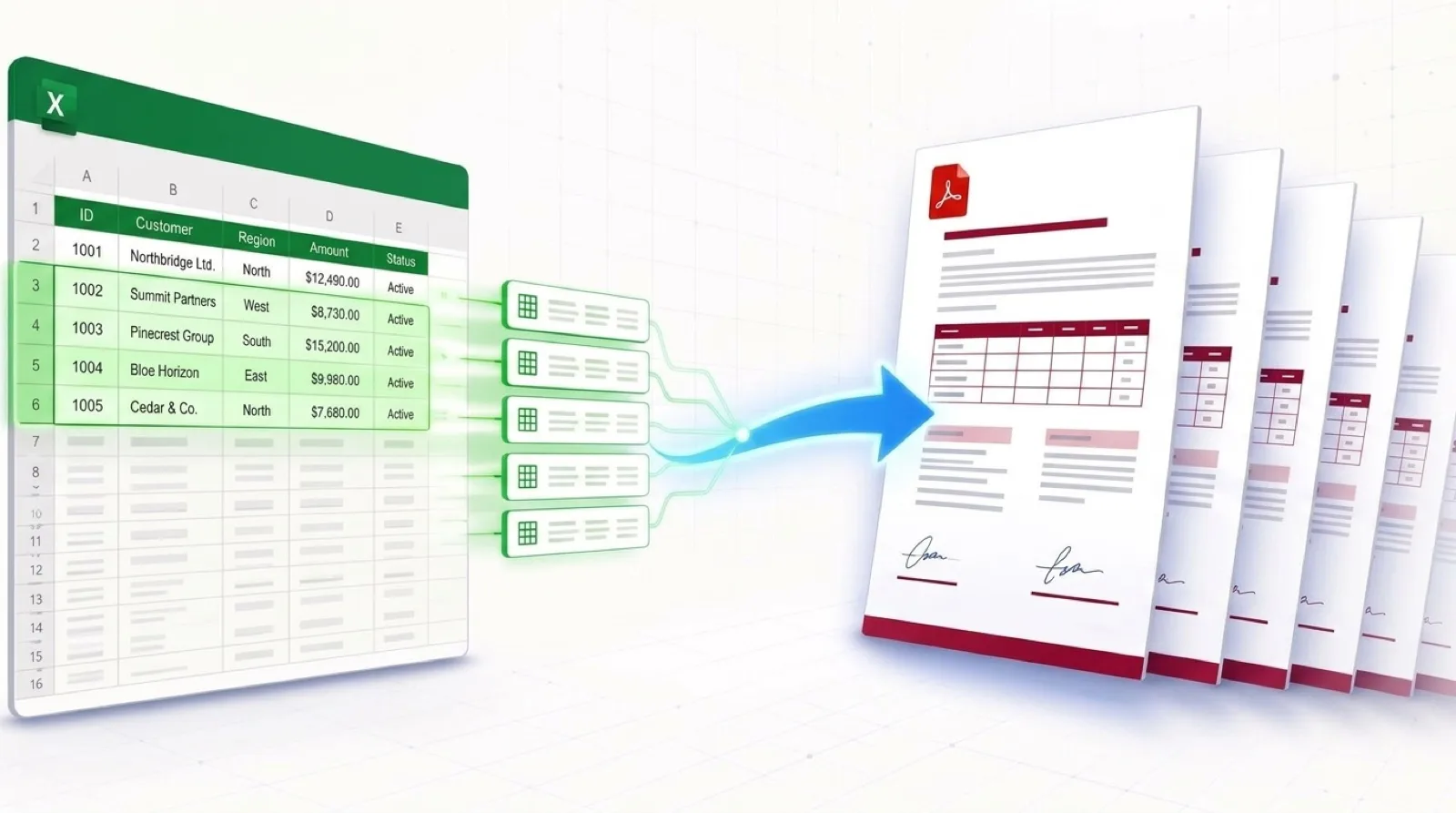
Clients, partners, and auditors need documents that are easy to read. A raw spreadsheet or unformatted Excel printout can be hard to follow. Excel's standard "Export to PDF" function puts spreadsheet gridlines onto pages and often splits wide tables across pages, cuts off text columns, and loses the visual hierarchy of headings and body text.
If your team needs to batch convert Excel to formatted PDF documents for executive reports, official notices, or invoices, it helps to manage the data and document layout separately.
This guide shows how TRYDOKU combines Word templates with Excel data to create batches of formatted PDFs in minutes.
Why Native Excel PDF Export Breaks Formatting
Exporting multiple rows directly from Excel to PDF often causes three layout problems:
- Arbitrary Page Breaks: Excel divides tables according to print-area boundaries without considering the document's structure. This can leave headers at the bottom of a page or split line items across pages.
- Typography Limitations: Excel cells do not support advanced typographic styling (such as responsive paragraph flow, drop caps, or multi-column text wrap around logos).
- No Batch Separation: Excel prints all selected rows into one combined PDF file rather than generating an individual, neatly named PDF for each customer or transaction.
Use Microsoft Word (.docx) to design the layout, then let TRYDOKU fill it with your Excel data. This gives you full control over how each PDF looks.
Workflow Comparison
| Capability | Excel "Save As PDF" | Desktop Word Mail Merge | TRYDOKU |
|---|---|---|---|
| Visual Presentation | Raw spreadsheet grid | Basic Word document layout | Complete corporate branding & typography |
| Batch Separation | Single combined PDF | Single file / local print spool | Organized ZIP of individual PDFs |
| Dynamic Table Loops | Truncated print grids | Broken table row formatting | Native {> items }} table repeating |
| Automated File Naming | None (Single file name) | Manual saving per row | Dynamic names from spreadsheet values |
| Cross-Platform Access | Desktop software only | Windows desktop required | Any web browser (Mac, PC, Linux) |
How to Batch Convert Excel to Formatted PDFs (4 Steps)
Step 1: Create Your Template in Microsoft Word
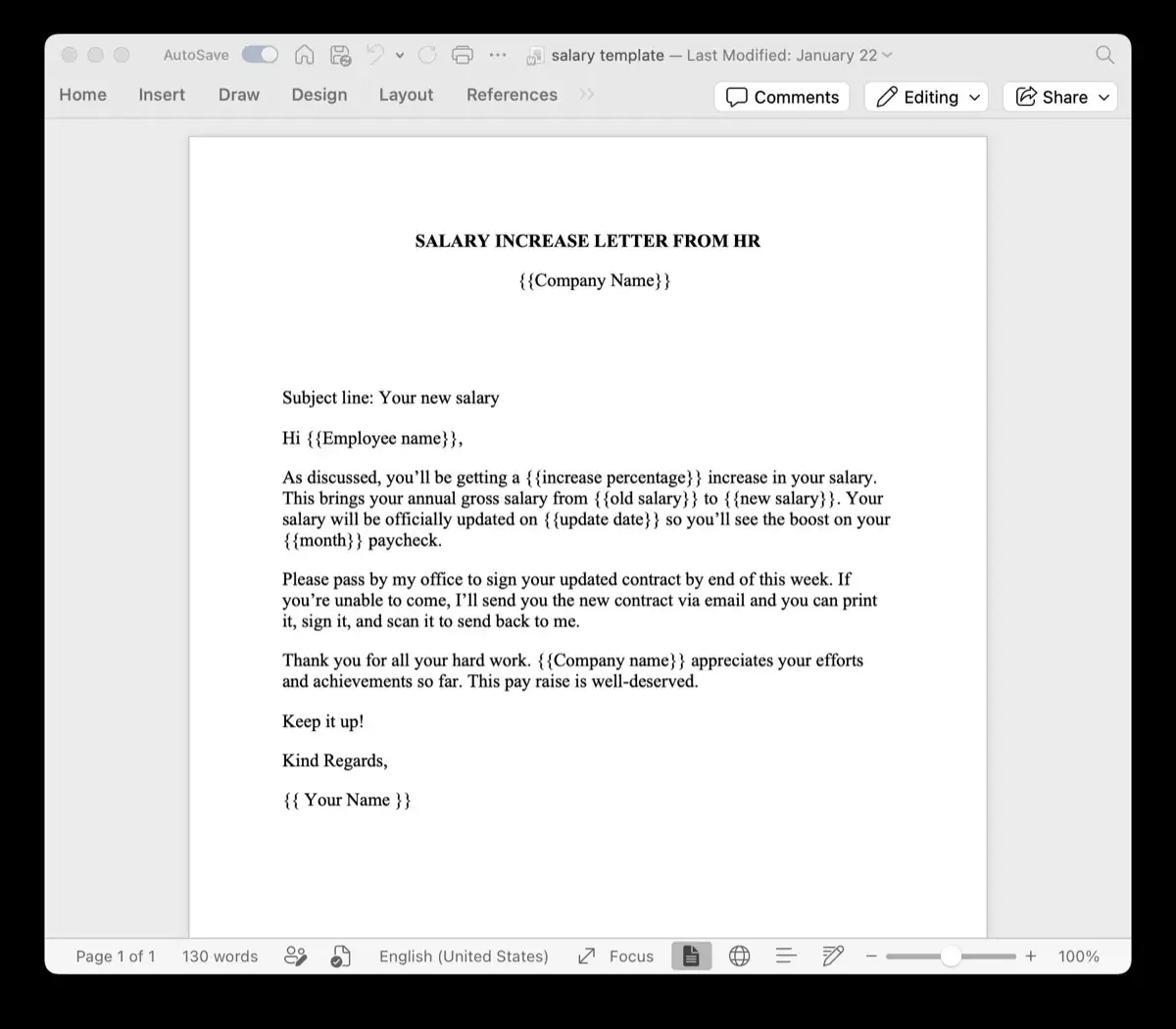
Open Microsoft Word and create your document layout. Use your brand typography, high-resolution logos, headers, and footers.
Add placeholders inside double curly brackets wherever spreadsheet values should appear:
ANNUAL PERFORMANCE REVIEW

Employee: {{Employee_Name}}
Review Period: {{Review_Period}}
Department: {{Department}}

Core Performance Score: {{Performance_Score}}
Manager Evaluation:
{{Manager_Comments}}
TRYDOKU reads your .docx files directly, preserving page margins, vector logos, and custom colors exactly when generating PDFs.
Step 2: Prepare Your Excel Spreadsheet
Ensure your spreadsheet data has clear column headers in Row 1 matching your template placeholders (Employee_Name, Review_Period, Performance_Score, etc.).
If you need to inspect or transform your spreadsheet before merging, you can convert it using our free client-side Excel to CSV converter or format table data with our Excel to Word tool.
Step 3: Connect Files in TRYDOKU
- Upload your
.docxtemplate to TRYDOKU. - Upload your Excel spreadsheet (
.xlsx). - TRYDOKU scans both files and pairs your spreadsheet columns with your document variables. Check the matches in the mapping table.
Step 4: Generate Your PDFs
Select PDF as your output format and click Generate.
In seconds, TRYDOKU creates a separate vector PDF for each row and collects the files in a ZIP archive. Filenames come from your spreadsheet data (such as Review_{{Employee_Name}}_{{Review_Period}}.pdf). See our platform features for ways to handle more complex documents with conditional logic and repeating table rows.
Frequently Asked Questions
Are the generated PDFs suitable for professional commercial printing?
Yes. TRYDOKU outputs true vector PDFs with embedded typography and high-resolution graphics, suitable for both digital sharing and commercial offset/digital printing.
Can I also download the editable Word files?
Yes. You can generate DOCX files, PDF files, or both in the same batch.
Is customer data kept private during generation?
Yes. TRYDOKU is hosted in Frankfurt, Germany (EU). All imported data and generated documents are encrypted and automatically deleted from transient storage within 24 to 72 hours in line with GDPR requirements.