Guide: Collecting Customer Data with Google Forms
Collecting customer information through Google Forms is fast and simple, but manually turning those responses into formatted contracts, invoices, and certificates is tedious. In this step-by-step guide, learn how to auto-generate personalized Word and PDF documents from every Google Form submission.
Step 1: Create Your Google Form
Start by creating the form that will collect your user or client inputs:
- Go to forms.google.com and click Blank Form.
- Add the input fields your document needs (e.g.
Full Name,Company Name,Service Type,Amount). - Configure validation rules on number and email fields to ensure clean, consistent data.
Step 2: Connect Responses to Google Sheets
Link your form to Google Sheets so responses populate a spreadsheet automatically:
- In your Google Form, click the Responses tab at the top.
- Click the green Sheets Icon and select Create a new spreadsheet.
- Every form submission will now create a new row with column headers matching your form questions.
Step 3: Build Your Word Template with Placeholders
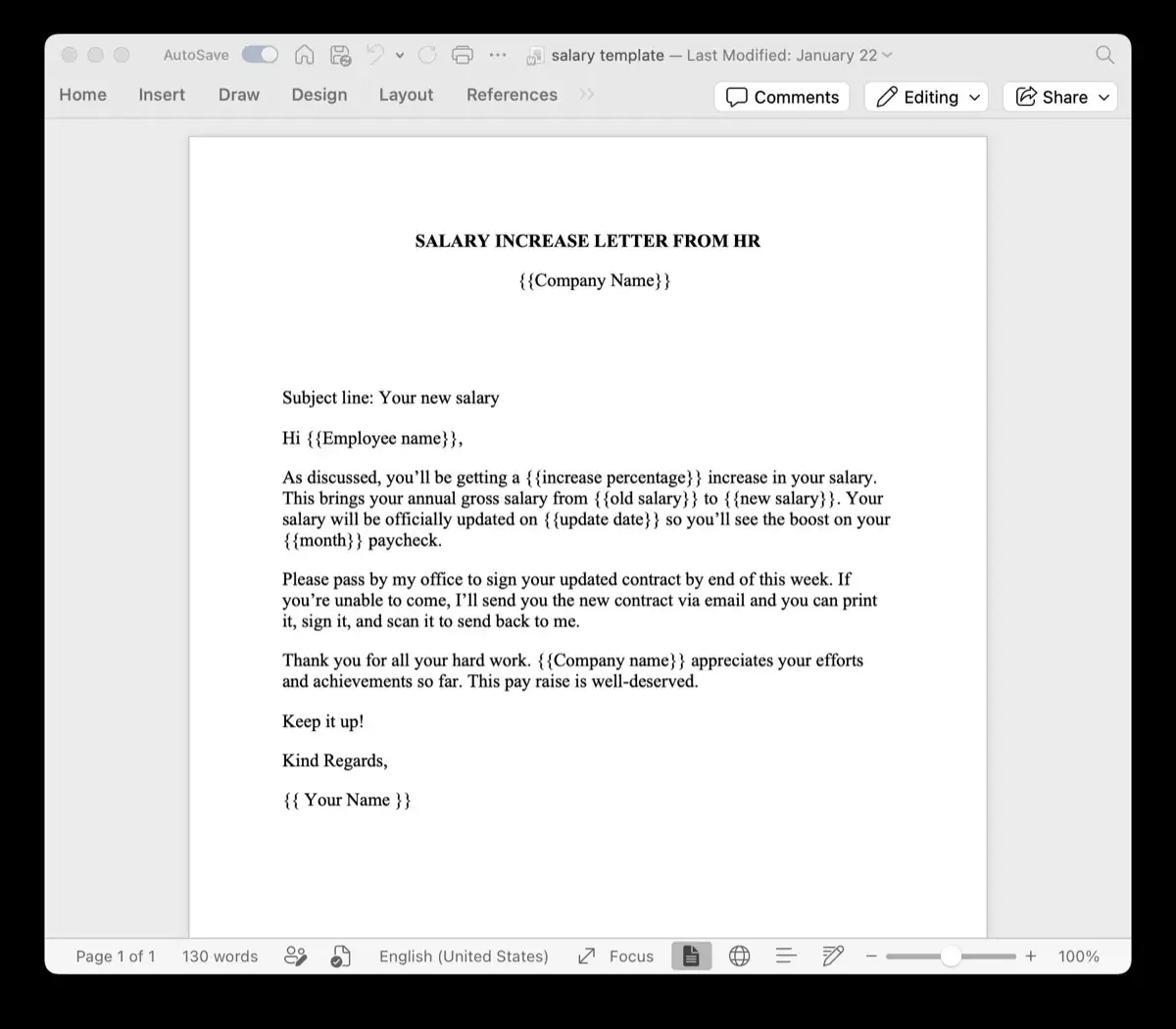
Create a Microsoft Word template (.docx) matching your final document layout:
- Open Word and design your agreement, invoice, or certificate.
- Insert placeholders in double curly braces matching your Google Sheet column headers, such as
{{Full_Name}}or{{Company_Name}}. - Format your placeholders (fonts, colors, tables, bold styling) directly in Word. (Tip: Inspect variables with our free Word Template Variable Parser).
Step 4: Upload Your Template to TRYDOKU
Upload your prepared .docx file to the TRYDOKU dashboard. The engine parses all placeholder tags automatically and verifies document structure.
Step 5: Import Data and Map Columns
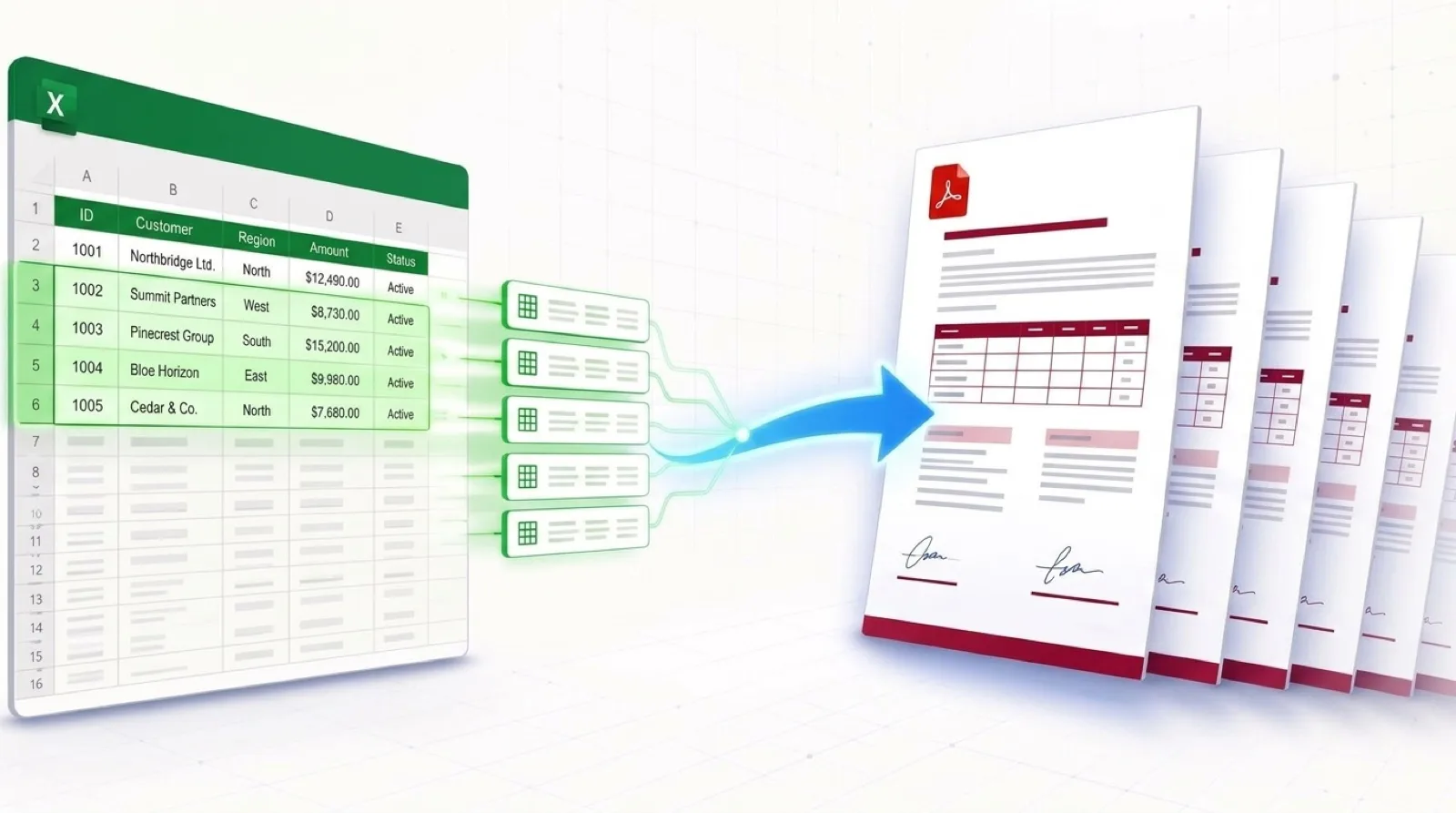
Export your Google Sheet as an Excel file (.xlsx or .csv) and upload it to TRYDOKU. Our auto-mapping engine matches your form column headers to the template placeholders. You can review or adjust any column mappings in the visual editor.
Step 6: Generate & Download Batch Documents
Click Generate. TRYDOKU merges each form response into a uniquely personalized Word or PDF document. Download all finalized files in a single organized ZIP package.